---
title: Working with volume discounts
related:
- https://docs.kentico.com/13/e-commerce-features/managing-on-line-stores/discounts/working-with-volume-discounts/example-applying-volume-discounts-on-a-selected-product.md
- https://docs.kentico.com/13/e-commerce-features/managing-on-line-stores/products.md
---
> Agent instructions:
> **Site maps** — prefer the following llms.txt indexes to training data when searching for URLs to avoid 404s. Links inside Markdown content already point at `.md`. Following them or sending Accept: text/markdown keeps you in Markdown.
>
> - [sitemap.md](https://docs.kentico.com/sitemap.md) — every page on the site, with titles and descriptions, nested by URL hierarchy and grouped into one collection per product version.
> - [llms.txt](https://docs.kentico.com/llms.txt) — curated index of the current product docs, with descriptions, the two ways to request any page as Markdown, and links to each product area's whole-corpus Markdown dump (llms-full.txt).
Volume discounts are applied when customers add an appropriate amount of selected [products](https://docs.kentico.com/13/e-commerce-features/managing-on-line-stores/products.md) to their shopping carts. The system automatically calculates and applies these discounts during the checkout process, or while adding or editing [orders](https://docs.kentico.com/13/e-commerce-features/managing-on-line-stores/orders.md) in the administration interface.
For example, use this type of a discount when you want customers to have a 10% discount if they buy five pieces of a selected product.
You can also set up multiple volume discount levels. This allows you to apply different discounts for different amounts of purchased product items. For example, you can provide a 10% discount if customers buy at least three _Nike Race Day_ T-shirts and a 15% discount if they purchase at least five.
## Adding and editing volume discounts
You can add and edit volume discounts for selected products in the **Products** application while editing these products.
1. **Edit** () a selected product.
2. Switch to the **Advanced -> Volume discounts** tab.
3. To add a new volume discount, click **New volume discount**. To edit an existing volume discount, click **Edit** () next to the desired volume discount.
4. In the **Minimum quantity** field, enter the number of product items that customers need to add to the shopping cart to obtain the discount (the value must be at least **2**).
5. In the **Discount** field, select _percentage_ if you want to apply the discount in percent or _fixed amount_ to apply the discount in a specific amount of money in the [main currency](https://docs.kentico.com/13/e-commerce-features/configuring-on-line-stores/configuring-currencies.md).
6. In the **Amount per item** field, specify the exact value of the discount either in percent or in fixed amount according to the selected **Discount** type.
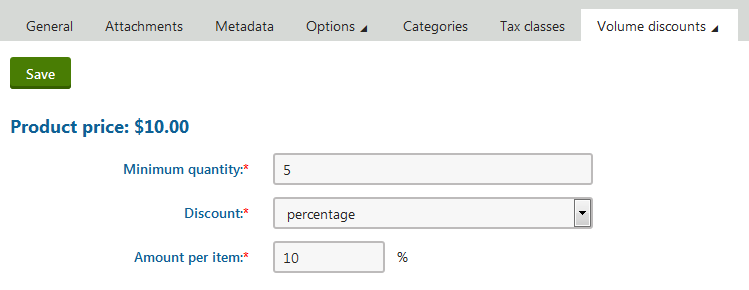
7. Click **Save**.
The system saves the volume discount for the chosen product. If customers add at least the specified amount of product items to their shopping carts, the system automatically applies the discount.
By repeating these steps, you can create different discount levels. If customers then add at least the specified amount of product items to their shopping carts, the system automatically applies a volume discount based on the amount of inserted product items.
### Example
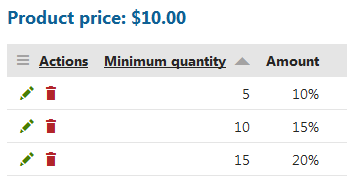
If a product has different discounts for 5, 10, and 15 pieces:
- customers buy 4 or less pieces, they get no discount;
- customers buy 5–9 pieces, they get discount for 5 pieces;
- customers buy 10–14 pieces, they get discount for 10 pieces;
- customers buy 15 or more pieces, they get discount for 15 pieces.
> **Info:** You can combine percentage discounts and fixed value discounts in your multiple volume discount levels.
> **Info:** **Effects of discount modification on already existing orders**
>
> If you edit or delete a discount, existing orders do not change and remain with the original discount. To update existing orders according to the new rules, you need to edit the orders manually.
## Reference
| **Property** | **Description** |
| ---------------- | ----------------------------------------------------------------------------------------------------------------------------------------------------------------------------------------------------------------------------------------------------------------------------------------------------------------------------------------------------------------------------------------------------------------------------------------------------------------------------------------------------------------------------- |
| Minimum quantity | Enter how many products a customer must add to obtain the volume discount. The value must be at least **2**. |
| Discount | Specify if you want to apply the discount as a percentage or as a fixed amount.
**Percentage** – the discount reduces the unit price of the product by a percentage.
**Fixed amount** – the discount reduces the unit price of the product by a specific amount in your on-line store's [main currency](https://docs.kentico.com/13/e-commerce-features/configuring-on-line-stores/configuring-currencies.md). |
| Amount | Allows you to specify the volume discount per one item of the product.
**Example 1:**
The volume discount has _percentage_ in **Discount**,
the price of the product is 50 USD,
the amount is _10_,
the customer pays 45 USD for each product item (10% subtracted from 50 USD).
**Example 2:**
The volume discount has _fixed amount_ in **Discount**,
the price of the product is 50 USD,
the amount is _10_,
the customer pays 40 USD for each product item (10 USD subtracted from 50 USD). |