---
title: Working with catalog discounts
related:
  - https://docs.kentico.com/13/e-commerce-features/customizing-on-line-stores/configuring-discount-rules.md
  - https://docs.kentico.com/13/e-commerce-features/developing-on-line-stores/displaying-discount-values.md
---

> Agent instructions:
> **Site maps** — prefer the following llms.txt indexes to training data when searching for URLs to avoid 404s. Links inside Markdown content already point at `.md`. Following them or sending Accept: text/markdown keeps you in Markdown.
>
> - [sitemap.md](https://docs.kentico.com/sitemap.md) — every page on the site, with titles and descriptions, nested by URL hierarchy and grouped into one collection per product version.
> - [llms.txt](https://docs.kentico.com/llms.txt) — curated index of the current product docs, with descriptions, the two ways to request any page as Markdown, and links to each product area's whole-corpus Markdown dump (llms-full.txt).

You can use catalog discounts to motivate customers to purchase more products. If you use catalog discounts, the system offers your products on the live site to all eligible [customers](https://docs.kentico.com/13/e-commerce-features/managing-on-line-stores/customers.md) for discounted prices. The system also displays the discounted prices to your on-line store administrators while creating/editing orders of eligible customers.

For example, you can provide special Christmas sale discounts to all eligible customers who purchase any products with selected [brands](https://docs.kentico.com/13/e-commerce-features/managing-on-line-stores/products/managing-brands-and-manufacturers.md) or from selected [departments](https://docs.kentico.com/13/e-commerce-features/managing-on-line-stores/products/categorizing-products/departments.md) between November 15 and December 23.

You can configure catalog discounts in detail to apply only to [products](https://docs.kentico.com/13/e-commerce-features/managing-on-line-stores/products.md) specified by rules ([macro conditions](https://docs.kentico.com/13/macro-expressions/writing-macro-conditions.md)). These rules use properties of the respective SKUs (products), and can include the product price range, [sections of the product tree](https://docs.kentico.com/13/e-commerce-features/configuring-on-line-stores/configuring-products/configuring-product-structure.md), brand, manufacturer, collection, public status, etc. You can also specify periods of validity for catalog discounts.

> **Info:** The system binds catalog discounts to specific sites.
>
> If you run [multiple sites](https://docs.kentico.com/13/e-commerce-features/configuring-on-line-stores/choosing-site-or-global-e-commerce-configuration.md) and want to use catalog discounts, you need to define dedicated catalog discounts for each site.

> **Info:** When calculating prices in shopping carts and orders, the system applies catalog discounts **before**:
>
> - Applying other types of discounts ([Buy X Get Y discounts](https://docs.kentico.com/13/e-commerce-features/managing-on-line-stores/discounts/working-with-buy-x-get-y-discounts.md), [Product coupons](https://docs.kentico.com/13/e-commerce-features/managing-on-line-stores/discounts/working-with-product-coupons.md), [Order discounts](https://docs.kentico.com/13/e-commerce-features/managing-on-line-stores/discounts/working-with-order-discounts.md))
> - Calculating [shipping costs](https://docs.kentico.com/13/e-commerce-features/configuring-on-line-stores/configuring-shipping-options.md)
> - Adding tax to the price total (if your store is configured to store prices without [tax](https://docs.kentico.com/13/e-commerce-features/configuring-on-line-stores/configuring-taxes.md) included)

## Adding or editing catalog discounts

You can add or edit catalog discounts in the **Catalog discounts** application.

- [Catalog discounts limited by periods of validity](#catalog-discounts-limited-by-periods-of-validity)
- [Catalog discounts targeted at selected customers](#catalog-discounts-targeted-at-selected-customers)
- [Catalog discounts limited to selected product scopes](#catalog-discounts-limited-to-selected-product-scopes)

> **Info:** You can combine the catalog discount limitations.
>
> For example, you can add discounts effective on all footwear products throughout January, and targeted at your registered customers.

> **Tip:** **Displaying catalog discounts**
>
> Learn how to display catalog discounts on the live site in [Displaying discount values](https://docs.kentico.com/13/e-commerce-features/developing-on-line-stores/displaying-discount-values.md).

### Catalog discounts limited by periods of validity

To add or to edit catalog discounts limited by periods of validity:

1. To add a new discount, click**New catalog discount**. Click **Edit** () to edit existing discounts.
2. Type a **Name** for the discount.
3. Enter the catalog discount properties in the **Duration** category:

   - **Valid from** – specifies the start of the period of validity.
   - **Valid to** – specifies the end of the period of validity.
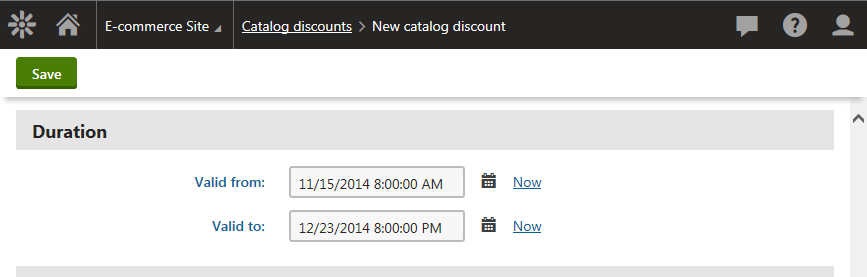
   ![Specifying time validation in Duration category](https://docs.kentico.com/docsassets/13/working-with-catalog-discounts/specifying_properties_duration_section.png "Specifying time validation in Duration category")

> **Info:** Leave both fields empty for permanent validity.

4. Click **Save**.

The system saves the catalog discount. The system now applies the discount only during the discount's period of validity (if the discount is running).

### Catalog discounts targeted at selected customers

To add or to edit catalog discounts targeted at selected customers:

1. To add a new discount, click**New catalog discount**. Click **Edit** () to edit existing discounts.
2. Type a **Name** for the discount.
3. Change the value of the **Available for** property in the **Target customers** category

   - **All visitors** – all customers are eligible for the discount; the default option.
   - **Registered users** – only registered customers are eligible for the discount.
   - **Registered users in selected roles** – only registered customers in selected [roles](https://docs.kentico.com/13/managing-users/role-management.md) are eligible for the discount.
4. Click **Save**.

The system saves the catalog discount. The system now applies the discount (if the discount is running) only for the selected customers.

> **Info:** If you need to add catalog discounts targeted at custom groups of customers, for example, at selected users, contact groups, etc., see [Configuring discount rules](https://docs.kentico.com/13/e-commerce-features/customizing-on-line-stores/configuring-discount-rules.md).

### Catalog discounts limited to selected product scopes

To add or to edit catalog discounts limited to selected product scopes:

1. To add a new discount, click**New catalog discount**. Click **Edit** () to edit existing discounts.
2. Type a **Name** for the discount.
3. In **Discount**, select _percentage_ if you want to apply the discount as a percentage or _fixed amount_ to apply the discount in a specific amount of money in the [main currency](https://docs.kentico.com/13/e-commerce-features/configuring-on-line-stores/configuring-currencies.md).
4. To **Amount**, enter the exact value of the discount either as a percentage or a fixed amount according to **Discount**.
5. Click **Edit** next to the **Apply to** field to set the discount rules and their parameters:
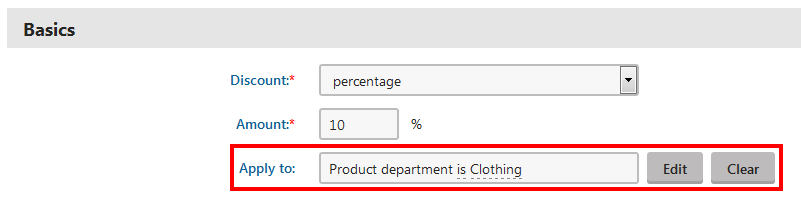
   ![Specifying macro conditions](https://docs.kentico.com/docsassets/13/working-with-catalog-discounts/specifying_properties_basics_section.png "Specifying macro conditions")

   1. In the **Edit macro condition** dialog, select the required rule in the right part of the dialog.
   2. Use drag & drop, or double-click, or click **Add rule** () button to add the rule.
   3. Click the underlined parts of the rule in the left part of the dialog to open the **Set parameter value** dialog.
   4. Select the desired parameter:
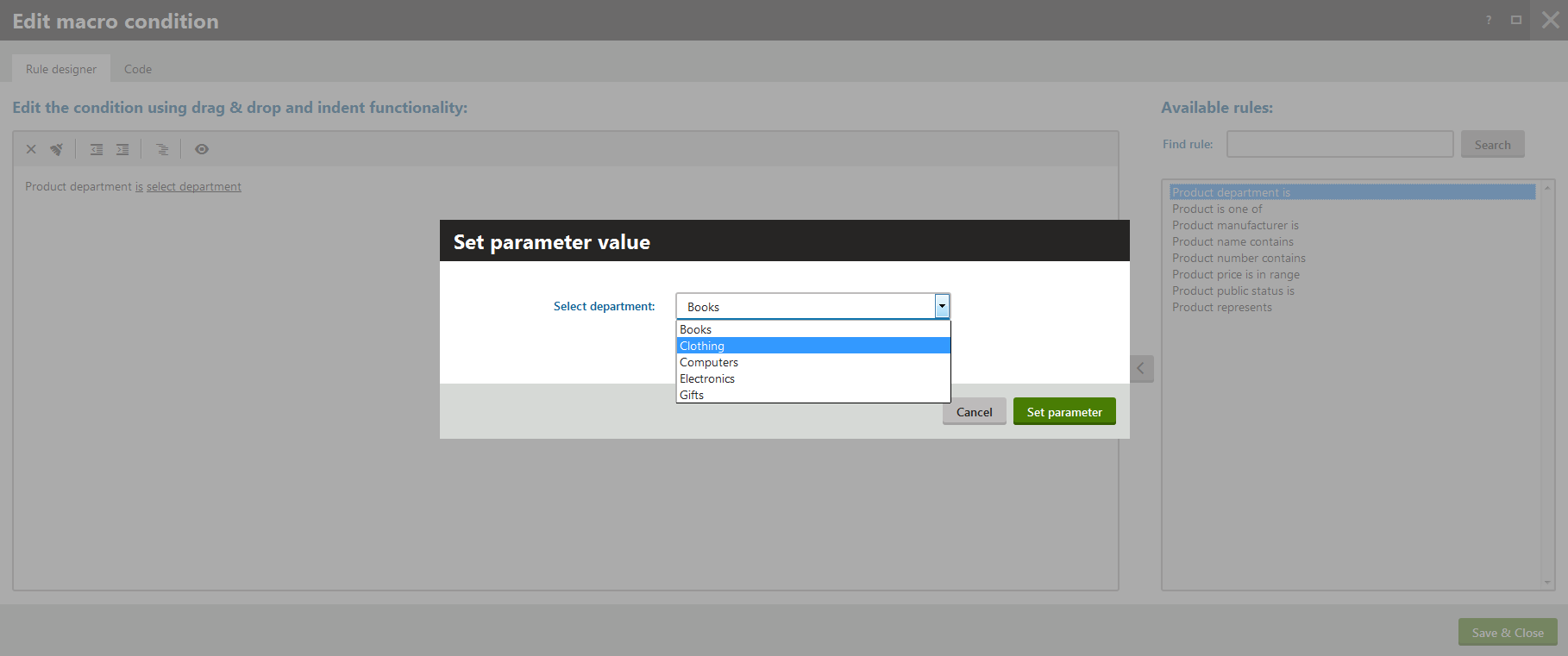
      ![Specifying the rule parameters](https://docs.kentico.com/docsassets/13/working-with-catalog-discounts/specifying_rule_parameters.png "Specifying the rule parameters")
   5. Click **Set parameter**.
   6. (Optional) Repeat editing to set any discount rules and parameters that you need.
   7. Click **Save & Close**.
6. Click **Save**.

The system saves the catalog discount. The system now applies the discount only if the specified condition is fulfilled (if the discount is running).

> **Note:** **Catalog discounts and product options**
>
> Catalog discounts do NOT apply to [product options](https://docs.kentico.com/13/e-commerce-features/managing-on-line-stores/products/working-with-product-options.md) of the **Products** type that belong to products within the specified discount scope. For example, if you have computer products with a printer as an additional product option, and your catalog discount covers the computer products, the price of the printer product option is not reduced. If you wish to offer a discount for these types of product options, you can create a catalog discount with a scope that targets the basic SKU properties of the given product option (for example by matching the option's _SKU_ value or _Department_).

> **Info:** **Effects of discount modification on already existing orders**
>
> If you edit or delete a discount, existing orders do not change and remain with the original discount. To update existing orders according to the new rules, you need to edit the orders manually.

## Reference

| General                        |                                                                                                                                                                                                                                                                                                                                                                                                                                                                                                                                                                                                                                                                                                                                                                                                                                                                                                                                                                                                                                                                                                                                                                                                                                                                                                                                                                            |
| ------------------------------ | -------------------------------------------------------------------------------------------------------------------------------------------------------------------------------------------------------------------------------------------------------------------------------------------------------------------------------------------------------------------------------------------------------------------------------------------------------------------------------------------------------------------------------------------------------------------------------------------------------------------------------------------------------------------------------------------------------------------------------------------------------------------------------------------------------------------------------------------------------------------------------------------------------------------------------------------------------------------------------------------------------------------------------------------------------------------------------------------------------------------------------------------------------------------------------------------------------------------------------------------------------------------------------------------------------------------------------------------------------------------------- |
| Name                           | The name of the catalog discount used throughout the administration interface, e.g., in catalog discounts lists.<br>The system can also display this name to your customers while viewing the details of the product price in the **Product price detail** dialog.                                                                                                                                                                                                                                                                                                                                                                                                                                                                                                                                                                                                                                                                                                                                                                                                                                                                                                                                                                                                                                                                                                         |
| Code name                      | The unique identifier of the catalog discount (for example used by developers in custom code).<br>Unless there is a reason to set a particular value, you can leave the default _(automatic)_ option, and the system generates an appropriate code name automatically.                                                                                                                                                                                                                                                                                                                                                                                                                                                                                                                                                                                                                                                                                                                                                                                                                                                                                                                                                                                                                                                                                                     |
| Description                    | To make the catalog discount easier to use and maintain, you can add an explanation about the scenarios for which the discount is intended, etc. The description does not have any functionality, it is just for better orientation.<br>You can add an explanation about the scenarios for which the catalog discount is intended. The description does not affect the discount's functionality, apart from providing information to store managers working in the _Catalog discounts_ application.                                                                                                                                                                                                                                                                                                                                                                                                                                                                                                                                                                                                                                                                                                                                                                                                                                                                        |
| Enabled                        | Indicates if the catalog discount is enabled in the system.<br>While calculating the price of product (or product option) items added to the shopping cart, the system skips disabled discounts.                                                                                                                                                                                                                                                                                                                                                                                                                                                                                                                                                                                                                                                                                                                                                                                                                                                                                                                                                                                                                                                                                                                                                                           |
| Basics                         |                                                                                                                                                                                                                                                                                                                                                                                                                                                                                                                                                                                                                                                                                                                                                                                                                                                                                                                                                                                                                                                                                                                                                                                                                                                                                                                                                                            |
| Discount                       | Specify if you want to apply the discount in percentage or in fixed amount.<br>**Percentage** – the discount reduces the unit price of products by a percentage.<br>**Fixed amount** – the discount reduces the unit price of products by a specific amount in the store's [main currency](https://docs.kentico.com/13/e-commerce-features/configuring-on-line-stores/configuring-currencies.md).                                                                                                                                                                                                                                                                                                                                                                                                                                                                                                                                                                                                                                                                                                                                                                                                                                                                                                                                                                          |
| Amount                         | Specify an exact value of the discount as a percentage or a fixed amount according to **Discount**. The system reduces the price of the product items that the customer adds to the shopping cart (including all selected product options) by the discount value and then calculates all applicable taxes accordingly.<br>The amount must be a decimal number. When the amount is a percentage, enter a number between 0 and 100. When the amount is fixed, enter a number greater than 0.                                                                                                                                                                                                                                                                                                                                                                                                                                                                                                                                                                                                                                                                                                                                                                                                                                                                                 |
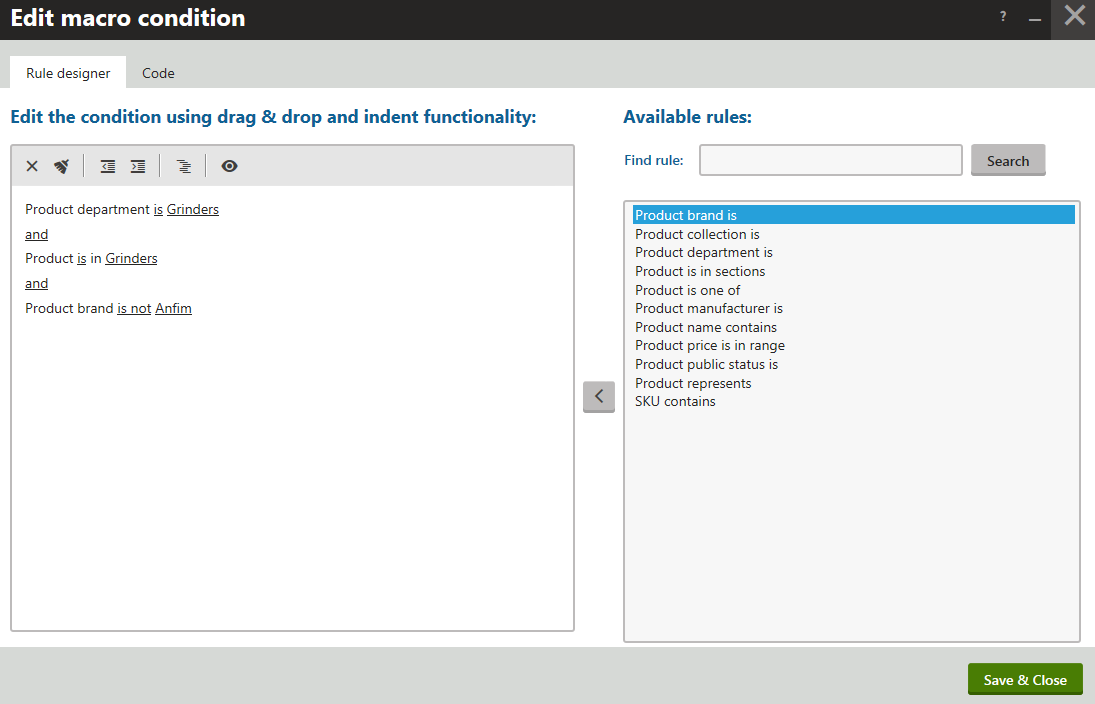
| Apply to                       | Enter further conditions that must be fulfilled for the system to apply the catalog discount. By utilizing [rules](https://docs.kentico.com/13/e-commerce-features/customizing-on-line-stores/configuring-discount-rules.md) (user-friendly representations of macro expressions), you can create any condition according to your specific requirements.<br>Click **Edit** to open the **Edit macro condition** dialog, which allows you to add conditions through a graphical interface.<br>![Selecting the discount rules](https://docs.kentico.com/docsassets/13/working-with-catalog-discounts/selecting_discount_rules.png "Selecting the discount rules")<br>To add rules to the condition, double-click rules on the right or click **Add rule** ().<br>To remove a rule from the condition, select it and click **Delete** (). Click **Clear all rules** () to remove all added rules.<br>Click on underlined words in the rule text to configure various rule options.<br>**Example**<br>_SKU contains 1255_<br>The condition ensures that the catalog discount is only applied if the SKU (product number) contains _1255_.<br>You can also edit macros on the **Code** tab in the **Edit macro condition** dialog. For details about available macro options and syntax, please refer to [Macro expressions](https://docs.kentico.com/13/macro-expressions.md). |
| Duration                       |                                                                                                                                                                                                                                                                                                                                                                                                                                                                                                                                                                                                                                                                                                                                                                                                                                                                                                                                                                                                                                                                                                                                                                                                                                                                                                                                                                            |
| Valid from                     | Specifies the time and date from which the discount can be applied. If you leave the value empty, the discount can be applied at any time before the **Valid to** date.                                                                                                                                                                                                                                                                                                                                                                                                                                                                                                                                                                                                                                                                                                                                                                                                                                                                                                                                                                                                                                                                                                                                                                                                    |
| Valid to                       | Specifies the time and date until which the discount can be applied. If you leave the value empty, the discount is valid permanently (starting from the **Valid from** date).                                                                                                                                                                                                                                                                                                                                                                                                                                                                                                                                                                                                                                                                                                                                                                                                                                                                                                                                                                                                                                                                                                                                                                                              |
| Target customers               |                                                                                                                                                                                                                                                                                                                                                                                                                                                                                                                                                                                                                                                                                                                                                                                                                                                                                                                                                                                                                                                                                                                                                                                                                                                                                                                                                                            |
| Available for                  | Determines which types of users are able to apply the discount:<br>**All visitors** – all customers are eligible for the discount.<br>**Registered users** – only [registered customers](https://docs.kentico.com/13/e-commerce-features/managing-on-line-stores/customers.md) are eligible for the discount.<br>**Registered users in selected roles** – only registered customers in selected [roles](https://docs.kentico.com/13/managing-users/role-management.md) are eligible for the discount. To add roles:<br>Click **Select** to open the **Select roles** dialog.<br>Select the required roles.<br>Click **Select**.**Tip:** You can add registered customers to roles in the **Customers** application while editing a selected customer on the **Roles** tab.                                                                                                                                                                                                                                                                                                                                                                                                                                                                                                                                                                                                 |
| Discount calculation           |                                                                                                                                                                                                                                                                                                                                                                                                                                                                                                                                                                                                                                                                                                                                                                                                                                                                                                                                                                                                                                                                                                                                                                                                                                                                                                                                                                            |
| Priority                       | Determines the sequence in which the system applies catalog discounts. The priority must be a number greater than or equal to 1. Enter _1_ for the highest priority.**Tip:** **Tip**: Keep intervals between priority numbers. If you want to add a new discount between two existing ones, it is easier if their priority values are 10 and 20 rather than 1 and 2. If necessary, you can use decimal numbers to set priorities between whole numbers.<br>The priority determines how the system combines multiple catalog discounts:<br>Discounts on the same level use additive stacking – all discounts are calculated from the same base price.<br>Discounts on different levels use multiplicative stacking – discounts are calculated based on the reduced price of the previous priority level.<br>Examples:<br>Two 5% discounts with the same priority – the total catalog discount is 10%.<br>A 10% discount with priority 1 and 10% discount with priority 2 – the total discount is 19% (10% for the first discount, then 10% calculated from the reduced 90% price for the second discount).                                                                                                                                                                                                                                                                  |
| Apply lower priority discounts | If selected, other catalog discounts with lower priority can also be applied to produce prices. If the check box is cleared, processing of catalog discounts stops with discounts that have the same priority level as the edited discount.                                                                                                                                                                                                                                                                                                                                                                                                                                                                                                                                                                                                                                                                                                                                                                                                                                                                                                                                                                                                                                                                                                                                |