---
title: Configuring currencies
related:
- https://docs.kentico.com/13/e-commerce-features/configuring-on-line-stores/configuring-currencies/configuring-exchange-rates.md
---
> Agent instructions:
> **Site maps** — prefer the following llms.txt indexes to training data when searching for URLs to avoid 404s. Links inside Markdown content already point at `.md`. Following them or sending Accept: text/markdown keeps you in Markdown.
>
> - [sitemap.md](https://docs.kentico.com/sitemap.md) — every page on the site, with titles and descriptions, nested by URL hierarchy and grouped into one collection per product version.
> - [llms.txt](https://docs.kentico.com/llms.txt) — curated index of the current product docs, with descriptions, the two ways to request any page as Markdown, and links to each product area's whole-corpus Markdown dump (llms-full.txt).
Xperience allows you to use multiple currencies in your on-line store, in which your [customers](https://docs.kentico.com/13/e-commerce-features/managing-on-line-stores/customers.md) can pay for your [products](https://docs.kentico.com/13/e-commerce-features/managing-on-line-stores/products.md). Prices in all currencies are converted based on an [exchange table](https://docs.kentico.com/13/e-commerce-features/configuring-on-line-stores/configuring-currencies/configuring-exchange-rates.md).
One of the currencies is always the main currency. In the main currency, store administrators enter prices of all store items (e.g., product prices, [shipping costs](https://docs.kentico.com/13/e-commerce-features/configuring-on-line-stores/configuring-shipping-options.md)). You can also decide whether you want to use [global currencies or site currencies](https://docs.kentico.com/13/e-commerce-features/configuring-on-line-stores/choosing-site-or-global-e-commerce-configuration.md).
To correctly set up currencies:
1. [Set whether you want to use site or global currencies.](#using-site-and-global-currencies)
2. [Create all currencies you want to use.](#creating-currencies)
3. [Set one of the currencies as the main currency.](#setting-up-the-main-currency)
4. [Specify the exchange table.](#using-multiple-currencies)
## Using site and global currencies
Before starting to create currencies, decide whether you want to use [global currencies or site currencies](https://docs.kentico.com/13/e-commerce-features/configuring-on-line-stores/choosing-site-or-global-e-commerce-configuration.md). If you use more sites and you plan to use the same set of currencies with the same exchange rates on all of the sites, use global currencies. Otherwise, we recommend that you use site currencies.
1. Open the **Store configuration** application (if you want to set the setting for the current site) or the **Multistore configuration** application (if you want to set the setting [globally](https://docs.kentico.com/13/e-commerce-features/configuring-on-line-stores/choosing-site-or-global-e-commerce-configuration.md)).
2. Navigate to the **Store settings -> Global objects** tab.
3. Set the **Currencies** field:
- Clear the _Inherit from global settings_ option (only if you work in the **Store configuration** application).
- To use global currencies, select the checkbox. To use site currencies, clear the checkbox.
4. Click **Save**.
The system now uses the specified type of currencies.
## Creating currencies
To create a new currency:
1. Open the **Store configuration** application (if you want to specify currencies for the current site) or the **Multistore configuration** application (if you want to specify them [globally](https://docs.kentico.com/13/e-commerce-features/configuring-on-line-stores/choosing-site-or-global-e-commerce-configuration.md)).
2. Switch to the **Currencies** tab.
3. Click **New currency** to add a currency.
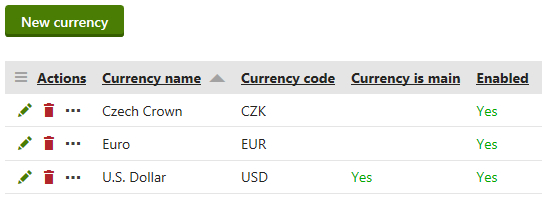
4. Enter the following properties:
| Display name | The name of the currency displayed to users on the live site and in the administration interface. |
| -------------------------- | --------------------------------------------------------------------------------------------------------------------------------------------------------------------------------------------------------------------------------------------------------------------------------------------------------------------------------------------------------------------------------------------------------------------------------------------------------------------------------------------------------------------------------------------------------------------------------------------------------------------------------------------------------------------------------------------------------------------------------------------------------------------------------------------------------------------------------------------------------------------------------------------------------------------------------------------------------------------------------------------------------------------------------------------------------------------------------------------------------------------------------------------------------------------------------------------------------------------------------------------------------------------------------------------------------------------------------------------------------------------------------------------------------------------------------- |
| Code name | The unique identifier of the currency object used by developers in the code.
Unless there is a reason to set a particular value, you can leave the default _(automatic)_ option, and the system generates an appropriate code name automatically. |
| Currency code | A three-letter code of the currency used globally in banking and business. It is the official code of the currency used in exchange rates. |
| Currency formatting string | The format used to display amounts in the given currency. The {0} specifier represents the amount. For example, to display €50, type €{0} to this field.
**Formatting string examples**
The example amount is _20.50_.
**€{0}**
Cultures using a period decimal mark: €20.5
Cultures using a comma decimal mark: €20,5
Notes: Displays as many decimal places as the number has.
**€{0:F0}**
Cultures using a period decimal mark: €20
Cultures using a comma decimal mark: €20
Notes: _F0_ displays 0 decimal places without rounding.
**€{0:F}**
Cultures using a period decimal mark: €20.50
Cultures using a comma decimal mark: €20,50
Notes\*\*: _F_ without any number is taken as _F2_ and displays 2 decimal places.
**€{0:F4}**
Cultures using a period decimal mark: €20.5000
Cultures using a comma decimal mark: €20,5000
Notes: _F4_ displays 4 decimal places.
**€{0:000.000}**
Cultures using a period decimal mark: €020.500
Cultures using a comma decimal mark: €020,500
Notes: Instead of the _F_-notation, you can use 0-based notation. _000.000_ displays at least three numbers before decimal mark and always three numbers after decimal mark.
For complete information about format strings, see [Standard numeric format strings](https://learn.microsoft.com/en-us/dotnet/standard/base-types/standard-numeric-format-strings). |
| Decimal places | The number of decimal places used and displayed in your on-line store for price values in the given currency. If you leave the value empty, the currency allows **2** decimal places by default.
The system rounds numbers that contain more decimal places. You can configure the used type of rounding in the **Store configuration** or **Multistore configuration** application, using the **Store settings -> General -> Price rounding** setting. See [Settings - E-commerce](https://docs.kentico.com/13/configuring-xperience/managing-sites/configuring-settings-for-sites/settings-e-commerce.md) for details. |
| Enabled | Indicates if you can use the currency in your on-line store, for example when creating or editing an order.**Tip:** If you add a new currency to an already running site, disable it before you set exchange rates (and other properties if desired). Otherwise, the price of all paid items (products, shipping, etc.) will be 0 when switched to this currency. |
5. **Save** the currency.
The currency is now created and if you selected the **Enabled** field, the currency is ready to use on the site.
## Setting up the main currency
The main currency can be specified for the site for site currencies or globally for global currencies.
> **Warning:** We strongly recommend that you do not change an already set main currency on running websites.
1. Open the **Store configuration** application (if you want to specify the main currency for the current site currencies) or the **Multistore configuration** application (if you want to specify the main currency for [global currencies](#using-site-and-global-currencies)).
2. On the **Store settings -> General** tab, **change** the main currency.
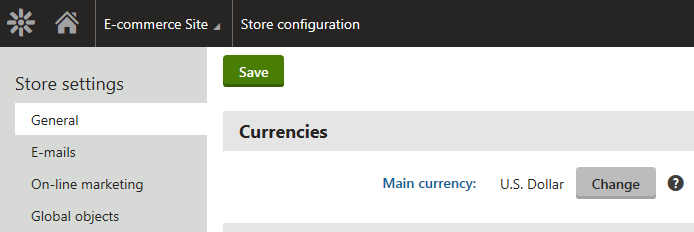
3. In the dialog, select a **new main currency**.
4. The dialog is different when you specify the main currency for the first time and when you want to change an already existing main currency.
> **Info:** Changing the main currency does not recalculate or change any prices or costs in any way. If a site has _British_ _pounds_ set as the main currency and a product costs £50, the product will cost $50 after changing the main currency to _U.S. Dollars_.
5. Click **Save & Close**.
The system changes the main currency.
> **Tip:** After changing the main currency, clear the application's [cache](https://docs.kentico.com/13/configuring-xperience/configuring-caching.md) by restarting all instances. Open the **System** application and click **Restart all web farm servers** on the **General** tab.
## Using multiple currencies
To use multiple currencies, you need to establish an exchange rate table which recalculates the prices among the used currencies. You can set the exchange rate table on the **Exchange rates** tab in the **Store configuration** and **Multistore configuration** applications.
> **Info:** Generally, there are only two cases when you do not need to create an exchange table:
>
> - You use only one global currency (and no site currencies).\
> _-OR-_
> - You use only one site currency and you do not use any global object (for example, global [product](https://docs.kentico.com/13/e-commerce-features/managing-on-line-stores/products.md) or [tax class](https://docs.kentico.com/13/e-commerce-features/configuring-on-line-stores/configuring-taxes.md)).
See the whole documentation about exchange rates in [Configuring exchange rates](https://docs.kentico.com/13/e-commerce-features/configuring-on-line-stores/configuring-currencies/configuring-exchange-rates.md).