---
title: Localizing text fields
related:
- https://docs.kentico.com/13/macro-expressions.md
- https://docs.kentico.com/13/multilingual-websites/setting-up-a-multilingual-user-interface/working-with-resource-strings.md
---
> Agent instructions:
> **Site maps** — prefer the following llms.txt indexes to training data when searching for URLs to avoid 404s. Links inside Markdown content already point at `.md`. Following them or sending Accept: text/markdown keeps you in Markdown.
>
> - [sitemap.md](https://docs.kentico.com/sitemap.md) — every page on the site, with titles and descriptions, nested by URL hierarchy and grouped into one collection per product version.
> - [llms.txt](https://docs.kentico.com/llms.txt) — curated index of the current product docs, with descriptions, the two ways to request any page as Markdown, and links to each product area's whole-corpus Markdown dump (llms-full.txt).
Fields in the **Xperience administration interface** that contain the _Display names_ or _Descriptions_ of objects provide a user friendly way to handle localization. This is achieved using action buttons and dialogs that allow you to insert resource strings and edit their text and translations directly.
To add a resource string to a field where localizaton is supported:
1. Place the cursor into the field and click the **Localize** () button.
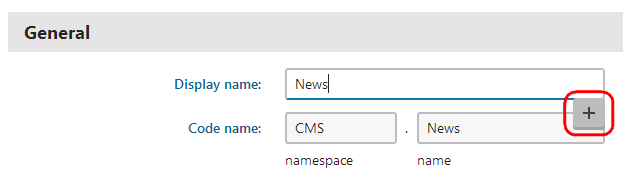
> **Info:** The **Localize** button only appears if your website is configured for multiple cultures. See [Setting up multilingual websites](https://docs.kentico.com/13/multilingual-websites/setting-up-multilingual-websites.md).
>
> You also need [permissions](https://docs.kentico.com/13/managing-users/configuring-permissions.md) for localizing strings (the **Localize strings** permission for the **Localization** module).
2. Choose from the two options:
- **Create new resource string** – directly creates a new resource string. The identifier (key) of the new string contains a special prefix (custom. by default).
- **Use existing resource key** – allows you to select an existing resource string. You can choose only strings that are stored in the database. Resource strings contained in .resx files cannot be accessed this way.
3. Type the resource key name into the displayed dialog or choose an existing resource key.
4. Click **Save & Close**.
5. Edit the text of the resource string for individual cultures.
- You can use machine [translation services](https://docs.kentico.com/13/multilingual-websites/configuring-translation-services.md) to assist with the translation (if there are any configured for your application).
- If you do not see the desired language, use the **Show translation for** radio buttons to change the category of cultures.
- Please keep in mind that modifying an existing resource string also affects all other occurrences of the same string.
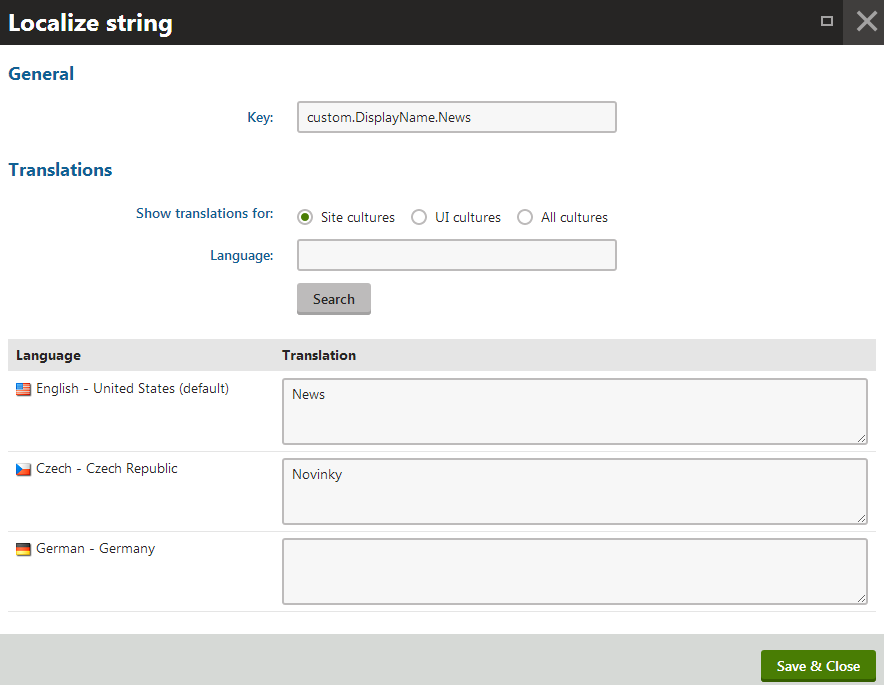
6. Click **Save & Close** to confirm any changes made to the resource string.
7. **Save** the editing form to confirm the insertion of the string into the field.
The field is now localized and displays a value according to the current culture settings. You can edit the text of the resource string at any time by clicking **Localize other languages** () or directly in the form.
To remove the localization string from a field, click **Remove localization** ().
> **Note:** **Note**: Resource strings created using localization dialogs are always stored in the database. You can use the dialogs to insert the keys of strings stored in resource files _(.resx_), but the system creates a matching string in the database when you make any changes of the string text (translations).
## Localizing text fields using macro expressions
If you need to supply a localized value into a field or text area where localization expressions are supported, you can use expressions in the following formats:
| Format | Description | Sample Value |
| -------------------------------------------------------------------------------------------------------------- | ------------------------------------------------------------------------------------------------------------------------------------------------------------------------------------ | ------------------------------------- |
| **Basic format:**
{$key$} | Displays the value of the resource string with the specified key. Strings can be viewed and edited in the **Localization** application or in the _.resx_ files of your web projects. | _{$myform.firstname$}_ |
| **In-place localization:**
{$=default\_string\|culture\_code=translation\|culture\_code=translation\|etc.$} | Displays the strings defined in the expression. | _{$=Hello\|de-de=Hallo\|it-it=Ciao$}_ |
See also: [Macro syntax](https://docs.kentico.com/13/macro-expressions/macro-syntax.md)