
Application stops after being idle
In the default IIS configuration, the application pool in which Kentico runs stops the application’s worker process after a 20-minute period of inactivity. This behavior causes the Kentico Event log to log warnings with the following message:
HostingEnvironment initiated shutdown
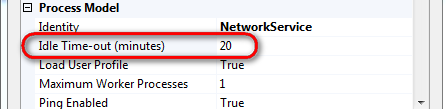
This shutdown period is determined by the Idle time-out setting in the application pool’s advanced settings.
To change or disable the time-out period:
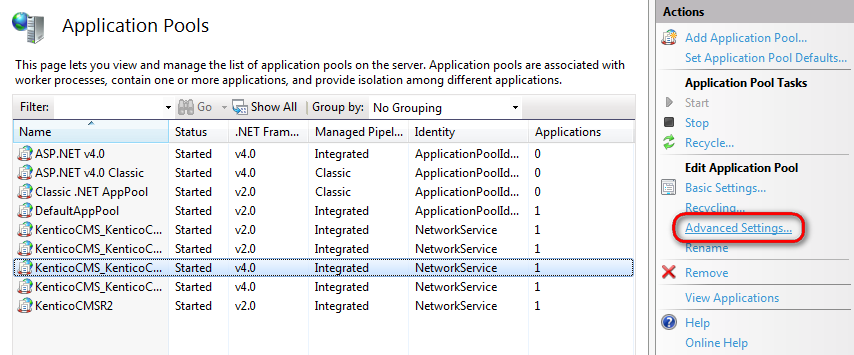
- Open IIS Manager and select Application Pools in the Connections tree.
- Click the application pool in which Kentico runs and click Advanced Settings.
- In the Process Model section, locate the Idle Time-out setting and change its value. To disable the time-out altogether, enter 0 (zero).
- Click OK to save the settings.
If you set the Idle time-out setting to a non-zero value, IIS stops your application if the application doesn’t receive any request in the specified time period. If you set the setting to zero, the application will run without shutting down even if it is idle.