---
title: Displaying maps
---

> Agent instructions:
> **Site maps** — prefer the following llms.txt indexes to training data when searching for URLs to avoid 404s. Links inside Markdown content already point at `.md`. Following them or sending Accept: text/markdown keeps you in Markdown.
>
> - [sitemap.md](https://docs.kentico.com/sitemap.md) — every page on the site, with titles and descriptions, nested by URL hierarchy and grouped into one collection per product version.
> - [llms.txt](https://docs.kentico.com/llms.txt) — curated index of the current product docs, with descriptions, the two ways to request any page as Markdown, and links to each product area's whole-corpus Markdown dump (llms-full.txt).

You can display both static and dynamic maps on your pages using web parts and widgets. Maps can be useful for displaying your offices, stores, location of the products that you offer, such as real estate, and many other information.
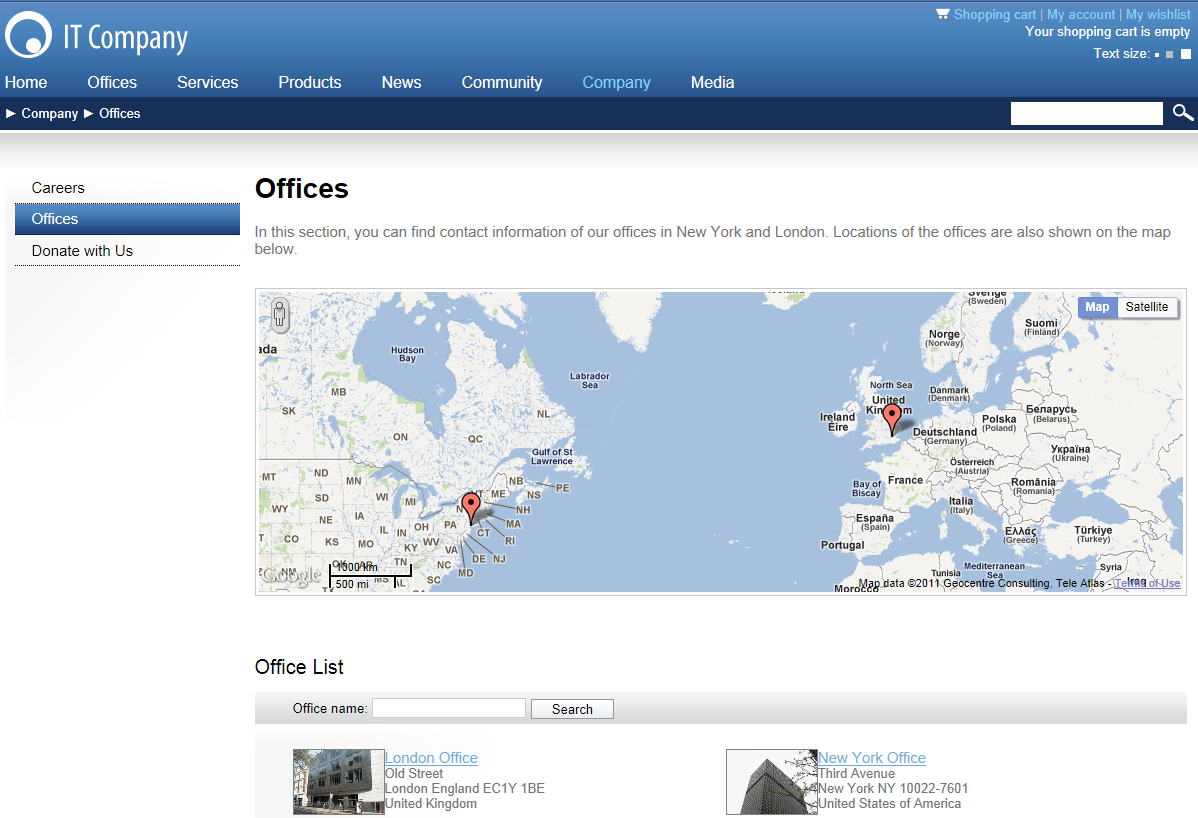
![Map displaying office locations on the sample Corporate site](https://docs.kentico.com/docsassets/k8/displaying-maps/4.png "Map displaying office locations on the sample Corporate site")

You can make use of the following two map providers for displaying your maps:

- **Google Maps** - use the Google maps API v3.
- **Bing Maps** - use the Bing maps API.
  - Certain Bing maps services require that you to have a Bing maps account. As a Bing map account holder, you can create keys to use these services.

Each of these providers has its dedicated web parts and a widget.

**Learn more about displaying particular maps**:

> **Tip:** **Examples**
>
> You can see the web parts configured and working on the sample **Corporate Site**, under the **Examples -> Web Parts -> Maps** node of the content tree.
