---
title: Developing custom filters
related:
- https://docs.kentico.com/k8/developing-websites/loading-and-displaying-data-on-websites.md
- https://docs.kentico.com/k8/developing-websites/loading-and-displaying-data-on-websites/filtering-and-paging-data.md
- https://docs.kentico.com/k8/custom-development/developing-web-parts/advanced-web-part-development-scenarios/developing-data-source-web-parts.md
---
> Agent instructions:
> **Site maps** — prefer the following llms.txt indexes to training data when searching for URLs to avoid 404s. Links inside Markdown content already point at `.md`. Following them or sending Accept: text/markdown keeps you in Markdown.
>
> - [sitemap.md](https://docs.kentico.com/sitemap.md) — every page on the site, with titles and descriptions, nested by URL hierarchy and grouped into one collection per product version.
> - [llms.txt](https://docs.kentico.com/llms.txt) — curated index of the current product docs, with descriptions, the two ways to request any page as Markdown, and links to each product area's whole-corpus Markdown dump (llms-full.txt).
Filters are components that allow users to modify the data loaded and displayed by other website components. Filters provide two types of functionality:
- Limiting the range of items displayed in a list
- Changing the order of items in a list
Kentico comes with a built-in set of filters for various types of data, but you can also create custom filters to fulfill specific requirements.
1. Implement filters as _user controls_ that inherit from one of the following base classes:
- **CMSAbstractDataFilterControl** - works with document data sources
- **CMSAbstractMenuFilterControl** - works with navigation web parts
- **CMSAbstractQueryFilterControl** - works with custom table and query data sources
> **Info:** Select the appropriate base class according to the type of data that you need to filter. You can find these base classes in the **CMS.Controls** namespace.
> **Note:** **Note**: If you are connecting a **CMSAbstractQueryFilterControl** filter to a data source with a custom query, the code of the query must contain the ##WHERE## and ##ORDERBY## expressions. When applied, the filter replaces the expressions with dynamically generated SQL code. See: [Using properties to modify queries](https://docs.kentico.com/k8/developing-websites/loading-and-displaying-data-on-websites/loading-data-using-custom-queries.md#using-properties-to-modify-queries)
2. Add the filter control onto your website through the **Filter** web part.
- You need to specify the path to the _.ascx_ file in the **Filter control path** property.
3. Attach the filter web part to the data source web part of the matching type.
You can also use custom filters anywhere in your code as standard user controls, for example on ASPX templates or in other web parts. All necessary properties, such as the **FilterName** used to connect with the data source, are inherited from the base class.
## Example - Creating a custom product filter
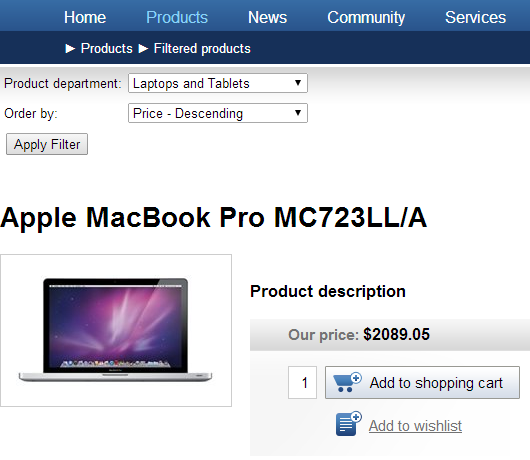
The following example demonstrates how to develop a custom filter for _product documents_. The filter allows users to view products from specific departments and determine the order in which products are displayed. The filter applies when a postback occurs on the page. You can create filters for all types of documents or other objects using the same approach.
### Creating the filter control
1. Open your web project in Visual Studio.
2. Create a **New folder** under the root called _CMSGlobalFiles_ (if it doesn't already exist).
- The system can export the content of this folder along with your site when you [deploy](https://docs.kentico.com/k8/deploying-websites.md) it to another instance of Kentico.
3. Add a **Web User Control** named _CustomProductFilter.ascx_ into the **CMSGlobalFiles** folder.
4. Add the following markup to the control:
```html
<%@ Control Language="C#" AutoEventWireup="true" CodeFile="CustomProductFilter.ascx.cs" Inherits="CMSGlobalFiles_CustomProductFilter" %>
```
> **Info:** This creates the design of the filter's user interface. The filter is composed of localized labels, drop-down lists and a button, arranged in a simple table layout. Alternatively, you can use a CSS‑based layout applied through HTML elements (e.g. \, \, etc.).
>
> You can enter the captions of the filter's child controls using [localization strings](https://docs.kentico.com/k8/multilingual-websites/setting-up-a-multilingual-user-interface/working-with-resource-strings.md) through the **ResourceString** property, rather than directly as **Text**.
### Implementing the filtering logic
1. Switch to the user control's code behind file and add the following references:
```csharp
using System.Data;
using CMS.Controls;
using CMS.Helpers;
using CMS.Ecommerce;
```
2. Set the control to inherit from the appropriate base class.
- This example uses the **CMSAbstractDataFilterControl** class, since the filter is intended for use with a document data source.
```csharp
public partial class CMSGlobalFiles_CustomProductFilter : CMSAbstractDataFilterControl
{
}
```
3. Add the following methods into the user control class to load the filtering options into the child drop-down lists:
```csharp
///
/// Sets up the inner child controls.
///
private void SetupControl()
{
// Hides the filter if StopProcessing is enabled
if (this.StopProcessing)
{
this.Visible = false;
}
// Initializes only if the current request is NOT a postback
else if (!RequestHelper.IsPostBack())
{
// Loads product departments as filtering options
InitializeDepartments();
// Initializes the Order by drop-down list
InitializeOrder();
}
}
///
/// Loads the ordering options into the Order by drop-down list.
///
private void InitializeOrder()
{
// Initializes the ordering options
this.drpOrder.Items.Add(new ListItem("Price - Ascending", "priceAsc"));
this.drpOrder.Items.Add(new ListItem("Price - Descending", "priceDesc"));
this.drpOrder.Items.Add(new ListItem("Product name", "name"));
}
///
/// Loads all existing product departments as filtering options into the department drop-down list.
///
private void InitializeDepartments()
{
// Gets all product departments from the system's database
DataSet departments = DepartmentInfoProvider.GetDepartments("", "DepartmentDisplayName", 0, "DepartmentID, DepartmentDisplayName");
// Checks that at least one product department exists
if (!DataHelper.DataSourceIsEmpty(departments))
{
// Binds the departments to the drop-down list
this.drpDepartment.DataSource = departments;
this.drpDepartment.DataTextField = "DepartmentDisplayName";
this.drpDepartment.DataValueField = "DepartmentID";
this.drpDepartment.DataBind();
// Adds the default '(all)' option
this.drpDepartment.Items.Insert(0, new ListItem("(all)", "##ALL##"));
}
}
```
4. Define the **SetFilter()** method:
```csharp
///
/// Generates a WHERE condition and ORDER BY clause based on the current filtering selection.
///
private void SetFilter()
{
string where = null;
string order = null;
// Generates a WHERE condition based on the selected product department
if (this.drpDepartment.SelectedValue != null)
{
// Gets the ID of the selected department
int departmentId = ValidationHelper.GetInteger(this.drpDepartment.SelectedValue, 0);
if (departmentId > 0)
{
where = "SKUDepartmentID = " + departmentId;
}
}
// Applies the selected product order
if (this.drpOrder.SelectedValue != "")
{
switch (this.drpOrder.SelectedValue)
{
case "priceAsc":
order = "SKUPrice";
break;
case "priceDesc":
order = "SKUPrice Desc";
break;
case "name":
order = "SKUName";
break;
}
}
if (where != null)
{
// Sets the Where condition
this.WhereCondition = where;
}
if (order != null)
{
// Sets the OrderBy clause
this.OrderBy = order;
}
// Raises the filter changed event
this.RaiseOnFilterChanged();
}
```
> **Info:** The filter control dynamically generates a WHERE condition and ORDER BY statement based on the selected filtering options. The values are stored in the **WhereCondition** and **OrderBy** properties inherited from the base class. When you attach the filter to a data source, it reads the values of the properties and inserts them into the SQL query used to load the data.
>
> Note:
>
> - The filter must inherit from the appropriate base class according to the type of the used data source.
> - If you are connecting a filter to a data source with a custom query, the code of the query must contain the ##WHERE## and ##ORDERBY## expressions. When applied, the filter replaces the expressions with the dynamically generated SQL code. See: [Using properties to modify queries](https://docs.kentico.com/k8/developing-websites/loading-and-displaying-data-on-websites/loading-data-using-custom-queries.md#using-properties-to-modify-queries)
5. Add two more methods that override the handlers of the control's **Init** and **PreRender** events:
```csharp
///
/// Init event handler.
///
protected override void OnInit(EventArgs e)
{
// Creates the child controls
SetupControl();
base.OnInit(e);
}
///
/// PreRender event handler
///
protected override void OnPreRender(EventArgs e)
{
// Checks if the current request is a postback
if (RequestHelper.IsPostBack())
{
// Applies the filter to the displayed data
SetFilter();
}
base.OnPreRender(e);
}
```
> **Info:** The _OnInit_ and _OnPreRender_ handlers call the previously defined private methods during the correct stages of the page life cycle.
When a user clicks the **Apply Filter** button, a postback occurs, which triggers the **SetFilter()** method during the **PreRender** event and the filter applies the conditions to the displayed data. Notice the use of the **CMS.Helpers.RequestHelper.IsPostBack()** method in the conditions. The control only calls the **SetFilter()** method when the current page request is a postback, and initializes the child controls only on the first page load (i.e. when the request is _not_ a postback).
### Adding the filter to a portal engine page
The filter control is now ready and you can try out its functionality. It is recommended to test the filter on the **Corporate** or **E-commerce** sample sites, which already contain examples of product documents.
1. Log in to the administration interface.
2. Open the **Pages** application and [create a new page](https://docs.kentico.com/k8/managing-website-content/working-with-documents-and-pages/creating-new-documents-and-pages.md).
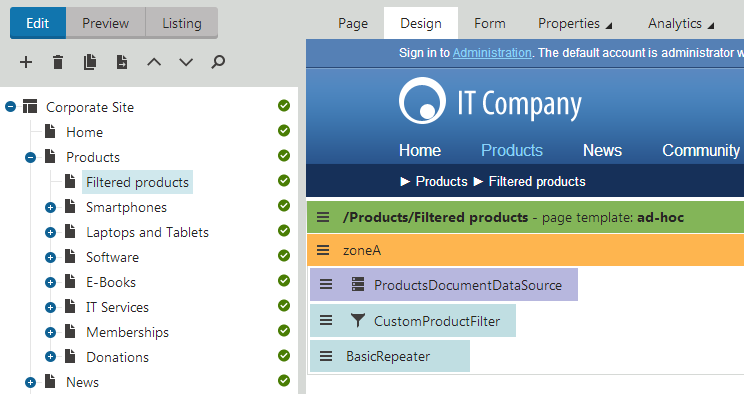
3. Switch to the page's **Design** tab and add the following web parts:
| Web part | Instructions |
| --------------------- | --------------------------------------------------------------------------------------------------------------------------------------------------------------------------------------------------------------------------------------------- |
| Documents data source | Configure the web part to load product documents.
Fill in the **Filter name** property (e.g. _CustomProductFilter)_.**Note**: You can alternatively use the _Products data source_ web part for this purpose. |
| Filter | Assign a **Filter name** that matches the data source (_CustomProductFilter_).
Enter the path of the .ascx file implementing your custom filter into the **Filter control path** property:
_\~/CMSGlobalFiles/CustomProductFilter.ascx_ |
| Basic repeater | Enter the ID of the Documents data source web part into the **Data source name** property.
Set an appropriate **Transformation name**, for example: _CMS.Product.CorporateSite_ |
> **Info:** For more information about setting up web parts that display data and allow filtering, see:
>
> - [Loading and displaying data on websites](https://docs.kentico.com/k8/developing-websites/loading-and-displaying-data-on-websites.md)
> - [Filtering and paging data](https://docs.kentico.com/k8/developing-websites/loading-and-displaying-data-on-websites/filtering-and-paging-data.md)
If you view the page on the live site, you can see a list of products with the custom filter above. Try filtering the products by their department and changing their order.