---
title: Windows Azure Web Sites
related:
- https://docs.kentico.com/k8/running-kentico-on-windows-azure/architecture-of-windows-azure-environment.md
- https://docs.kentico.com/k8/running-kentico-on-windows-azure/windows-azure-project-development-lifecycle.md
---
> Agent instructions:
> **Site maps** — prefer the following llms.txt indexes to training data when searching for URLs to avoid 404s. Links inside Markdown content already point at `.md`. Following them or sending Accept: text/markdown keeps you in Markdown.
>
> - [sitemap.md](https://docs.kentico.com/sitemap.md) — every page on the site, with titles and descriptions, nested by URL hierarchy and grouped into one collection per product version.
> - [llms.txt](https://docs.kentico.com/llms.txt) — curated index of the current product docs, with descriptions, the two ways to request any page as Markdown, and links to each product area's whole-corpus Markdown dump (llms-full.txt).
Windows Azure Web Sites are quick to deploy and easy to set up and manage. However, they do not offer as many customization options as cloud services. For a more detailed comparison, see [Windows Azure Web Sites, Cloud Services and Virtual Machines comparison](http://www.windowsazure.com/en-us/documentation/articles/choose-web-site-cloud-service-vm/) on MSDN.
You can create Kentico websites using the Windows Azure Web Sites service:
- From the Web Application Gallery
- [From Visual Studio](#creating-web-sites-from-visual-studio)
When you have a website created, you can manage its files [over an FTP connection](#uploading-files-to-windows-azure-web-sites-over-ftp).
## Creating Web Sites from Web Application Gallery
You can find a Kentico package in the application gallery. Creating new websites using the provided template is quick and easy.
1. Open the [Windows Azure Management Portal](https://manage.windowsazure.com/).
2. Click **New -> Compute -> Web Site -> From gallery**.
3. Select **Kentico CMS for ASP.NET**.
4. Click Next.
5. Type the URL (name) of your website.
6. Choose to create a new SQL database.
7. Choose a region (location) for your website.
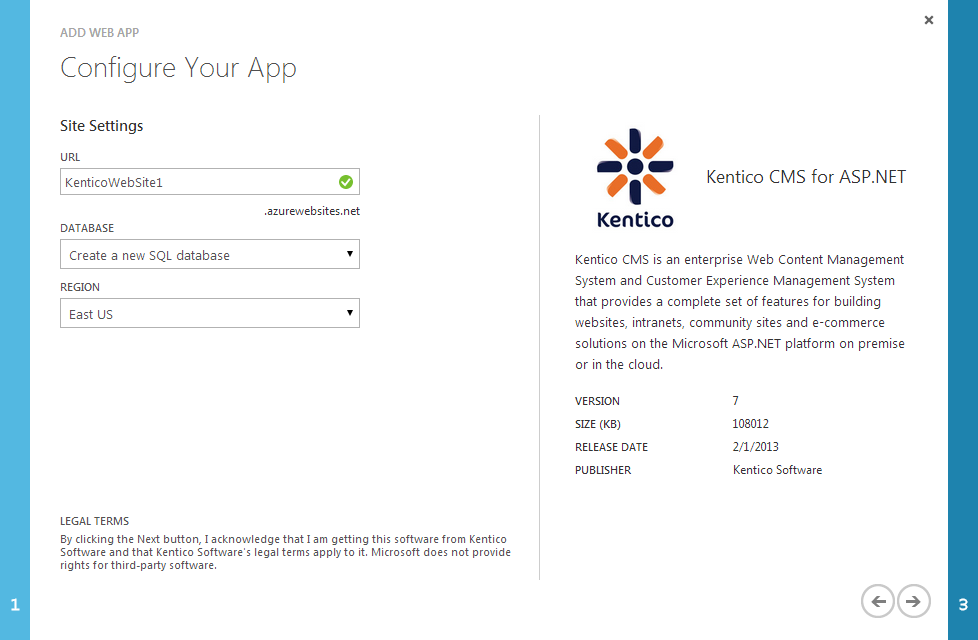
8. Click Next.
9. Type the name of the database
10. Create a new server or choose an existing server for the database and provide login credentials.
11. Complete the creation.
### Database installation
1. Access the created website.
2. Provide the server name and credentials for the server used to create the database in.
3. Click **Next**.
4. Select **Use an existing database** and type the name of the database created for the web site.
5. Click **Next**.
6. Click **Next** without filling any field.
7. Select **Import existing Kentico CMS website** and click **Next**.
- The installer redirects you to the administration interface.
8. Switch to the **Licenses** tab and add the license for the website domain.
## Creating Web Sites from Visual Studio
This scenario presumes that you already have an installed Kentico web project on a local computer and you want to deploy it as Windows Azure Web Site.
1. Open your web project in Visual Studio.
2. Open the **Server Explorer** tab (or Database Explorer tab in Express editions of Visual Studio).
3. Right-click Windows Azure/**Web Sites** and select **Add New Site...**
- A window **Create site on Windows Azure** opens.
4. Type the web site name (URL).
5. Select the location for your website.
6. Select an existing database server or create a new one.
7. Provide the credentials for the server.
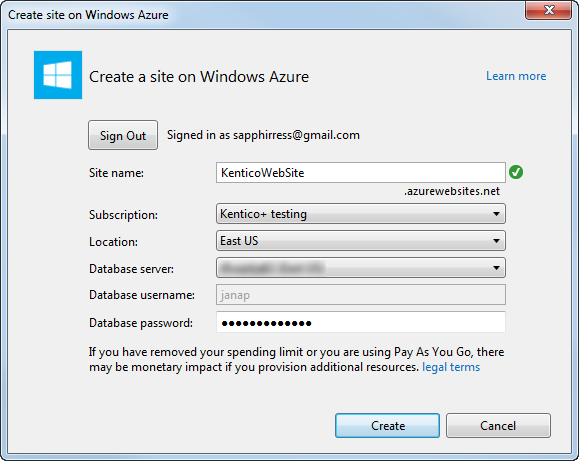
8. Click **Create**.
Visual Studio creates the Web Site. Continue with adjusting the configuration of the web.config file and deploying your project.
1. Right-click the created web site and select **View settings**.
2. Copy the connection string value and paste it to the CMSApp/**web.config** file of your web project.
```xml
```
Replace **YourServerName**, **YourDatabaseName**, **YourUsername** and **YourPassword** with your own values.
> **Tip:** **Configuring the connection string after the deployment**
>
> You can also configure the connection string through the [Windows Azure Management Portal](https://manage.windowsazure.com/) in **Web Sites ->** select a website **-> Configure** tab **-> connection strings** section. To set the connection string for the web site, change the _DefaultConnection_ name to _CMSConnectionString_.
3. Make sure that the sessionState mode is set to **InProc** in the web.config file.
```xml
```
4. Right-click the project folder (CMSApp or CMS) in the Solution Explorer and select **Publish** (or **Publish Web Site**).
5. Click **Import**.
6. Select the created website in the drop-down list.
7. Click **OK**.
8. Leave the settings as they are.
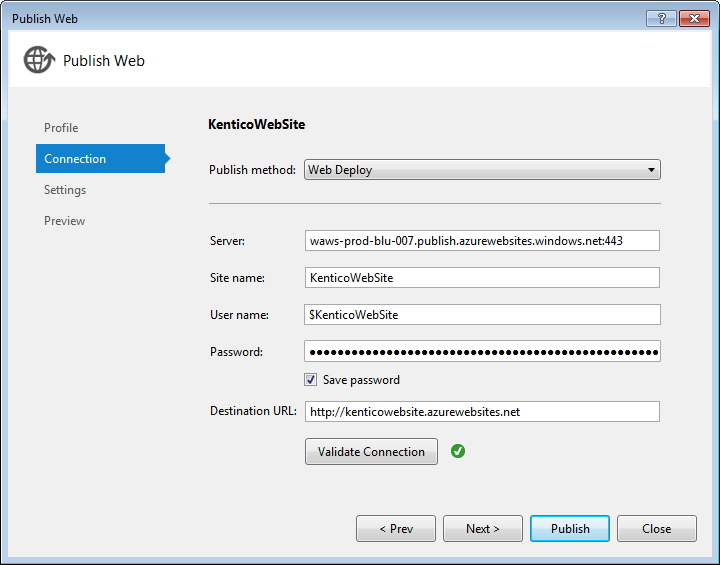
9. Click **Publish**.
10. When the project is published and the website of your project is automatically opened in a browser, complete the database installation.
## Uploading files to Windows Azure Web Sites over FTP
When you have created Windows Azure Web Sites and deployed your web project, you can manage its files over an FTP connection:
1. Open the [Windows Azure Management Portal](https://manage.windowsazure.com/).
2. Select your web site on the **Web Sites** tab.
3. Switch to the **Dashboard** tab.
4. Click **Set up deployment credentials**.
5. Type a user name and password and click OK.
6. Use the **FTP host name** and **Deployment / FTP User** information to configure your FTP client.
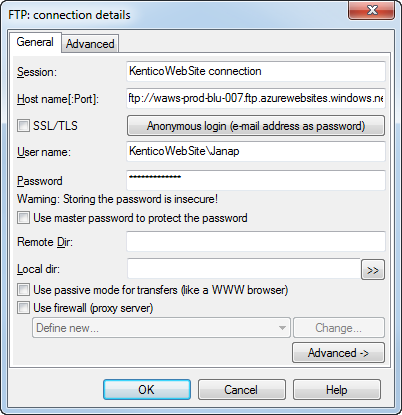
When you connect to your website project, you can see the following folders:
- Logfiles - contains website specific diagnostics log files.
- site - contains website files.