---
title: Machine translation - Microsoft Translator
related:
  - https://docs.kentico.com/k8/multilingual-websites/configuring-translation-services/machine-translation-google-translate.md
  - https://docs.kentico.com/k8/multilingual-websites/translating-content-using-external-services.md
  - https://docs.kentico.com/k8/multilingual-websites/translating-content-using-external-services/translating-localization-strings-using-machine-translation.md
---

> Agent instructions:
> **Site maps** — prefer the following llms.txt indexes to training data when searching for URLs to avoid 404s. Links inside Markdown content already point at `.md`. Following them or sending Accept: text/markdown keeps you in Markdown.
>
> - [sitemap.md](https://docs.kentico.com/sitemap.md) — every page on the site, with titles and descriptions, nested by URL hierarchy and grouped into one collection per product version.
> - [llms.txt](https://docs.kentico.com/llms.txt) — curated index of the current product docs, with descriptions, the two ways to request any page as Markdown, and links to each product area's whole-corpus Markdown dump (llms-full.txt).

> **Info:** **Kentico EMS required**
>
> Features described on this page require the **Kentico EMS** license.

> **Warning:** **Unsupported in the current version**
>
> The functionality for submitting content for translation to Microsoft Translator no longer works in this version of Kentico. If you wish to use this functionality, you need to upgrade to Kentico 11 or newer.

This service uses the [Microsoft (Bing) Translator](http://www.bing.com/translator/) API to translate text. Microsoft Translator offers a free subscription for up to 2 million characters per month, higher editions must be purchased.

## Configuring the Microsoft Translator service

To set up the Microsoft Translator service on your website:

1. Sign up for a subscription to the Microsoft Translator on the [Windows Azure Marketplace](http://go.microsoft.com/?linkid=9782667). You need to create a Windows Live ID account if you do not already have one.
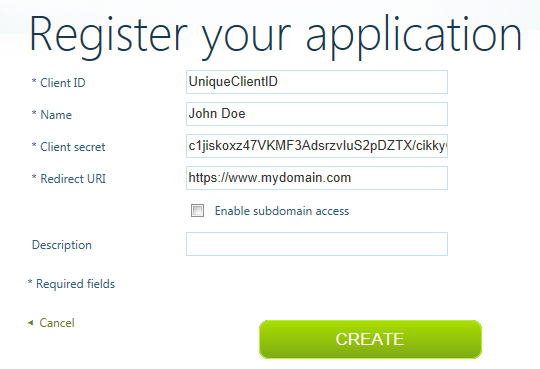
2. Register your website as an application on the [Azure DataMarket](https://datamarket.azure.com/developer/applications/).

   ![](https://docs.kentico.com/docsassets/k8/machine-translation-microsoft-translator/1.png)
3. Log in to the Kentico administration interface and open the **Settings** application.
4. Select the **Content -> Translation services** category.
5. Enter the **Client ID** and **Client secret** of your application into the corresponding settings in the **Microsoft Translator** section.
6. Click **Save**.

You can now [translate documents](https://docs.kentico.com/k8/multilingual-websites/translating-content-using-external-services.md) and [localization strings](https://docs.kentico.com/k8/multilingual-websites/translating-content-using-external-services/translating-localization-strings-using-machine-translation.md) using the Microsoft Translator service.