---
title: Enabling double opt-in for newsletters
---
> Agent instructions:
> **Site maps** — prefer the following llms.txt indexes to training data when searching for URLs to avoid 404s. Links inside Markdown content already point at `.md`. Following them or sending Accept: text/markdown keeps you in Markdown.
>
> - [sitemap.md](https://docs.kentico.com/sitemap.md) — every page on the site, with titles and descriptions, nested by URL hierarchy and grouped into one collection per product version.
> - [llms.txt](https://docs.kentico.com/llms.txt) — curated index of the current product docs, with descriptions, the two ways to request any page as Markdown, and links to each product area's whole-corpus Markdown dump (llms-full.txt).
Double opt-in functionality, also referred to as confirmed opt-in or closed-loop opt-in, adds an additional security layer to newsletter subscription.
When double opt-in is disabled for a newsletter, anyone may simply submit an e-mail address for subscription, without any steps to ensure that the address actually belongs to that user. With double opt‑in, new subscribers are not immediately activated and do not receive newsletter issues. Instead, the system sends an automatic e‑mail containing an activation link. Upon clicking the link, users are redirected to a special page and their subscription is confirmed.
The main advantages of double opt-in are:
- Confirming that the e-mail addresses of subscribers actually exist
- Preventing users from being unknowingly subscribed to newsletters by someone else (either intentionally or by mistake)
## Enabling double opt-in
To configure a newsletter to use double opt-in:
1. Open the **Newsletters** application.
2. Edit () a newsletter and switch to its **Configuration** tab.
3. **Enable double opt-in** in the bottom section of the properties.
4. Set the following properties:
| Property | Description |
| ------------------------------- | ----------------------------------------------------------------------------------------------------------------------------------------------------------------------------------------------------------------------------------------------------------------------------------------------------------------------------------------------------------------------------------------------------------------------------------------------------------------------------------------------------------------------------------------------------------- |
| Double opt-in template | Selects the template used for the subscription activation e-mails that are sent to users. You can only select templates of the _Double opt-in_ type.
**See also**: [Preparing newsletter templates](https://docs.kentico.com/k8/on-line-marketing-features/e-mail-marketing/working-with-newsletters/preparing-newsletter-templates.md) |
| Approval page URL | Sets the URL of the page where users can confirm their subscription to the newsletter.
The **Subscription approval** web part must be placed on the specified page to ensure the required functionality. This URL is used by the _Activation link_ field, which is typically inserted into the Double opt-in template. If left empty, the value of the **Settings -> On‑line marketing -> Newsletters -> Newsletter double opt-in approval page URL** setting is used. If the setting is also empty, approval link sends users to a default system page. |
| Send double opt-in confirmation | If checked, the system sends a confirmation e-mail to users after they successfully activate their subscription to the newsletter. |
5. **Save** to confirm the changes.
Now any users who subscribe to the newsletter will receive an e-mail similar to the following (depending on the used double opt-in template):
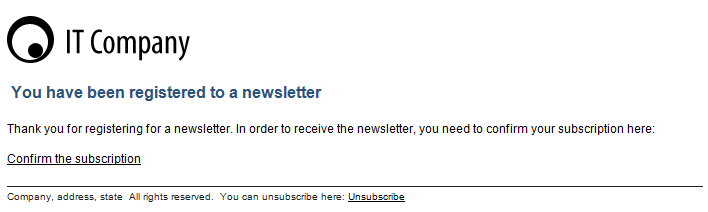
When a user clicks the **Confirm the subscription** link, they are redirected to the default **\~/CMSModules/Newsletters/CMSPages/SubscriptionApproval.aspx** page, where the system displays a confirmation message and activates the subscription. The identifier of the exact subscription is passed to the page as a parameter in the query string of the URL in the activation link.
> **Note:** **Note**
>
> Users can only approve their subscription during a limited time interval (12 hours by default). If a user does not activate their subscription within the specified number of hours, the link in the confirmation e‑mail expires, and the user needs to subscribe again.
>
> You can set the length of this time interval for all newsletters through the **Settings -> On‑line marketing -> Newsletters -> Double‑opt in interval** setting.
## Creating custom subscription approval pages
If you wish to use a custom subscription activation page:
1. In the **Pages** application, create a new page on your website with the required design.
2. [Place](https://docs.kentico.com/k8/developing-websites/developing-websites-using-the-portal-engine/using-and-configuring-web-parts.md) the **Subscription approval** web part onto the page.
3. Assign the custom approval page to newsletters by entering its URL into:
- - The **Approval page URL** property of individual newsletters
- Globally in the **Newsletter double opt-in approval page URL** website setting in **Settings -> On**\*\*‑\*\***line marketing -> Newsletters** (assigns the page to all newsletters that do not have an approval page specified)
The double opt-in confirmation links now send users to your custom page.
## Manually approving subscribers
Newsletter administrators can activate subscriptions manually using the **Approve** action or **Reject** existing subscriptions.
**See** [Managing newsletter subscribers](https://docs.kentico.com/k8/on-line-marketing-features/e-mail-marketing/working-with-newsletters/managing-newsletter-subscribers.md) for more information.