---
title: Searching attachment files
related:
- https://docs.kentico.com/k8/configuring-kentico/setting-up-search-on-your-website/searching-attachment-files/configuring-sql-search-for-attachment-files.md
- https://docs.kentico.com/k8/custom-development/miscellaneous-custom-development-tasks/smart-search-api/adding-custom-search-text-extractors-for-files.md
---
> Agent instructions:
> **Site maps** — prefer the following llms.txt indexes to training data when searching for URLs to avoid 404s. Links inside Markdown content already point at `.md`. Following them or sending Accept: text/markdown keeps you in Markdown.
>
> - [sitemap.md](https://docs.kentico.com/sitemap.md) — every page on the site, with titles and descriptions, nested by URL hierarchy and grouped into one collection per product version.
> - [llms.txt](https://docs.kentico.com/llms.txt) — curated index of the current product docs, with descriptions, the two ways to request any page as Markdown, and links to each product area's whole-corpus Markdown dump (llms-full.txt).
The [smart search](https://docs.kentico.com/k8/configuring-kentico/setting-up-search-on-your-website.md) allows users to search through the content of files uploaded as [document attachments](https://docs.kentico.com/k8/managing-website-content/working-with-files/document-attachments/attaching-files-to-documents.md). The attachment search supports both types of [file storage](https://docs.kentico.com/k8/configuring-kentico/managing-files/storing-files.md) provided by Kentico (database or file system).
> **Info:** The attachment search only works for files that are connected to documents through one of the following methods:
>
> - Attachment files added to documents through fields with the **Field type** set to _**File**_ or _**Document attachments**_ in the [document type definition](https://docs.kentico.com/k8/developing-websites/defining-website-data-structure/document-types/creating-document-types.md)
> - Attachments uploaded in the **Pages** application on the **Properties -> Attachments** tab of documents
## Choosing which file types are searchable
By default, the attachment search supports the following file types:
- txt
- csv
- pdf
- docx
- xlsx
- pptx
- xml
- html
- htm
> **Note:** **Note**: The search does NOT work for:
>
> - Legacy MS Office formats: doc, xls, ppt
> - Certain types of PDF files, including:
> - Encrypted files
> - Files using PDF version 1.5 or older
You can limit which of the file types are searchable for individual websites:
1. Open the **Settings** applicaton.
2. Select the **System -> Search** category.
3. Fill in the **Allowed attachment file types** setting.
- Enter a list of allowed file extensions without dots, separated by semicolons. If you leave the setting empty, the search works for all of the available file types.
4. Click **Save**.
If you wish to search one of the unsupported file types, you need to:
- Implement a [custom search text extractor](https://docs.kentico.com/k8/custom-development/miscellaneous-custom-development-tasks/smart-search-api/adding-custom-search-text-extractors-for-files.md)\
– OR –
- Use the [SQL attachment search](https://docs.kentico.com/k8/configuring-kentico/setting-up-search-on-your-website/searching-attachment-files/configuring-sql-search-for-attachment-files.md)
## Enabling indexing for document attachments
The attachment search is a part of the functionality of standard [Document indexes](https://docs.kentico.com/k8/configuring-kentico/setting-up-search-on-your-website/creating-search-indexes/defining-document-indexes.md). The attachment search is NOT available for _**Pages crawler**_ type indexes, which directly index the HTML output of pages.
To set up the attachment search for your website:
1. Open the **Smart search** application.
2. [Create](https://docs.kentico.com/k8/configuring-kentico/setting-up-search-on-your-website/creating-search-indexes.md) or edit a **Document** search index.
3. When defining the search content on the **Indexed content** tab, check **Include attachment content** for the index's allowed content.
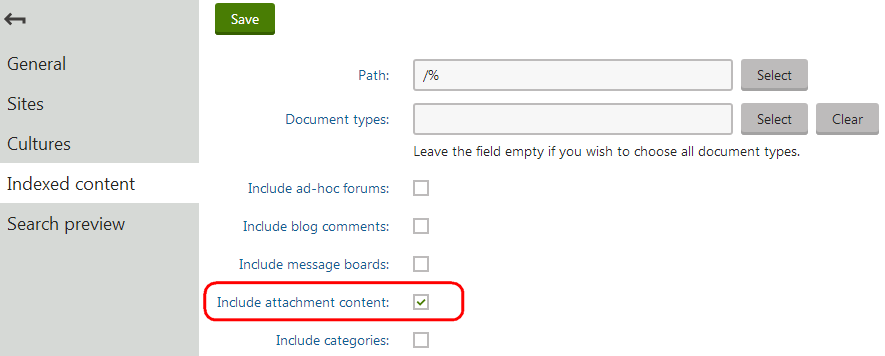
4. Click **Save**.
5. Switch to the **General** tab and **Rebuild** the index.
While building the document index, the smart search processes the allowed documents, extracts the text of any attachment files and includes it in the content of the index (along with the other document data). When users perform a search using the index, the system returns results for documents whose attachments match the search expression.
> **Note:** **Updating the search content of attachments (Upgrades and Hotfixes)**
>
> Kentico stores the text content extracted from document attachments in the database. When rebuilding document indexes, the search loads the "cached" attachment text from the database. The system only processes the file text directly for attachments that do not have any search content saved.
>
> If you apply a hotfix or upgrade that changes how the search indexes attachment files, you need to clear the attachment search content:
>
> 1. Open the **System** application.
> 2. Select the **Files -> Attachments** tab.
> 3. Click **Clear attachment search cache**.
>
> You can then **Rebuild** your document indexes, which updates the attachment content according to the new functionality.
## Configuring the attachment search
You can adjust how the system indexes attachment files by adding keys to the **appSettings** section of your application's **web.config** file.
> **Info:** The indexed content always includes:
>
> - File metadata (title, tags, author name etc.)
> - Comments (for example in MS Office files)
### Limiting the maximum size of indexed files
Indexing of very large files can be resource intensive and have a negative impact on your website's performance. To prevent the system from indexing files larger than a certain size, add the **CMSSearchMaxAttachmentSize** key:
```html
```
They key sets the maximum allowed file size in kB. The search ignores document attachments whose size exceeds the value.
### Indexing of XML content
When indexing the content of XML files, the search does NOT include the following content by default:
- Comments
- The values of tag attributes
You can enable indexing for such content by adding the following web.config keys:
```html
```
### Enabling character encoding detection for text files
By default, the search can read text files (**txt** and **csv**) that use the following character encoding:
- [UTF-8](http://en.wikipedia.org/wiki/Utf-8)
- The default Windows encoding (the operating system's current ANSI code page)
If you encounter problems when indexing text files with a different encoding type, you can enable automatic encoding detection:
```html
```
The system then attempts to detect the encoding type for each file, and use the correct option when reading the content during the indexing process.
> **Note:** **Note**: Correct encoding detection is not guaranteed for all files. Automatic detection also slightly increases the time required to index text files.