---
title: Using the spelling checker
---

> Agent instructions:
> **Site maps** — prefer the following llms.txt indexes to training data when searching for URLs to avoid 404s. Links inside Markdown content already point at `.md`. Following them or sending Accept: text/markdown keeps you in Markdown.
>
> - [sitemap.md](https://docs.kentico.com/sitemap.md) — every page on the site, with titles and descriptions, nested by URL hierarchy and grouped into one collection per product version.
> - [llms.txt](https://docs.kentico.com/llms.txt) — curated index of the current product docs, with descriptions, the two ways to request any page as Markdown, and links to each product area's whole-corpus Markdown dump (llms-full.txt).

The Editor comes with a spelling checker. You can check your spelling in two ways:

- [Check the text that you already typed](#using-the-spelling-checker-to-check-an-already-typed-text)
- [Check for mistakes as you type](#using-the-spelling-checker-to-check-text-as-you-type)

Note that the spelling checker is available in the [full editor toolbar](https://docs.kentico.com/k10/managing-website-content/configuring-the-environment-for-content-editors/configuring-the-editor/personalizing-the-editor-toolbars-and-buttons.md).

### Using the spelling checker to check an already typed text

1. Click in the text area that you want to spell check.
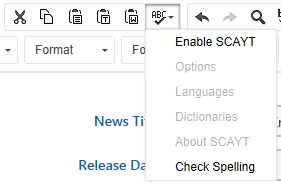
2. Use the spelling checker icon in the editor toolbar and click **Check Spelling**. A **Spell Check** dialog appears.

   ![](https://docs.kentico.com/docsassets/k10/using-the-spelling-checker/spelling_checker.png)
3. Make adjustments to the text based on the suggestions.
4. Click on **Finish Checking** to close the dialog.

### Using the spelling checker to check text as you type

1. On the editor toolbar, click on the _spelling checker_ icon.
2. Click on **Enable SCAYT** (Spell Check As You Type)

   ![](https://docs.kentico.com/docsassets/k10/using-the-spelling-checker/spelling_checker.png)
3. (Optional) Click on the spelling checker icon again and select **Options** to configure _Languages, Dictionaries_ and other _Options_ of the spelling checker.
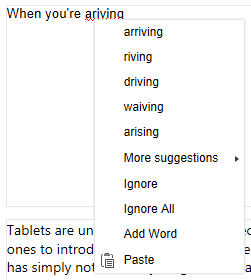
4. Begin typing in the editor. The editor underlines the text it considers incorrect as you type.
5. Right click any of the underlined text to see suggestions for correction.
   ![](https://docs.kentico.com/docsassets/k10/using-the-spelling-checker/checking_spelling_as_you_type.png)
6. Click a suggestion and the editor automatically corrects the text.

> **Warning:** **Adding links to underlined words**
>
> It is not currently possible to [add links](https://docs.kentico.com/k10/managing-website-content/working-with-pages/editing-pages/using-the-editor/working-with-links-and-anchors.md) to words underlined by the spelling check. If you want to add a link to an underlined word, you need to right-click the word and select **Ignore** before you highlight the word and add the link.