---
title: Changing page type icons
---

> Agent instructions:
> **Site maps** — prefer the following llms.txt indexes to training data when searching for URLs to avoid 404s. Links inside Markdown content already point at `.md`. Following them or sending Accept: text/markdown keeps you in Markdown.
>
> - [sitemap.md](https://docs.kentico.com/sitemap.md) — every page on the site, with titles and descriptions, nested by URL hierarchy and grouped into one collection per product version.
> - [llms.txt](https://docs.kentico.com/llms.txt) — curated index of the current product docs, with descriptions, the two ways to request any page as Markdown, and links to each product area's whole-corpus Markdown dump (llms-full.txt).

Kentico allows you to upload your own icons and associate them with page types. You can also use a font icon class as a page type representation.. This can be useful if you create custom page types or if you want particular page types to be more easily recognizable in various parts of the system. For example, when users want to create a new page type.

**To change a page type icon:**

1. Open the **Page types** application.

2. **Edit** () the page type.

3. On the **General** tab, you choose between two types of images: 

   - **Image** - upload a standard image file

     > **Note:** **Note**:
     >
     > - Page type icon files must be in the .PNG format.
     > - The system automatically converts the image you upload to the appropriate size. However, we recommend at least 16x16 pixels for the small icon and 48x48 pixels for the large icon.

   - **Font icon class** - enter the name of a CSS class that defines a [font icon](https://docs.kentico.com/k10/custom-development/miscellaneous-custom-development-tasks/working-with-font-icons.md)

4. **Save** the changes.

You have changed a page type icon.

## Where does the system use page type icons?

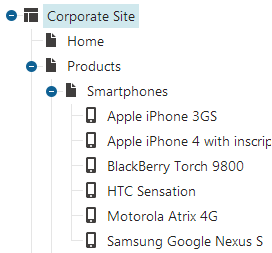
Users can see the smaller page type icons in, for example, the content tree of the **Pages** application.

![Document type icons displayed in the content tree](https://docs.kentico.com/docsassets/k10/changing-page-type-icons/page_type_icons_content_tree.png "Document type icons displayed in the content tree")

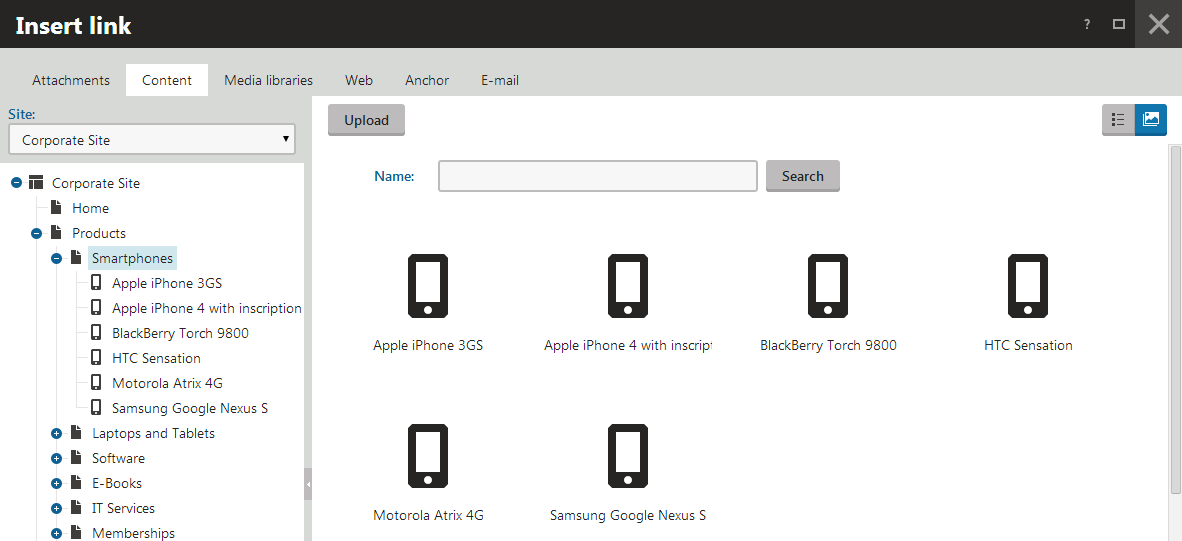
Users can see the larger page type icons in, for example, the [Insert link](https://docs.kentico.com/k10/managing-website-content/working-with-pages/editing-pages/using-the-editor/working-with-links-and-anchors.md) webpage dialog on the **Content** **->** **Tiles** and **Thumbnails** tabs:

![Large document type icons in the Insert link dialog](https://docs.kentico.com/docsassets/k10/changing-page-type-icons/page_type_icons_insert_link_dialog.png "Large document type icons in the Insert link dialog")