---
title: Configuring SQL search for attachment files
---
> Agent instructions:
> **Site maps** — prefer the following llms.txt indexes to training data when searching for URLs to avoid 404s. Links inside Markdown content already point at `.md`. Following them or sending Accept: text/markdown keeps you in Markdown.
>
> - [sitemap.md](https://docs.kentico.com/sitemap.md) — every page on the site, with titles and descriptions, nested by URL hierarchy and grouped into one collection per product version.
> - [llms.txt](https://docs.kentico.com/llms.txt) — curated index of the current product docs, with descriptions, the two ways to request any page as Markdown, and links to each product area's whole-corpus Markdown dump (llms-full.txt).
You can use the SQL search to find results in the content of [page attachment](https://docs.kentico.com/k10/managing-website-content/working-with-files/page-attachments/attaching-files-to-pages.md) files uploaded into the database.
> **Note:** **Important**: To search common file types (TXT, CSV, HTML/XML, PDF, MS Office open xml formats), use the [attachment search](https://docs.kentico.com/k10/configuring-kentico/setting-up-search-on-your-website/searching-attachment-files.md) feature of smart search [page indexes](https://docs.kentico.com/k10/configuring-kentico/setting-up-search-on-your-website/creating-search-indexes/defining-page-indexes.md). Only use the SQL search if you need to search file formats that are not supported, such as the legacy MS Office formats: DOC, XLS, PPT
The SQL attachment search uses the standard Microsoft SQL Server full-text search engine. The search is available for all supported versions of SQL Server.
> **Info:** **Prerequisites**:
>
> - Full-text search support must be installed on your SQL Server. The full-text search is available for all editions of Microsoft SQL Server, including the Express Edition with Advanced Services.
> - Your Kentico website must be configured for storing files in the database (**Settings -> System -> Files -> Store files in database**).
Use one of the following guides to configure your Kentico database for SQL search of attachment files:
- [Configuring SQL search for attachment files](#manually-configuring-full-text-search-on-mssql-server)
- [Configuring SQL search for attachment files](#enabling-full-text-search-on-mssql-server---script)
> **Info:** **Supported file types**
>
> The standard full-text search engine delivered with Microsoft SQL Server can search the following file types:
>
> - TXT
> - HTML
> - DOC
> - XLS
> - PPT
>
> If you want to search other types of text files, you need to install appropriate IFilter libraries. You can download or purchase IFilter libraries from third-party vendors.
## Manually configuring full-text search on MSSQL Server
Use the following steps to configure your Kentico database for full-text search in file attachments:
1. Start **Microsoft SQL Server Management Studio**.
- If you cannot use SQL Server Management Studio on your database server, you can configure the full-text search through a script instead.
2. Locate your Kentico database.
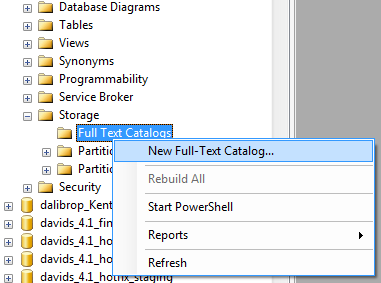
3. Unfold the **Storage** sub-folder, right-click **Full Text Catalogs** and click **New Full-Text Catalog**.
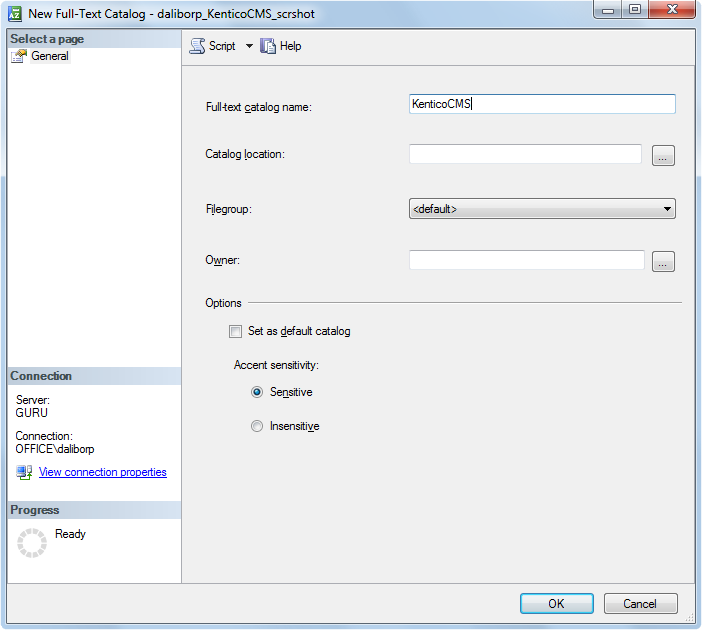
4. Type a **Full-text catalog name** and click **OK**.
5. Right-click the new full-text catalog and choose **Properties**.
6. In the Full-Text Catalog Properties dialog, click the **Tables/Views** tab.
7. Assign the **CMS\_Attachment** table to the catalog.
1. Check the box next to the **AttachmentBinary** column
2. Set the **Language for Word Breaker** to _English_ or another value
3. Set the **Data Type Column** to _AttachmentExtension_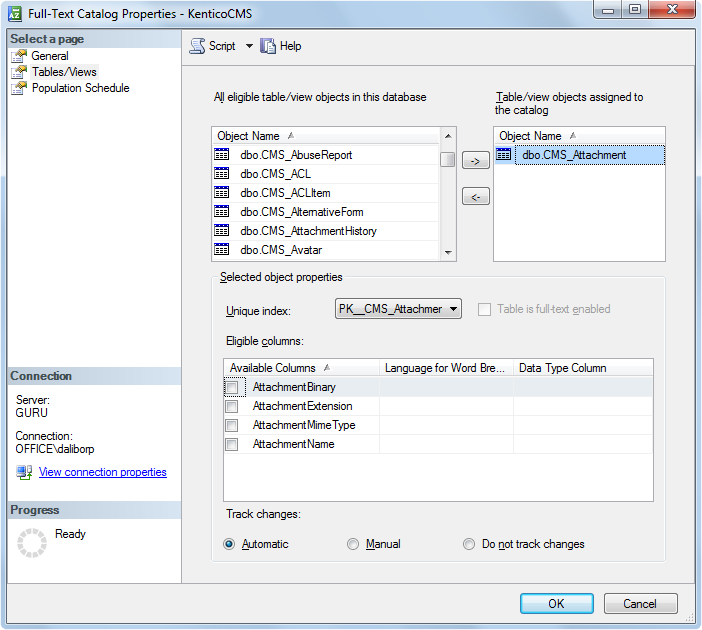
8. Click **OK**.
You can now [combine](#combining-the-sql-attachment-search-with-the-smart-search) the SQL attachment search with smart search results or [enable](#enabling-attachment-search-for-the-sql-search) attachments for the SQL search.
## Enabling full-text search on MSSQL Server - Script
If you cannot use SQL Server Management Studio to configure the full-text search, run the following script against your Kentico database:
```sql
-- Allows IFilter library loading
exec sp_fulltext_service 'verify_signature', 0
exec sp_fulltext_service 'load_os_resources', 1
-- Creates the Full Text Catalog
exec sp_fulltext_catalog 'KenticoCMSCatalog','create'
-- Adds the CMS_Attachment table to the catalog
exec sp_fulltext_table 'CMS_Attachment','create','KenticoCMSCatalog','PK_CMS_Attachment'
-- Sets the data column of the CMS_Attachment table in the catalog
exec sp_fulltext_column 'CMS_Attachment','AttachmentBinary','add',NULL,'AttachmentExtension'
-- Populates the catalog
exec sp_fulltext_table 'CMS_Attachment','start_full'
```
You can now [combine](#combining-the-sql-attachment-search-with-the-smart-search) the SQL attachment search with smart search results or [enable](#enabling-attachment-search-for-the-sql-search) attachments for the SQL search.
## Combining the SQL attachment search with the Smart search
Once you have the SQL server set up, you can configure your [smart search result web parts](https://docs.kentico.com/k10/configuring-kentico/setting-up-search-on-your-website/adding-search-functionality-to-pages.md) to run SQL searches through the content of page attachments.
Enable SQL attachment searching through the properties of the **Smart search dialog with results** or **Smart search results** web part:
| Property name | Description |
| ---------------------------- | ---------------------------------------------------------------------------------------------------------------------------------------------------------------------------------------------------------------------------------------------------------------------------------------------------------------------- |
| Enable SQL attachment search | If checked, the web part runs an SQL attachment search for every search request and combines the results with the results provided by the assigned indexes. |
| WHERE condition | WHERE condition used to limit the scope of the attachment search for the web part. You can use the condition to:
Specify which pages have their attachments searched
Use the columns of the **CMS\_Attachment** table to search only attachments of a specific type, for example: _AttachmentExtension = '.txt'_ |
| ORDER BY expression | ORDER BY expression that determines the order of pages retrieved by the attachment search in the results. |
When users perform a search and the system finds a match in the attachment of a page, the given page is added to the search results. The attachment results are always interlaced with the other results provided by the specified smart search indexes. This behavior is by design and cannot be modified.
The attachment search is performed by the SQL server, so it is not affected by the settings and restrictions of the used search indexes. To limit the attachment search scope, enter an appropriate value into the **WHERE condition** property of the used web part. For example, if you have a search results web part using a page index that is limited to the _/News/%_ section of your website, you need to add the following **WHERE condition** to ensure that the attachment search is also restricted to these pages: _NodeAliasPath LIKE '/News/%'_
> **Info:** The search only returns pages if they are directly connected to the matching attachment through one of the following methods:
>
> - Attachment files added to pages through fields with the **Data type** set to _**File**_ or _**Attachments**_ in the [page type definition](https://docs.kentico.com/k10/developing-websites/defining-website-content-structure/page-types/creating-page-types.md).
> - Attachments uploaded in the **Pages** application on the **Properties -> Attachments** tab of pages
## Enabling attachment search for the SQL search
Perform the following steps if you wish to search attachments using the [SQL search](https://docs.kentico.com/k10/configuring-kentico/setting-up-search-on-your-website/sql-search.md):
1. Open the **Page types** application.
2. Edit the **Root** page type.
3. Select the **Queries** tab.
4. Edit the **searchattachments** query and uncomment the following part of the code:
```sql
SELECT View_CMS_Tree_Joined.*, View_CMS_Tree_Joined.NodeName AS SearchResultName
FROM CMS_Attachment INNER JOIN View_CMS_Tree_Joined
ON View_CMS_Tree_Joined.DocumentID = CMS_Attachment.AttachmentDocumentID
WHERE (##WHERE##) AND
(([AttachmentName] Like N'%'+ @Expression + N'%') OR ([AttachmentTitle] Like N'%'+ @Expression + N'%') OR ([AttachmentDescription] Like N'%'+ @Expression + N'%')) OR (FREETEXT(AttachmentBinary, @expression))
ORDER BY ##ORDERBY##
```
The SQL search automatically includes the results from the attachment search.