---
title: Adding search functionality to pages
related:
- https://docs.kentico.com/k10/developing-websites/developing-websites-using-the-portal-engine/using-and-configuring-web-parts.md
- https://docs.kentico.com/k10/configuring-kentico/setting-up-search-on-your-website/displaying-search-results-using-transformations.md
- https://docs.kentico.com/k10/configuring-kentico/setting-up-search-on-your-website/adding-search-functionality-to-pages/setting-up-predictive-search.md
---
> Agent instructions:
> **Site maps** — prefer the following llms.txt indexes to training data when searching for URLs to avoid 404s. Links inside Markdown content already point at `.md`. Following them or sending Accept: text/markdown keeps you in Markdown.
>
> - [sitemap.md](https://docs.kentico.com/sitemap.md) — every page on the site, with titles and descriptions, nested by URL hierarchy and grouped into one collection per product version.
> - [llms.txt](https://docs.kentico.com/llms.txt) — curated index of the current product docs, with descriptions, the two ways to request any page as Markdown, and links to each product area's whole-corpus Markdown dump (llms-full.txt).
Kentico provides a set of smart search [web parts](https://docs.kentico.com/k10/developing-websites/developing-websites-using-the-portal-engine/using-and-configuring-web-parts.md) that you can use to build a search interface on the pages of your website.
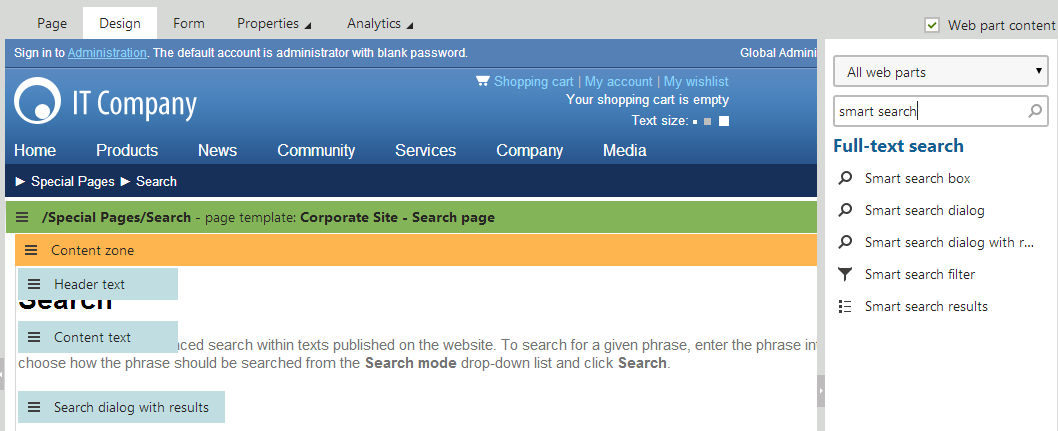
You can find the smart search web parts in the **Full-text search -> Smart search** category.
> **Info:** **Note**: This page only describes the most important properties of search web parts. For a complete list and explanations of the web part properties, configure one of the web parts in the _Pages_ application and click the help icon in the top right corner of the configuration dialog.
## Smart search dialog with results
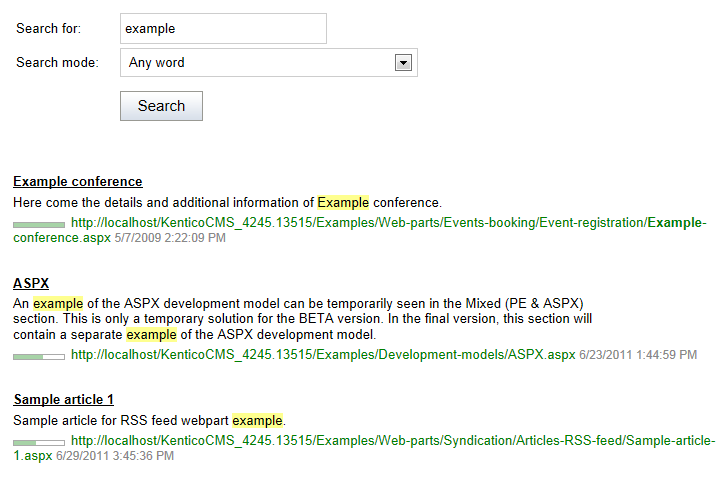
The Smart search dialog with results is an all-in-one web part that:
- Allows users to search
- Displays the results
The following properties are the most important for setting up the smart search:
| Property name | Description |
| ------------------- | ------------------------------------------------------------------------------------------------------------------------------------------------------------------------------------------------------------------------------------------------------------------------------------------------------------------------------------------------------------------------------------------------------------------------------------------------------------------------------------------------------------------------------------------------------------------------------------------------------------------------------------------------------------------------------------------------------------------------------------------------------------------------------------------------------------------------------------------------------------------------------ |
| Indexes | Determines which [index](https://docs.kentico.com/k10/configuring-kentico/setting-up-search-on-your-website/creating-search-indexes.md) the search uses. You can select multiple search indexes. |
| Transformation name | Name of the [transformation](https://docs.kentico.com/k10/configuring-kentico/setting-up-search-on-your-website/displaying-search-results-using-transformations.md) that displays the search results.
There are two default transformations suitable for this purpose:
**CMS.Root.SmartSearchResults**
**CMS.Root.SmartSearchResultsWithImages** |
| Search options | Sets the level of syntax that is allowed in search expressions:
**Basic** - users are allowed to input special syntax, but cannot search specific fields.
**None** - users can only enter text, everything is processed as a part of the search expression.
**Full** - all search options can be used, including field searching.
See: [Smart search syntax](https://docs.kentico.com/k10/configuring-kentico/setting-up-search-on-your-website/smart-search-syntax.md) |
| Search condition | Sets a condition that is added to any submitted search expressions. The condition is built using the smart search syntax, i.e. special symbols (+ -) and field conditions.
For example: _+articleid:\[(int)25 TO (int)150]_
Note: Fields must be set as **Searchable** in the smart search field configuration of individual object types to be usable in search conditions. |
| Search sort | Defines the order in which search results are displayed.
You can specify one or more search fields (separated by commas) according to which the results will be sorted. Use the ##SCORE## macro to order results by their score (relevance). The default order is ascending — you can reverse the order by adding the DESC keyword (e.g. articleid DESC).
If you encounter the "Field does not appear to be indexed" error when using multiple indexes, try specifying the type of the field, for example: _(date)documentcreatedwhen_
Note: Fields must be set as **Searchable** in the smart search field configuration of individual object types to be usable in search sort expressions. Additionally, we recommend having the **Tokenized** option disabled for the fields (dividing the field's value into searchable tokens may interfere with the sorting). |
## Smart search dialog
The Smart search dialog allows visitors to submit search requests and select the [Search mode](https://docs.kentico.com/k10/configuring-kentico/setting-up-search-on-your-website/configuring-search-assistance-features.md).
You need to place the dialog on a page together with the **Smart search results** web part. The combined functionality of the two web parts is nearly identical to the **Smart search dialog with results**. Using separate web parts allows you to place the dialog and results into different locations on the page.
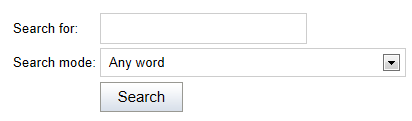
If you enable the dialog's **Show only search button** property, the web part only displays the submit button without the search textbox and mode selector. This functionality is intended for scenarios that utilize [Smart search filters](https://docs.kentico.com/k10/configuring-kentico/setting-up-search-on-your-website/using-search-filters.md) to specify all of the search parameters. You can add the textbox separately from the search button by connecting a **Smart search filter** web part in _textbox_ mode.
## Smart search box
The Smart search box allows visitors to submit search requests. The search box is useful for pages that have limited space and are not primarily dedicated to searching. For example, you can add a search box to your website's main header. The web part handles search requests by redirecting users to a different page, where the **Smart search results** or **Smart search dialog with results** web part displays the results.
You can configure the Smart search box to _**display results instantly while users type the search text**_. See [Setting up predictive search](https://docs.kentico.com/k10/configuring-kentico/setting-up-search-on-your-website/adding-search-functionality-to-pages/setting-up-predictive-search.md) for more information.

## Smart search results
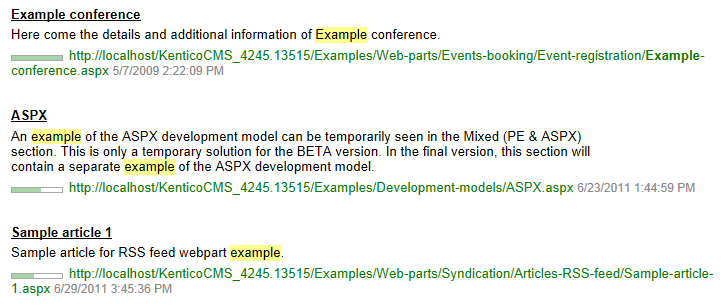
The Smart search results web part displays the results of search requests sent from **Smart search box** or **Smart search dialog** web parts.
To connect the search box or dialog to the search results:
- **Search dialog** - place the dialog on the same page as the search results, copy the _Web part control ID_ of the search results web part into the dialog's _Result webpart ID_ property.
- **Search box** - enter the relative URL of the page containing the search results into the search box web part's _Search results page URL_ property.
You can configure the Smart search results using the properties described for the Smart search dialog with results.
## Smart search filter
The Smart search filter web part allows users to set parameters that affect the scope of the search or the order of the displayed results. You can also use the search filter to add a separate search textbox to pages.
See [Using search filters](https://docs.kentico.com/k10/configuring-kentico/setting-up-search-on-your-website/using-search-filters.md) for more information.
