---
title: Example - Displaying categories in page lists
related:
- https://docs.kentico.com/k10/developing-websites/loading-and-displaying-data-on-websites/writing-transformations.md
- https://docs.kentico.com/k10/custom-development/miscellaneous-custom-development-tasks/adding-custom-methods-to-transformations.md
---
> Agent instructions:
> **Site maps** — prefer the following llms.txt indexes to training data when searching for URLs to avoid 404s. Links inside Markdown content already point at `.md`. Following them or sending Accept: text/markdown keeps you in Markdown.
>
> - [sitemap.md](https://docs.kentico.com/sitemap.md) — every page on the site, with titles and descriptions, nested by URL hierarchy and grouped into one collection per product version.
> - [llms.txt](https://docs.kentico.com/llms.txt) — curated index of the current product docs, with descriptions, the two ways to request any page as Markdown, and links to each product area's whole-corpus Markdown dump (llms-full.txt).
If you have pages that are organized in [categories](https://docs.kentico.com/k10/managing-website-content/working-with-pages/categorizing-pages.md), you can display a list of categories that each page belongs to. You need to write a [transformation](https://docs.kentico.com/k10/developing-websites/loading-and-displaying-data-on-websites/writing-transformations.md) method for displaying a list of categories assigned to a given page.
## Displaying page categories using a custom transformation function
1. Open your web project in Visual Studio.
> **Note:** **Note**: If you have already extended the **CMSTransformation** partial class when defining other transformation methods, you can add the method for displaying categories there without creating a new class.
2. Create a new folder under the **App\_Code** folder (or **Old\_App\_Code** on web application installations) and name it _CustomTransformationMethods_.
3. Right-click the folder and select **Add -> Add new Item**.
4. Create a new **Class** and name it **CMSTransformation.cs**.
5. Remove the default content of the class and enter the following code:
```csharp
using System;
using CMS.DocumentEngine;
using CMS.Taxonomy;
using CMS.Helpers;
namespace CMS.DocumentEngine.Web.UI
{
///
/// Extends the CMSTransformation partial class.
///
public partial class CMSTransformation
{
public string GetDocumentCategories(int documentId, string documentListAliasPath)
{
if (documentId < 1)
{
throw new Exception("Invalid document ID");
}
// Uses the current page's alias path if one is not specified for the category list page
if (documentListAliasPath == null)
{
documentListAliasPath = DocumentContext.CurrentAliasPath;
}
// Initializes the HTML code result
string result = "";
// Gets the categories of the specified page
var categories = DocumentCategoryInfoProvider.GetDocumentCategories(documentId)
.Columns("CMS_Category.CategoryID, CategoryDisplayName");
foreach (CategoryInfo category in categories)
{
// Constructs links for the assigned categories
// The links lead to a page containing a list of pages that belong to the same category, with the category ID in the query string
int categoryId = category.CategoryID;
string categoryName = category.CategoryDisplayName;
result += "" + categoryName + " ";
}
return result;
}
}
}
```
6. Save the class. **Build** the project if it is installed as a web application.
7. Call the method in the code of your transformation.
```xml title="Example"
Categories: <%# GetDocumentCategories(Eval("DocumentID"), null) %>
```
The method takes the following arguments:
- **int DocumentID** – the ID of the page whose categories you want to retrieve.
- **string DocumentListAliasPath** – path of the page that contains the list of pages (filtered according to the _category_ query string parameter). If you set the argument to _null_, the method uses the current page.
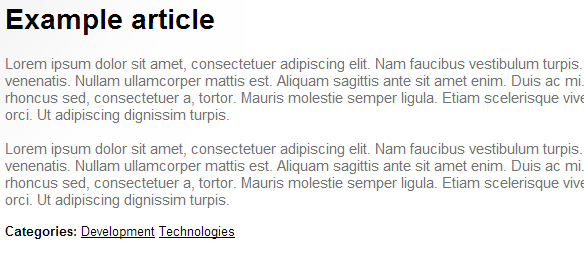
If you view the output of the transformation, you will see the categories to which the displayed page belongs.