
Example - Redeeming a free shipping offer
The example demonstrates redemption of a free shipping offer. The example uses the sample E-commerce Site.
We want the free shipping offer to be time-limited, targeted at customers in the Facebook users role, and to be applied to all orders to Texas exceeding 100 USD. It is redeemed while shopping on the live site, and while editing an existing order in the administration interface.
Adding a free shipping offer
The free shipping offer in this example doesn’t use coupons.
Please refer to Use coupon codes for free shipping to see an example of redemption of a free shipping offer that uses coupons.
First, enter the free shipping offer’s general properties.
Open the Free shipping offers application.
Click New Free shipping offer to open a page where you can specify the offer properties.
Enter the following values for the offer’s properties:
- Name: Free shipping to Texas
- Enabled: Yes (selected)
Click Save.
The system saves the free shipping offer. Currently, the offer applies to all orders placed by all customers.
Limiting the offer’s validity
To specify the free shipping offer’s period of validity:
- Enter the properties in the Duration section.
- Valid from: 11/15/2014 8:00:00 AM
- Valid to: 12/31/2014 6:00:00 PM
- Click Save.
The system saves the free shipping offer. Currently, the offer applies to all orders placed by all customers within the specified period.
Specifying the offer’s customer target group
To specify the free shipping offer’s customer target group:
- Enter the properties in the Target customers section.
Available for: Registered customers in selected roles
Click Select roles.
- The system opens the Select roles dialog.
Select the Facebook users role.
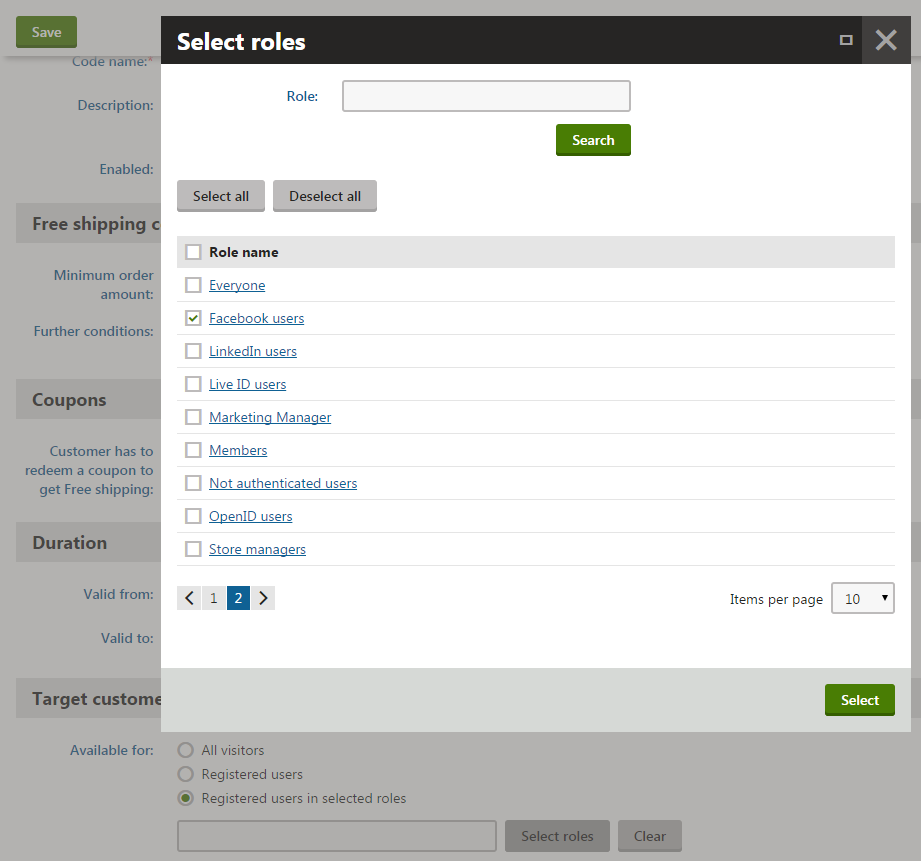
Click Select.
- The system closes the Select roles dialog.
- Click Save.
The system saves the free shipping offer. Currently, the offer applies to all orders placed by customers in the Facebook users role within the specified period.
Specifying the offer’s application conditions
To further limit the offer’s application, specify the properties in the Free shipping conditions section.
Specifying the minimum order amount
- Minimum order amount: 100
Selecting the discount rule
Click Edit to open the Edit macro condition dialog.
Select the Shipping address state is rule in the right part of the dialog.
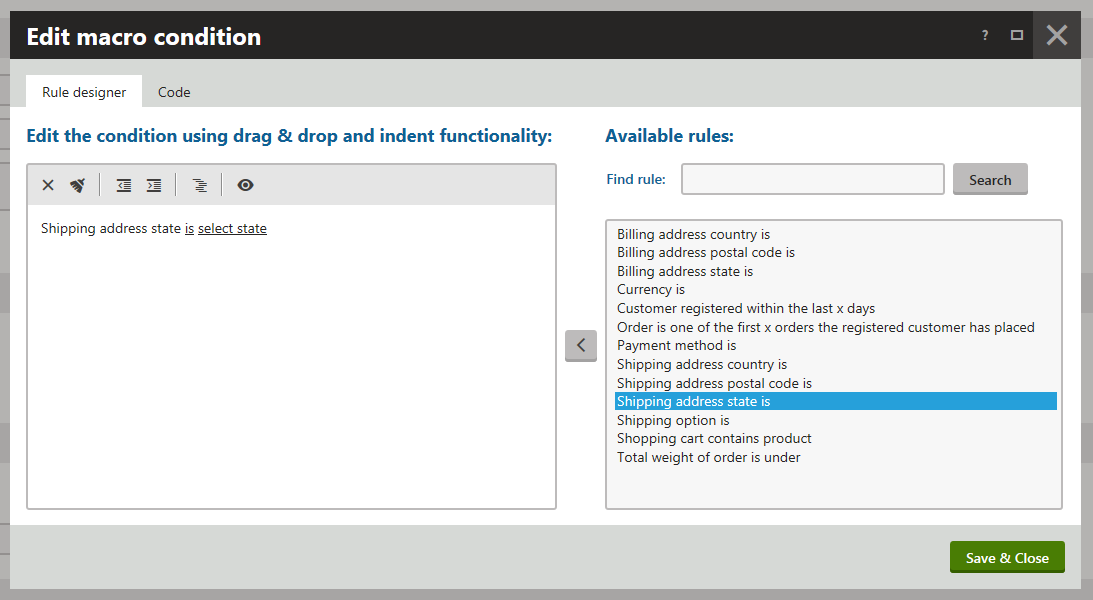
Click Add rule () to add the selected rule to the condition.
Specifying the rule’s parameter
1. Click select state in the left part of the dialog to open the Set parameter value dialog for the state parameter.
Select Texas from the list of available states.
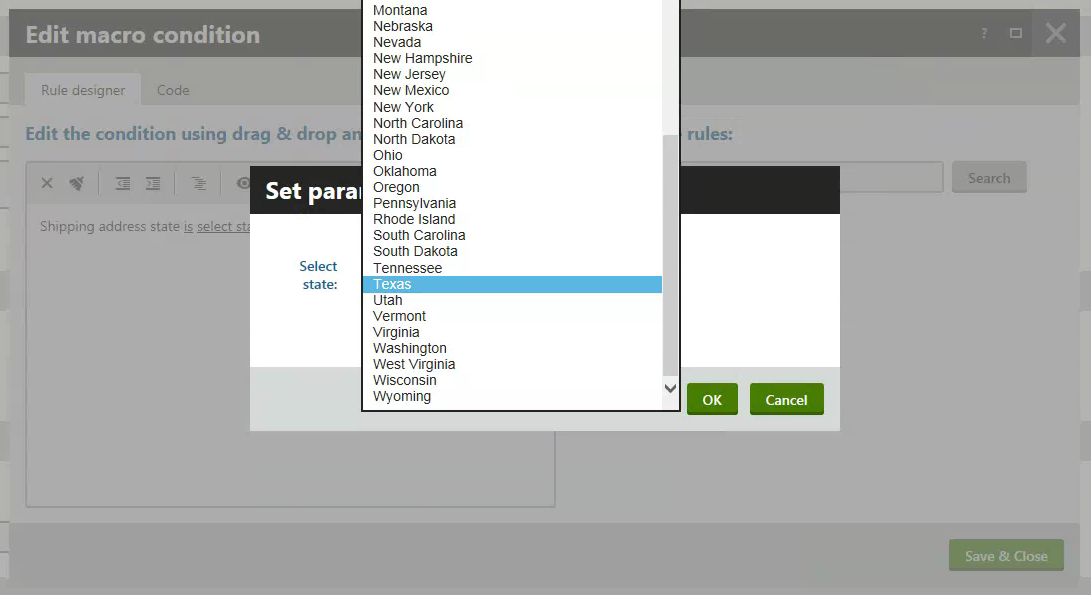
Click OK.
- The system closes the Set parameter value dialog.
Click Save & Close in the Edit macro condition dialog.
- The system saves the macro condition.
Click Save.
The system saves the free shipping offer. Currently, the offer applies to all orders to Texas exceeding 100 USD placed by customers in the Facebook users role within the specified period.
Redeeming the free shipping offer
While editing an existing order in the administration interface
Open the Orders application.
Edit () the selected order to Texas placed by a customer (user) in the Facebook users role.
Switch to the Items tab.
Add the Nike Race Day T-shirt.
Click Add item.
- The system opens the Add order items dialog.
Select the Nike Race Day T-shirt.
Click the name of the product leaving the Quantity field empty.
- The system opens the Add order items dialog with the product details displayed.The system behaves like this because the product has product options.
Specify the amount of product items:
- Units: 10
Click Add to cart.
The system closes the dialog and applies the free shipping offer.
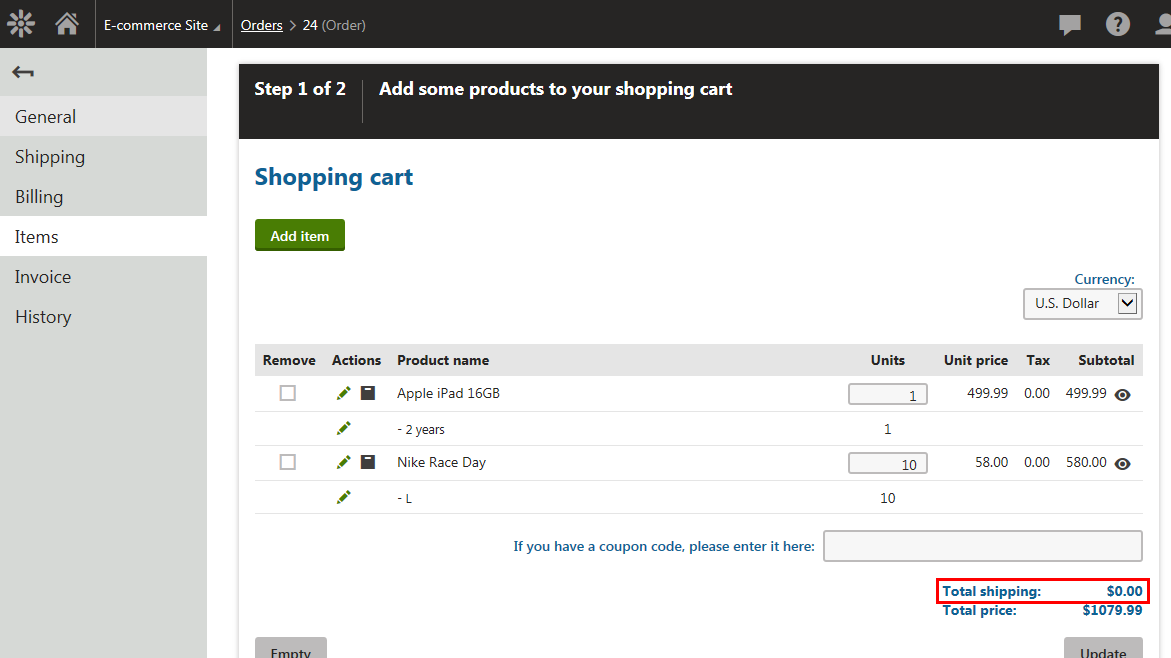
If you now click Next, the system saves the order.
While shopping on the live site
View the live site.
Sign in as a customer (user) with their address in Texas, in the Facebook users role.
Select Clothing ->** T-shirts** in your on-line store main menu.
- The system displays a list of all T-shirts that you offer in your on-line store.
Click Add to cart in the Nike Race Day section.
The product has product options. That’s why the system now displays the product’s details page.Enter 10 for the amount of product items.
Click Add to cart again.
The system displays the content of the shopping cart of the customer (user) in the selected role, with the free shipping offer applied on their order.
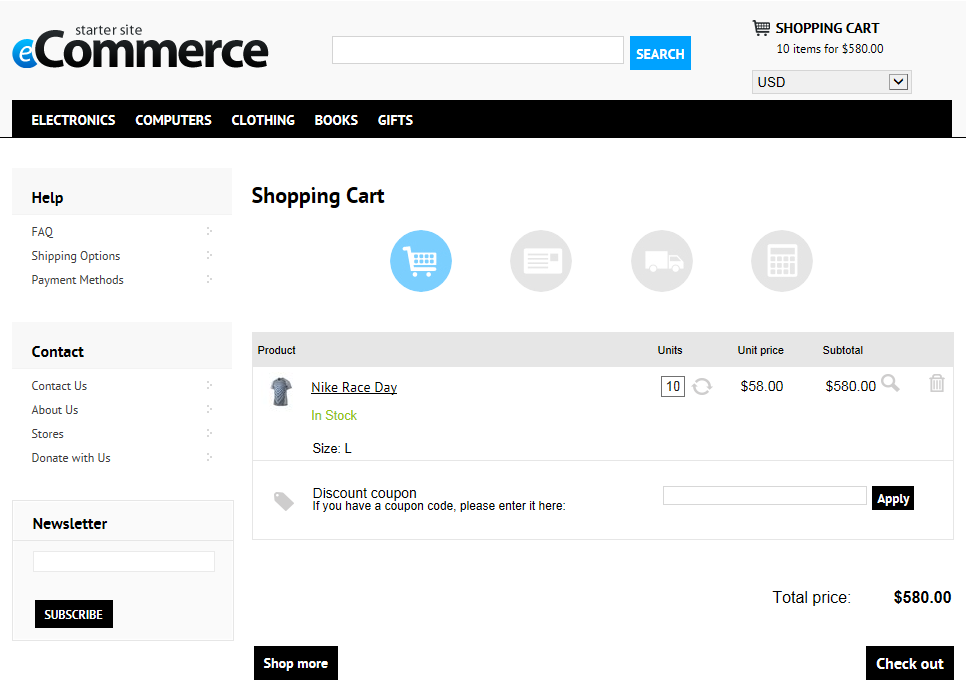
If you now click Check out, you can continue with the checkout process.