---
title: Displaying various page types in a Calendar web part
related:
- https://docs.kentico.com/k10/developing-websites/developing-websites-using-the-portal-engine/using-and-configuring-web-parts.md
- https://docs.kentico.com/k10/managing-website-content/events.md
- https://docs.kentico.com/k10/managing-website-content/configuring-the-environment-for-content-editors/configuring-events/creating-an-events-page.md
---
> Agent instructions:
> **Site maps** — prefer the following llms.txt indexes to training data when searching for URLs to avoid 404s. Links inside Markdown content already point at `.md`. Following them or sending Accept: text/markdown keeps you in Markdown.
>
> - [sitemap.md](https://docs.kentico.com/sitemap.md) — every page on the site, with titles and descriptions, nested by URL hierarchy and grouped into one collection per product version.
> - [llms.txt](https://docs.kentico.com/llms.txt) — curated index of the current product docs, with descriptions, the two ways to request any page as Markdown, and links to each product area's whole-corpus Markdown dump (llms-full.txt).
The **Event calendar** web part can not only display **Event (booking system)** pages, but also pages of any other type that have a date-time field. All you have to do is specify the date-time field in the **Date field** property of the web part. This way, you can, for example, display news in a calendar according to their publish date.
In the following example, you will learn how to use the **Event calendar** web part to display news from the _News_ section of the sample _Corporate Site_.
> **Info:** The following is an example showcasing a certain usage scenario. Adjust the scenario to achieve desired results.
To place the Event calendar web part and use it to display News items:
1. Open the **Pages**application.
2. Select the _News_ page in the content tree.
3. [Place](https://docs.kentico.com/k10/developing-websites/developing-websites-using-the-portal-engine/using-and-configuring-web-parts.md) the **Event calendar**web part on the page. A \*\*Web part properties (Event calendar)\*\*dialog opens.
- **Visibility -> Show for page types:** CMS.MenuItem
> **Info:** This ensures that the calendar will only be displayed in the list of news and not when a particular news item is viewed.
- **Path**: /News/%
- **Event start field**: NewsReleaseDate
- **Page types**: CMS.News
- **Skin ID**: EventCalendar
- **Transformation**: _Click the_**New**_button and create the following transformation:_
```xml
<%# Eval("NewsTitle", true) %>
```
- **Content before**:
```xml
```
- **Content after**:
```xml
```
4. Leave the rest of the properties at their default values and click **Save & Close**. The system places the web part on the page.
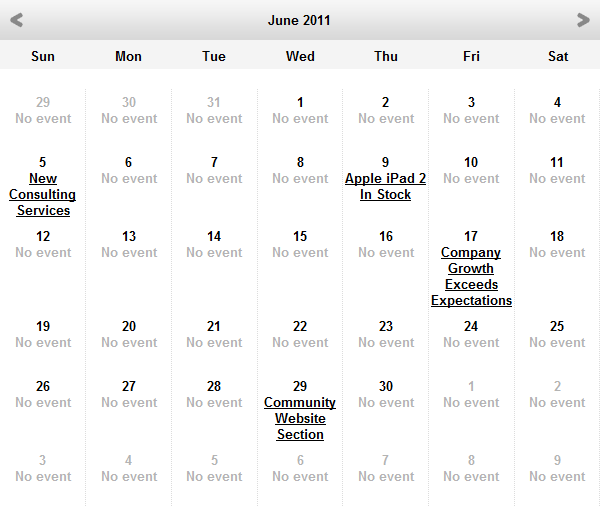
If you view the page in the **Preview** mode, you will see the calendar listing news items. The **News**pages are shown based on the date they were published.