---
title: Working with pages
---
> Agent instructions:
> **Site maps** — prefer the following llms.txt indexes to training data when searching for URLs to avoid 404s. Links inside Markdown content already point at `.md`. Following them or sending Accept: text/markdown keeps you in Markdown.
>
> - [sitemap.md](https://docs.kentico.com/sitemap.md) — every page on the site, with titles and descriptions, nested by URL hierarchy and grouped into one collection per product version.
> - [llms.txt](https://docs.kentico.com/llms.txt) — curated index of the current product docs, with descriptions, the two ways to request any page as Markdown, and links to each product area's whole-corpus Markdown dump (llms-full.txt).
You can use the **Pages** application to work with pages in Kentico.
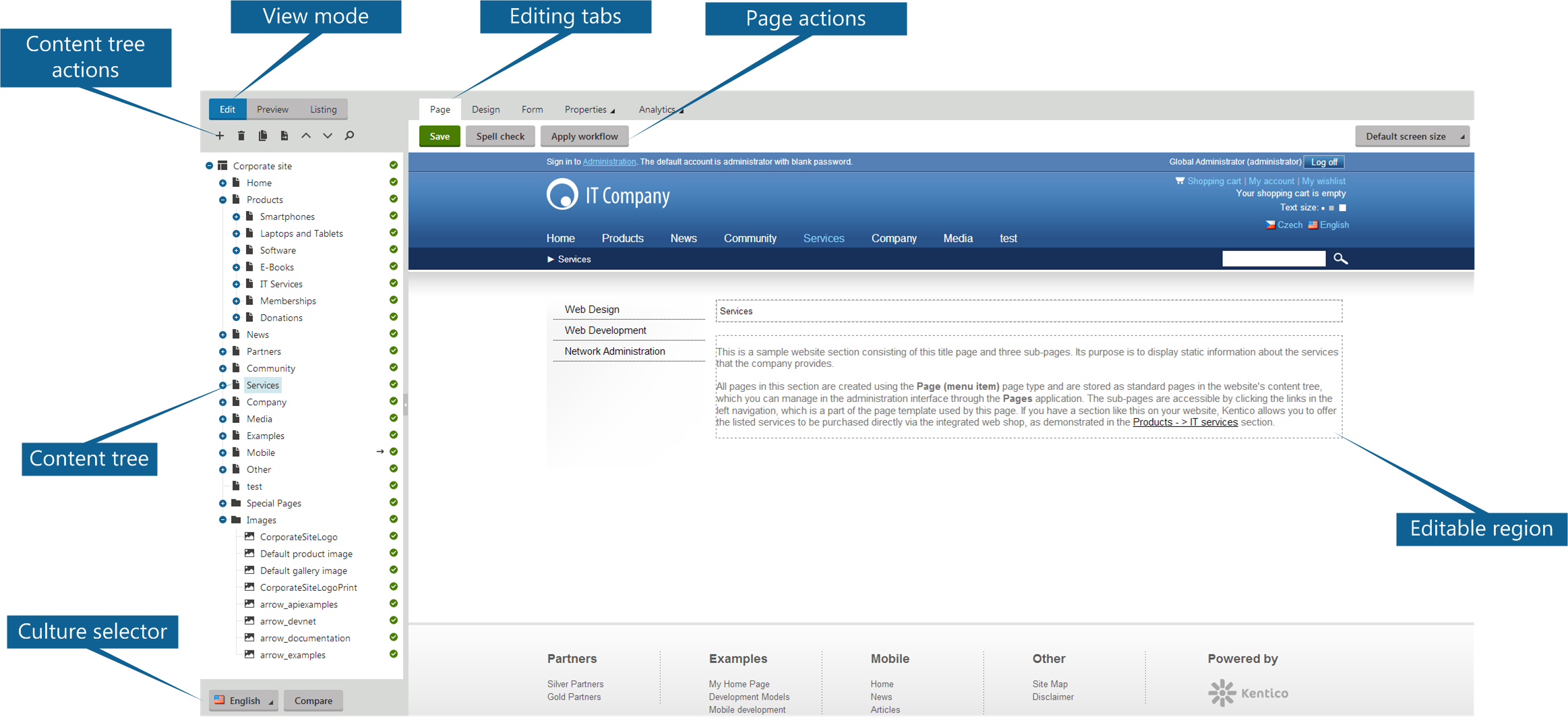
## Available view modes
When working with and previewing content in the **Pages** application, there are three view modes that you can use:
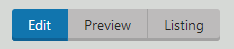
- **Edit** – the default view mode in which you can [editpages](https://docs.kentico.com/k10/managing-website-content/working-with-pages/editing-pages.md). Usually on the **Page** tab or **Form** tab.

_**Tabs in the Edit mode**_
- **Preview** – displays the latest version of the page. This means that it displays even pages that are not yet published. The view mode also allows you to use built-in [page validation features](https://docs.kentico.com/k10/developing-websites/validating-website-code-and-accessibility.md).
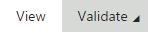
_**Tabs in the Preview mode**_
- **Listing** – shows a list of all pages under the currently selected page. You can use the _Listing_ mode to perform [multiple (batch) page operations](https://docs.kentico.com/k10/managing-website-content/working-with-pages/multiple-page-operations.md) such as deleting, publishing, or translating pages at once.
You can also view pages directly on the **Live site**. You can use the **[Application list](https://docs.kentico.com/k10/using-the-kentico-interface.md#opening-applications)** to access the Live site.
The following points summarize the difference between **Live site** and the **Preview** view mode:
- **Live site** and **Preview** display the same content when a page is published and no further changes have been made to it since it was published.
- The **Preview** mode does not use caching, so it may display published changes that are not visible on the **Live site** yet due to caching.
- If a page does not use workflow and its **Publish from** property is set to a future date and time, then the **Live site** does not display any content, while the **Preview** mode displays the content that will be published after the specified date and time.
- If a page uses workflow and has not yet reached the **Published** step, then the **Live site** does not display any content, while the **Preview** mode displays the content created in the current workflow step.
- If a page uses workflow, is already in the **Published** workflow step and its workflow cycle has been restarted (i.e. it was switched from the **Published/Archived** workflow step back to the **Edit** step and is going through the workflow cycle again), then **Live site** displays the last published version, while the **Preview** mode displays content from the current workflow step.
## Page status icons
Page status icons indicate the current state of the page. You can see page status icons next to pages in the content tree.
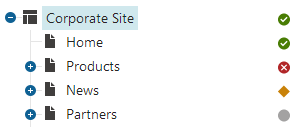
In the following table, you can see what each of the page status icons indicates.
| Icon | Description |
| ------------------------------------------------------------------------------------------------------------------------------------------------------------------------------------------------------------------------------------------ | ----------------------------------------------------------------------------------------------------------------------------------------------------------------------------------------------------------------------------------------------------------------------------------------------------------------------------------------------------------------------------------------------------------------------------------------------------------------------------------------------------------------------------------- |
|  | This icon indicates that the page is currently published on the live site by means of configuration of the **Publish from** and **Publish to** properties on the page's **Form** tab. If the page is under workflow, it also needs to be in the **Published** workflow step for this icon to appear next to it. |
|  | This icon indicates that the page is not published on the live site.
When a page is not under a workflow, the icon indicates that the **Publish to** property is set to a past date and time.
Under a workflow, the icon indicates that the page has not yet been published, i.e. that it has no previously published version. |
|  | This icon appears next to pages that are scheduled to be published in the future.
Without workflow, this happens when the value in the **Publish from** property on the page's **Form** tab is set to a future date and time.
Under workflow, the same applies, while a page must not have a previously published version (if it has a previously published version, the  icon is displayed instead). |
| 
 | These two icons appear next to pages under workflow that already have a published version and another version is scheduled to be published. This happens when the new version already is in the **Published** workflow step and the value in the **Publish from** property on the page's **Form** tab is scheduled to some future date and time. In other words, no other work is to be done on the page and the system is only waiting for the set **Publish from** date and time on the **Form**tab before it publishes the page. |
|  | This icon appears next to pages under workflow that already have a published version and a new version of the page is being created but is not published yet. In other words, the icon is displayed next to pages that already have a previously published version, and are in any workflow step before the **Published** step. |
|  | This icon appears next to pages that are archived. Archived pages are no longer visible on the live site, but are still present in the content tree and can be restored when needed. You can archive a page by clicking the **Archive** button on the **Properties -> Workflow** tab. |
|  | This icon indicates that the page is currently checked-out. That means that it is being edited by another user. You cannot edit a page while it is checked out, you have to wait until the user finishes editing and checks the page back in. See [Content locking](https://docs.kentico.com/k10/managing-website-content/configuring-the-environment-for-content-editors/configuring-and-using-page-versioning/content-locking.md) for more details. |
|  | This icon appears next to pages that are not available in the currently edited culture. |
|  | This icon appears next to pages that have been submitted to a [Translation service](https://docs.kentico.com/k10/multilingual-websites/configuring-translation-services.md) and are waiting for the translation to be completed. |
|  | This icon is displayed next to linked pages. Linked pages only represent a link pointing to another page in the content tree. See the [Creating linked pages](https://docs.kentico.com/k10/managing-website-content/working-with-pages/copying-and-moving-pages-creating-linked-pages.md) topic for more details. |
|  | This icon appears next to pages that have a redirection configured in **Properties -> Navigation -> URL redirection**. |
|  | Displayed next to pages that are currently being [A/B tested](https://docs.kentico.com/k10/on-line-marketing-features/managing-your-on-line-marketing-features/optimization-testing/a-b-testing-website-pages.md). |
## Types of pages
Before you start working with pages in Kentico, you may want to know that there are two different kinds of pages.
All the items in the content tree are **pages**. Even the files that you upload into the content tree ( such as PDF, Word, image files, etc. ) are pages. However, there is a special type of **pages** that behaves differently.
### Pages that behave as Page - menu items
Pages that are set to behave as _Page (menu items)_ are displayed in the menu of the website (by default) and they display content – usually unstructured content in the form of editable regions that you can edit on the **Page** tab. By default, the **Page (menu item)** pages available in Kentico by default provide this functionality, but [administrators can make](https://docs.kentico.com/k10/developing-websites/defining-website-content-structure/page-types/configuring-page-types.md) any type of pages behave this way.
### Structured pages
Pages (also referred to as structured pages) contain structured and typed data that can be displayed on other pages (usually those that behave as _Page - menu items_). You can edit structured page data on the **Form** tab.
A typical use for structured pages is when you need to display lists of items, such as news, products, and others on a single page. Each of the news or products can have its own fields such as _title, main text,_ and _teaser image_ that you edit.
## Performing page-related tasks
You can perform various page-related tasks from **dedicated applications**, namely:
- **Checked-out Items**– Allows you to manage [checked-out](https://docs.kentico.com/k10/managing-website-content/configuring-the-environment-for-content-editors/configuring-and-using-page-versioning/content-locking.md) pages.
- **My pages** – Allows you toview and edit pages that you created in one place.
- **Outdated pages** – Allows you toview pages based on how long they have been in the system.
- **Pages** – Allows you to work with the site's pages in a hierarchical structure.
- **Pending pages** – Allows you towork with pages that are [waiting for your approval](https://docs.kentico.com/k10/managing-website-content/working-with-pages/using-workflows.md).
- **Recent pages** – Allows you toview and edit pages that you recently modified.
- **Recycle bin**– Allows you to restore deleted pages or remove them from the system permanently.
## What is a workflow?
Workflow is a **sequence of steps** that define the life cycle of pages. This ensures the quality of content and design by setting up a reviewing and approval process. In such a process, individual roles and users can work with pages in certain steps of their life cycle (such as Edit, Published, Archived, ...).
An example of a simple workflow process is a website that publishes scientific articles. An author writes an article and sends it for approval to an editor. The editor makes corrections and submits the article to the head of the respective department. The head then publishes the page, thus making it publicly available to read on the website.
Learn how you can [work with workflows](https://docs.kentico.com/k10/managing-website-content/working-with-pages/using-workflows.md).