---
title: Creating new web parts
related:
- https://docs.kentico.com/k10/developing-websites/developing-websites-using-the-portal-engine/using-and-configuring-web-parts.md
- https://docs.kentico.com/k10/custom-development/developing-web-parts/working-with-web-part-properties.md
- https://docs.kentico.com/k10/custom-development/developing-web-parts/creating-inherited-web-parts.md
- https://docs.kentico.com/k10/custom-development/miscellaneous-custom-development-tasks/web-part-api.md
---
> Agent instructions:
> **Site maps** — prefer the following llms.txt indexes to training data when searching for URLs to avoid 404s. Links inside Markdown content already point at `.md`. Following them or sending Accept: text/markdown keeps you in Markdown.
>
> - [sitemap.md](https://docs.kentico.com/sitemap.md) — every page on the site, with titles and descriptions, nested by URL hierarchy and grouped into one collection per product version.
> - [llms.txt](https://docs.kentico.com/llms.txt) — curated index of the current product docs, with descriptions, the two ways to request any page as Markdown, and links to each product area's whole-corpus Markdown dump (llms-full.txt).
If the [web parts](https://docs.kentico.com/k10/custom-development/developing-web-parts.md) included in Kentico by default do not meet your requirements, you can create your own web parts. This allows you to add any type of custom content or functionality to [portal engine](https://docs.kentico.com/k10/developing-websites/developing-websites-using-the-portal-engine.md) pages.
Developing new web parts consists of two basic steps:
1. Create the web part's code files in your web project.
2. Register the web part in the system.
> **Note:** **Note**: In many cases, it may be easier to achieve your goal by altering or extending one of the default web parts rather than developing an entirely new one.
>
> See: [Customizing web parts](https://docs.kentico.com/k10/custom-development/developing-web-parts/customizing-web-parts.md)
## Writing web part code
Implement web parts as [user controls](http://msdn.microsoft.com/en-us/library/y6wb1a0e%28v=vs.100%29.aspx) (_.ascx_ files) that inherit from an appropriate base class:
| Base class | Namespace | Use for |
| -------------------------- | ----------------------- | ------------------------------------------------------------------------------------------------------------------------------------------------------------------------------------------------------------------------------------------------------------------------------------------------------------------------------------- |
| CMSAbstractWebPart | CMS.PortalEngine.Web.UI | Standard web parts. |
| CMSAbstractEditableWebPart | CMS.PortalEngine.Web.UI | Web parts that provide content editing functionality on the **Page** tab of the **Pages** application and in [on-site editing mode](https://docs.kentico.com/k10/managing-website-content/configuring-the-environment-for-content-editors/enabling-on-site-editing.md) (such as _Editable text_ or _Editable image_). |
| CMSAbstractLayoutWebPart | CMS.PortalEngine.Web.UI | [Layout web parts](https://docs.kentico.com/k10/developing-websites/developing-websites-using-the-portal-engine/working-with-layout-web-parts.md).
See: [Developing layout web parts](https://docs.kentico.com/k10/custom-development/developing-web-parts/advanced-web-part-development-scenarios/developing-layout-web-parts.md) |
| CMSCheckoutWebPart | CMS.Ecommerce.Web.UI | E-commerce checkout web parts. |
To ensure that your custom web parts work correctly:
1. Edit the markup of the user control that implements the web part.
2. In the **Control** declaration, enter the _full relative path_ of the code behind file into the **CodeFile** attribute (**CodeBehind** attribute on web application installations).
For example:
```html
<%@ Control Language="C#" AutoEventWireup="true" Inherits="CMSWebParts_Viewers_Documents_cmsrepeater" CodeFile="~/CMSWebParts/Viewers/Documents/cmsrepeater.ascx.cs" %>
```
You can add any required content into the web part's markup and write custom code behind logic.
**Tips**:
- Display content from Kentico by placing [Kentico Controls](https://docs.kentico.com/k10/references/kentico-controls.md) into the markup of your web parts.
- See [Working with web part properties](https://docs.kentico.com/k10/custom-development/developing-web-parts/working-with-web-part-properties.md) to learn how to access the values of web part properties in the code.
- To disable web parts in your code, set the **StopProcessing** property to _true_. All web parts inherit this property from the _CMSAbstractWebPart_ base class.
- You can implement web parts that have special behavior or additional content when viewed on the **Design** tab of the **Pages** application. Use the following code to check whether the web part is being rendered in Design mode:
```csharp
using CMS.PortalEngine;
if (PortalContext.IsDesignMode(this.PagePlaceholder.ViewMode))
{
...
}
```
#### Setting the properties of controls in web parts
If you use Kentico controls inside your web parts, it is recommended to set/initialize the control properties using a combination of the **OnContentLoaded** and **SetupControl** methods. You can view the code of the default listing web parts to see an example (e.g. _\~/CMSWebParts/Viewers/Documents/cmsrepeater.ascx.cs_).
For standard .NET or third party controls, you can set the properties in the handler of the web part control's **Load** event (_OnLoad_ method).
If you encounter problems with the control life cycle, try [adding](https://docs.kentico.com/k10/custom-development/miscellaneous-custom-development-tasks/adding-custom-code-to-portal-engine-page-templates.md) your controls to the page through the **User control** web part. This web part enables you to dynamically load user controls on portal engine pages.
#### Storing files related to web parts
If your web part consists of multiple files (such as other ASCX controls, images, JS scripts), place these files in a sub‑folder under the directory containing the main web part's files. The name of the sub-folder must match the code name of the web part with _**\_file**_ appended. For example, if the web part's code name is **WebPart**, the sub‑folder must be **WebPart\_files**.
This ensures that the system includes the additional files in the web part's export package when you [deploy the website](https://docs.kentico.com/k10/deploying-websites.md) or distribute the web part to other developers.
## Managing web parts in the system
### Registering web parts
Before you can use your user controls as web parts, you need to register them as objects in Kentico. The system sorts web parts into categories, organized in a tree structure.
1. Open the **Web parts** application.
2. Select the category where you want to place the web part.
3. Click **New web part**.
4. Type a **Display name** for the web part.
5. Select _**Use existing file**_ as the **Code files** option.
6. Specify the path of the user control in the **File path** field.
7. Click **Save**.
8. Define the properties of the web part. See [Working with web part properties](https://docs.kentico.com/k10/custom-development/developing-web-parts/working-with-web-part-properties.md) for more information.
You can now place instances of the web part onto portal engine pages on the **Design** tab of the **Pages** application.
> **Tip:** **Tip**: You can register web parts before creating the user control source files in the web project. Select the **Generate new files** option when creating the web part, and the system automatically adds the required files according to the specified **File name**. The automatically generated user control inherits from **CMSAbstractWebPart**.
### Configuring web parts
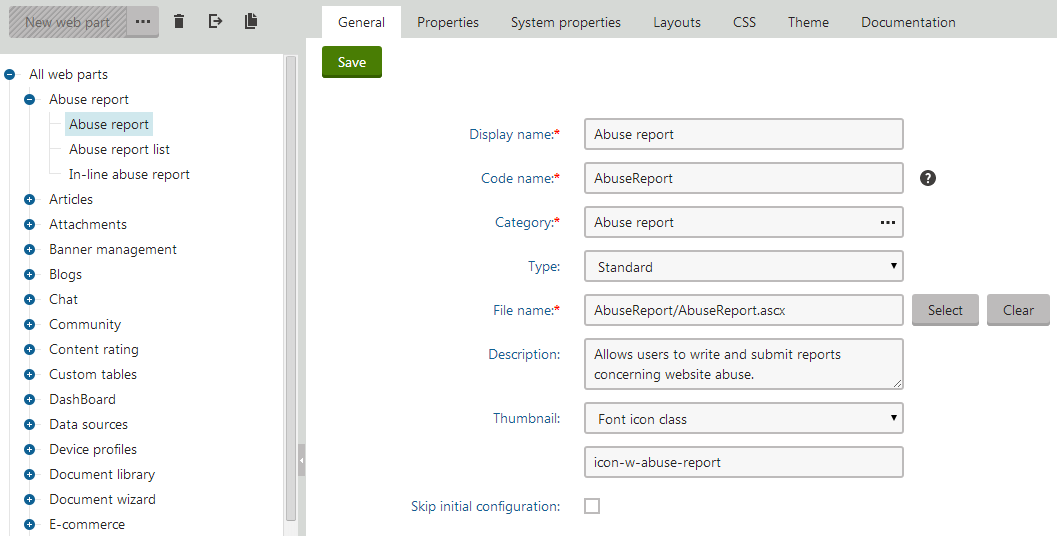
To edit the settings of a web part, open the **Web parts** application and select the web part in the category tree. When editing web parts, you can configure the following on the **General** tab:
| General settings | Description |
| -------------------------- | --------------------------------------------------------------------------------------------------------------------------------------------------------------------------------------------------------------------------------------------------------------------------------------------------------------------------------------------------------------------------------------------------------------------------------------------------------------------------------------------------------------------------------------------------------------------------------------------------------------------------------------------------------------------------------------------------------------------------------------------------------------------------------------------------------------------------------------------------------------------------------------------------------------------------------------------------------------------------------------------------------------------------------------------------------------------------------------------------------------------------------------------------------------------------------------------------------------------------------------------------------------------------------------------------------------------------------------------------------------------------------------------------------------------------------------------------------------------------------------------------------------------------------------------------------------------------------------------------------------------------------------------------------------------------------------------------------------------------------------------------------------------------------------------------------------------------------------------------------------------------------------------------------------------------------------------------------------------------------------------------------------------------------------------------------------------------------------------------- |
| Display name | The name of the web part displayed to users in the administration interface (in the web part toolbar or selection dialog). |
| Code name | Serves as a unique identifier for the web part (for example in the API). |
| Category | The category in the web part catalog where the system stores the web part. |
| File name | Contains the relative path to the user control that implements the web part. The path starts from the **CMSWebParts** folder. For example: _AbuseReport/AbuseReport.ascx_
It is recommended to organize the source files of web parts in a way that matches the structure of the web part categories. |
| Type | Sets the type of the web part, which affects its behavior and properties. The system identifies different web part types with different colors and icons on the **Design** tab of the **Pages** application. The following web part types are available:
**Standard** - typical web parts that displays some type of content.
**Data source** - do not display any content, only provide data to be displayed by other connected web parts. See [Loading and displaying data](https://docs.kentico.com/k10/developing-websites/loading-and-displaying-data-on-websites.md).
**Filter** - allow users to limit the data provided by a connected data source web part.
**Placeholder** - used only for the _Page placeholder_ web part. Specifies an area where [nested](https://docs.kentico.com/k10/developing-websites/developing-websites-using-the-portal-engine/inheriting-portal-engine-page-content.md) sub-pages display their content.
**Invisible** - do not display any output on pages, usually perform some type of background task.
**Basic** - basic web parts without partial caching and AJAX UpdatePanel support.
**Layout** - generate a layout for page content by defining additional web part zones. See [Working with layout web parts](https://docs.kentico.com/k10/developing-websites/developing-websites-using-the-portal-engine/working-with-layout-web-parts.md) for more information.
**Widget only** - the web parts only serves as base templates for [widgets](https://docs.kentico.com/k10/developing-websites/preparing-widgets-for-users.md) and are not available in the web part toolbar or selection dialog. Assigning the _Widget only_ type does not remove or disable existing instances of the web part.
**UI** - used to build pages of the Kentico administration interface (on _UI page_ type page templates assigned to [UI elements](https://docs.kentico.com/k10/custom-development/creating-custom-modules/reference-managing-ui-elements.md)). You cannot add UI web parts onto standard portal engine page templates. |
| Skip initial configuration | If checked, the system adds new instances of the web part directly onto pages without opening the property configuration dialog. This can be convenient, particularly in the case of web parts that are typically used with their default property values. |
| Thumbnail | Allows you to set the image that represents the web part in the selection catalog and web part toolbar.
You can choose between two types of images:
**Image** - upload a standard image file (for example a png).
**Font icon class** - enter the name of a CSS class that defines a [font icon](https://docs.kentico.com/k10/custom-development/miscellaneous-custom-development-tasks/working-with-font-icons.md). |
| Description | Text describing the web part. The system displays the text:
In the web part selection catalog
As a tooltip in the web part toolbar |
### Styling web parts using CSS
We recommend that you style the content of web parts in the CSS that you use for the entire website. See [Designing websites using CSS](https://docs.kentico.com/k10/developing-websites/designing-websites-using-css.md) for more information on the two recommended approaches.
## Example - Creating a new web part
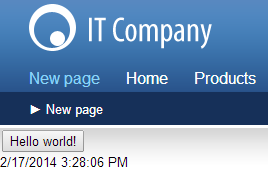
The following example guides you through the process of creating a simple "Hello world" web part that displays a label and a button. When a user clicks the button, the label displays the current time.
### Creating the web part code files
1. Open your web project in Visual Studio using the **WebSite.sln** (or **WebApp.sln**) file.
2. Right-click the **CMSWebParts** folder in the Solution Explorer window and click **Add -> New Folder**.
3. Name the sub-folder _MyWebParts_.
4. Create a **Web User Control** named _HelloWorld.ascx_ in the _MyWebParts_ folder.
5. In the **Control** declaration, enter the full relative path of the control's code behind file into the **CodeFile** attribute (**CodeBehind** attribute on web application installations).
```html
<%@ Control Language="C#" AutoEventWireup="true" CodeFile="~/CMSWebParts/MyWebParts/HelloWorld.ascx.cs" Inherits="CMSWebParts_MyWebParts_HelloWorld" %>
```
6. Add a **Button** and **Label** control into the control's markup.
```html
```
7. Set the **Visible** property of the Label control to _False_.
8. Switch to **Design** mode and double-click the Button control.
- Visual Studio opens the control's code behind file and creates a handler method for the button click event.
9. Add the following code into the **Button1\_Click** method:
```csharp
Label1.Text = DateTime.Now.ToString();
Label1.Visible = true;
```
10. Add the following references to the beginning of the control's code behind:
```csharp
using CMS.PortalEngine.Web.UI;
using CMS.Helpers;
```
11. Modify the control's class declaration so that it inherits from **CMSAbstractWebPart**:
```csharp
public partial class CMSWebParts_MyWebParts_HelloWorld : CMSAbstractWebPart
```
12. Add the following code to the **Page\_Load** method:
```csharp
Button1.Text = DataHelper.GetNotEmpty(GetValue("ButtonText"), "Show time");
```
13. Save the user control's files.
The web part's source files are now ready. If your Kentico project was installed as a _web application_, you must **Build** the project.
### Registering the web part in the system
1. Log in to the Kentico administration interface and open the **Web parts** application.
2. Select the root of the tree (_All web parts_), click **...** next to the **New web part** button and select **New category**.
3. Type _My web parts_ into the **Category display name** field and click **Save**.
4. Select the new category and click **New web part**.
5. Specify the following values:
- **Web part**: Create a new
- **Display name**: Hello world
- **Code files**: Use existing file
- **File path**: \~/CMSWebParts/MyWebParts/HelloWorld.ascx
6. Click **Save**.
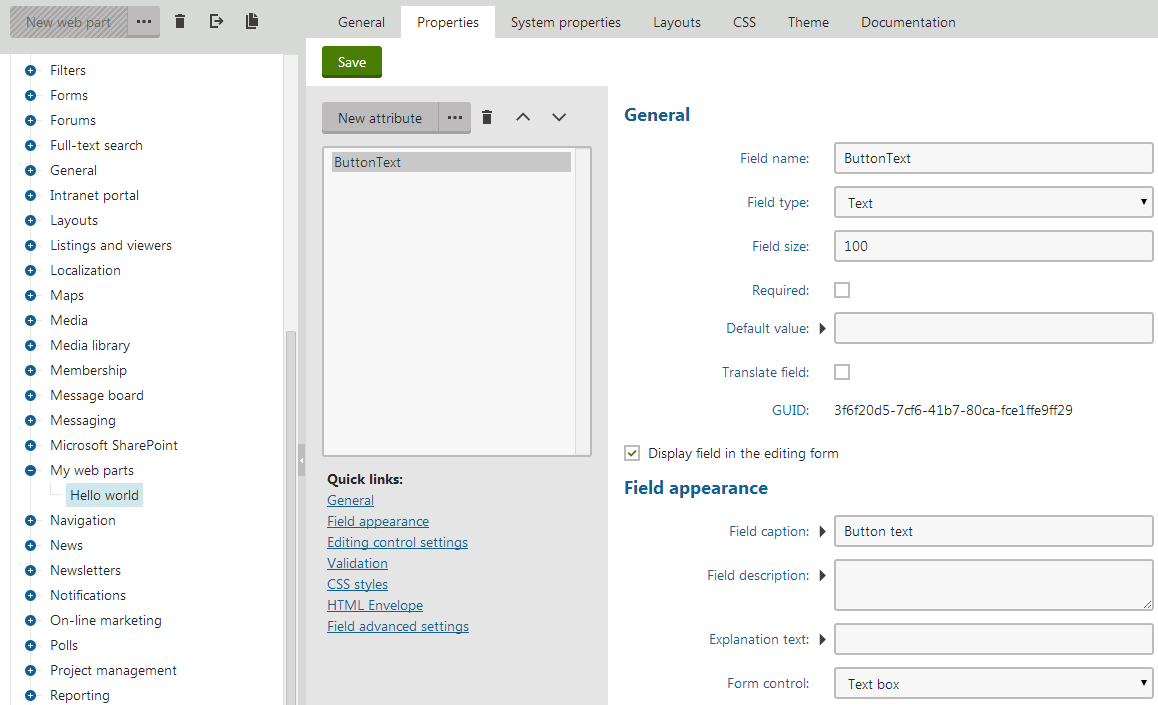
7. Switch to the **Properties** tab and click **New field** to create a [web part property](https://docs.kentico.com/k10/custom-development/developing-web-parts/working-with-web-part-properties.md):
- **Field name**: ButtonText
- **Data type**: Text
- **Size**: 100
- **Field caption**: Button text
- **Form control**: Text box
8. Click **Save**.
### Adding an instance of the web part to a page
1. Open the **Pages** application.
2. [Create a new page](https://docs.kentico.com/k10/managing-website-content/working-with-pages/creating-new-pages.md) in your website's content tree.
3. Switch to the **Design** tab.
4. [Add](https://docs.kentico.com/k10/developing-websites/developing-websites-using-the-portal-engine/using-and-configuring-web-parts.md) the **Hello world** web part onto the page.
5. In the web part configuration dialog, set the value of the **Button text** property to _Hello world!_.
6. Click **OK**.
If you switch to **Preview** mode, you can see the button with a _Hello world!_ caption. When you click the button, the label displays the current date and time.