---
title: Creating tables
---

> Agent instructions:
> **Site maps** — prefer the following llms.txt indexes to training data when searching for URLs to avoid 404s. Links inside Markdown content already point at `.md`. Following them or sending Accept: text/markdown keeps you in Markdown.
>
> - [sitemap.md](https://docs.kentico.com/sitemap.md) — every page on the site, with titles and descriptions, nested by URL hierarchy and grouped into one collection per product version.
> - [llms.txt](https://docs.kentico.com/llms.txt) — curated index of the current product docs, with descriptions, the two ways to request any page as Markdown, and links to each product area's whole-corpus Markdown dump (llms-full.txt).

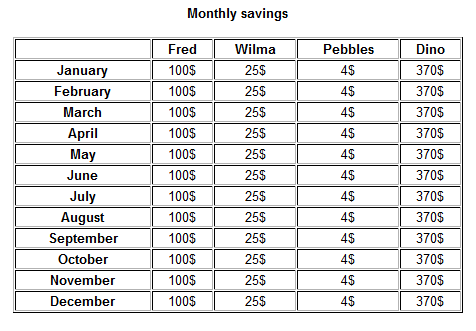
In this topic, you can learn how you can create tables using the editor.

#### To create a table in the editor:

1. With your mouse, click where you want to insert the table.
2. In the toolbar, click on the **Table** button. A **Table properties** dialog appears.

   ![](https://docs.kentico.com/docsassets/k9/creating-tables/creating_table.png)
3. Fill in the table properties.
4. Click **OK**. The system places the table.
5. **Save** the page.

![](https://docs.kentico.com/docsassets/k9/creating-tables/image2013-8-71.png)