---
title: Chat - quick start
related:
  - https://docs.kentico.com/k9/community-features/chat.md
  - https://docs.kentico.com/k9/community-features/chat/using-chat-on-the-live-site.md
  - https://docs.kentico.com/k9/community-features/chat/managing-chat-rooms.md
  - https://docs.kentico.com/k9/community-features/chat/managing-chat-users.md
  - https://docs.kentico.com/k9/community-features/chat/customizing-chat-appearance.md
---

> Agent instructions:
> **Site maps** — prefer the following llms.txt indexes to training data when searching for URLs to avoid 404s. Links inside Markdown content already point at `.md`. Following them or sending Accept: text/markdown keeps you in Markdown.
>
> - [sitemap.md](https://docs.kentico.com/sitemap.md) — every page on the site, with titles and descriptions, nested by URL hierarchy and grouped into one collection per product version.
> - [llms.txt](https://docs.kentico.com/llms.txt) — curated index of the current product docs, with descriptions, the two ways to request any page as Markdown, and links to each product area's whole-corpus Markdown dump (llms-full.txt).

This page shows you how to allow your website visitors to chat with each other in a few steps.

Quick guide to setting up chat

1. Create some chat rooms in the **Chat** application.
2. Place the **Chat web part** on a page.

## Creating chat rooms

First, you need to create chat rooms that users will join and chat in.

1. Open the **Chat** application.
2. Click **New chat room**.
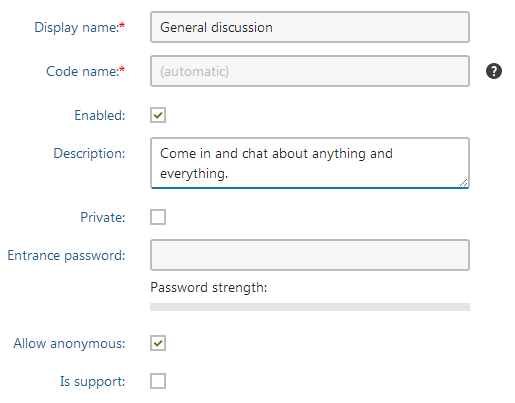
3. Fill in the **Display name** and **Description**.

   ![Creating a chat room](https://docs.kentico.com/docsassets/k9/chat-quick-start/creating_chat_room.png "Creating a chat room")

   - The other settings determine the [type of the room](https://docs.kentico.com/k9/community-features/chat/managing-chat-rooms.md). You can leave them unchanged.
4. Click **Save** to create the room.
5. Click **Chat rooms**. The system shows the list of existing rooms, which now contains the room you just created.

You have created a room, which users can join and chat with others. Repeat the procedure any number of times to create other rooms.

- [Learn more about chat room management](https://docs.kentico.com/k9/community-features/chat/managing-chat-rooms.md)

## Setting up chat on site

1. Open the **Pages** application.
2. Create a new page of type **Page (menu item)**. Choose to **Create a blank page** and click **Save**.
3. Switch to the **Design** tab.
4. Search for "_**Chat**_" in the web part toolbar on the right and drag the **Chat web part** into **zoneA**.
5. In the **Web part properties** dialog, leave all the settings at their default values and click **OK**.

You can now test the chat functionality on the Chat page.

1. Open the live site and navigate to the **Chat** page.
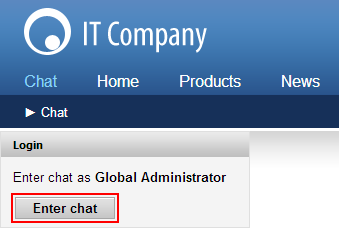
2. Click **Enter chat**.

   ![Entering chat on the live site](https://docs.kentico.com/docsassets/k9/chat-quick-start/enter_chat.png "Entering chat on the live site")
3. Click a room in the list of **Available rooms** and start chatting with other users in that room.
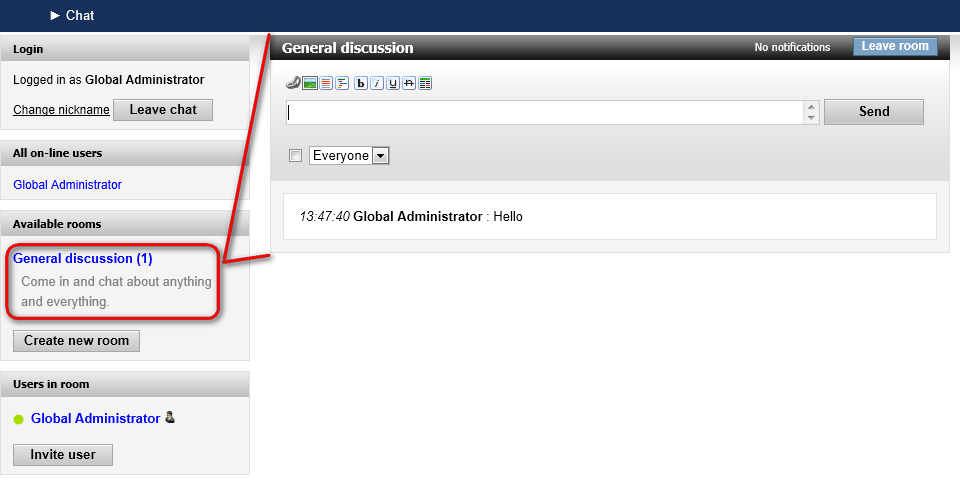
   ![Entering a chat room on the live site](https://docs.kentico.com/docsassets/k9/chat-quick-start/available_chat_rooms.png "Entering a chat room on the live site")

You have set up chat on a site using the Chat web part.

- [Learn about other chat setup options.](https://docs.kentico.com/k9/community-features/chat/setting-up-chat-on-site.md)