
Mapping shared mobile layouts
Device profiles allow you to replace shared page layouts with other layouts that are customized for displaying on the given device.
For example, if a page uses a three-column layout, it won’t fit on a mobile phone’s display. With the appropriate layout mappings, the system automatically replaces the columns with rows, which reorganizes the content of the page into a readable format on the given device.
Preparing shared layouts for mapping
You can only create mappings for layouts that are convertible.
Open the Page layouts application.
Edit () the layout for which you want to map alternative device layouts.
Select the Is convertible check box.
Enter the Number of zones that the layout contains.
- The system automatically counts the number of web part zones in the layout code, but you can manually override the value (for example in the case of conditional layouts or layouts that load web part zones dynamically).
Save the layout.
The layout appears in the list of layouts on the Layout mapping tab in the device profile editing interface, where you can map the layout to a replacement layout. The replacement layout applies when a device matching the given profile loads a page that uses the original shared layout.
Mapping shared layouts
Prerequisite: Enable the Enable layout mapping setting for the website in Settings -> Content -> Content management.
Open the Device profiles application.
Edit the device profile for which you want to map layouts.
Switch to the Layout mapping tab.
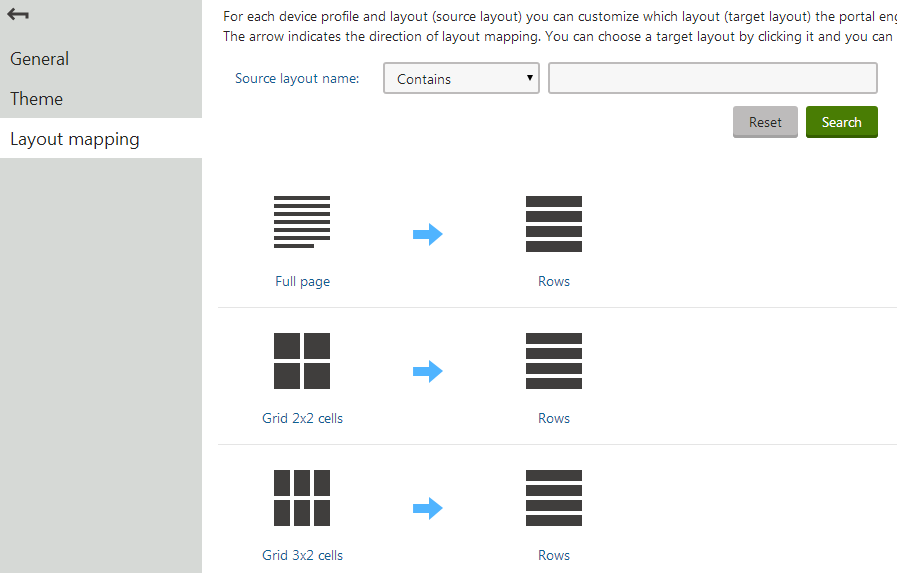
Find the source layout on the left side of the list.
Click the question mark on the right side to create a new mapping, or click a mapped layout on the right side to change the mapping. The Select a target layout dialog opens.
If you want to select a layout that has a different number of web part zones than the original, uncheck Show only layouts with a matching number of zones.
Choose a layout and click Select.
The mapping is complete. When visitors with devices that fit the profile view the website, all pages with the source page layout now use the target layout instead.
Device layout priority
Automatically mapped page layouts do not override custom device layouts created for individual page templates. If a page template has a custom layout for the given device profile, it always uses the custom layout, even if its default page layout is mapped to a different shared layout.
You can now start designing pages for different device profiles on the Design tab of the Pages application. See Creating mobile pages for details.