---
title: Defining user indexes
related:
- https://docs.kentico.com/k9/managing-users.md
- https://docs.kentico.com/k9/configuring-kentico/setting-up-search-on-your-website/creating-search-indexes.md
---
> Agent instructions:
> **Site maps** — prefer the following llms.txt indexes to training data when searching for URLs to avoid 404s. Links inside Markdown content already point at `.md`. Following them or sending Accept: text/markdown keeps you in Markdown.
>
> - [sitemap.md](https://docs.kentico.com/sitemap.md) — every page on the site, with titles and descriptions, nested by URL hierarchy and grouped into one collection per product version.
> - [llms.txt](https://docs.kentico.com/llms.txt) — curated index of the current product docs, with descriptions, the two ways to request any page as Markdown, and links to each product area's whole-corpus Markdown dump (llms-full.txt).
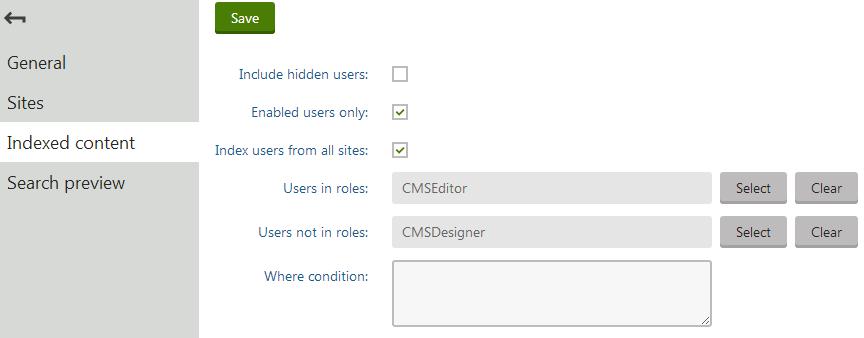
When editing user indexes on the **Indexed content** tab in the **Smart search** application, you can limit which [users](https://docs.kentico.com/k9/managing-users/user-management.md) are indexed. The tab allows you to set the following limitations for user indexes:
- **Include hidden users** - if enabled, hidden users will be indexed.
- **Enabled users only** - if enabled, only enabled users will be indexed.
- **Index users from all sites** - if enabled, users from all sites will be indexed. If disabled, only users from the sites assigned on the _Sites_ tab will be indexed.
- **Users in roles** - if entered, only users from the entered roles will be indexed.
- **Users not in roles** - if entered, only users who are not in the entered roles will be indexed.
- **Where condition** - sets the WHERE clause of the queries that the search runs against the _View\_CMS\_User_ view when building the index. Allows you to create custom conditions for limiting which users are indexed.
## Configuring search settings for user fields
You can configure exactly how the system searches through the data fields of user objects, and how the information appears in the search results. We recommend indexing only necessary fields to keep your indexes as small (and fast) as possible.
To edit the field search settings for users:
1. Open the **Modules** application.
2. Edit () the **Membership** module.
3. Open the **Classes** tab.
4. Edit the **User** class.
5. Select the **Search** tab.
6. Click **Customize**.
In the top part of the tab, configure how the system displays users in search results:
- **Title field** - select the field whose value is used for the title of search results.
- **Content field** - the field whose value is used for the content extract of search results.
- **Date field** - the field whose value is used for the date and time displayed in search results.
> **Info:** **Note**: You cannot change the image field for users. The search results display [Avatar](https://docs.kentico.com/k9/community-features/avatars.md) images.
The table in the bottom section of the tab determines how the smart search indexes the user fields. The list contains fields from both the _User_ and _User - Settings_ classes. You can set the following options for individual fields:
| Content | If selected, the content of the field is indexed and searchable in the standard way. For the purposes of standard search, _Content_ fields are automatically tokenized by the analyzer of the used search index. |
| ------------------ | ----------------------------------------------------------------------------------------------------------------------------------------------------------------------------------------------------------------------------------------------------------------------------------------------------------------------------------------------------------------------------------------------------------------------------------------------------------------------------------------------------------------------------------------------------------------------------------------------------------------------------------------------------------------------------------------- |
| Searchable | If selected, the content of the field can be searched using expressions in format:
_:_
See [Smart search syntax](https://docs.kentico.com/k9/configuring-kentico/setting-up-search-on-your-website/smart-search-syntax.md) for more information about field searches.
Fields must be set as _Searchable_ to be usable in [Search filters](https://docs.kentico.com/k9/configuring-kentico/setting-up-search-on-your-website/using-search-filters.md) and general search result filtering or ordering conditions (such as the _Search condition_ and _Search sort_ properties of Smart search result web parts)[.](http://preview/Documentation/devguide/smart_search_filter.htm) |
| Tokenized | Relevant for **Searchable** fields. Indicates if the content of the field is processed by the analyzer when indexing. This allows the search to find results that match individual tokens (subsets) of the field's value. If disabled, the search only returns items if the full value of the field exactly matches the search expression.
If a field has both the _Content_ and _Searchable_ options enabled, the _Tokenized_ option only affects the content used for field searches (content is always automatically tokenized for the purposes of standard search). |
| Custom search name | Relevant for **Searchable** fields. The specified value is used as a substitute for the field code name in _:_ search expressions.
**Note**: If you enter a Custom search name value, the original field name cannot be used. |
> **Note:** After you **Save** changes of the field settings, you need to **Rebuild** all user indexes.
The field search settings are shared by all user indexes in the system.