---
title: Coupons and Buy X Get Y discounts
related:
- https://docs.kentico.com/k9/e-commerce-features/managing-your-store/discounts/working-with-order-discounts.md
- https://docs.kentico.com/k9/e-commerce-features/managing-your-store/discounts/working-with-free-shipping-offers.md
- https://docs.kentico.com/k9/e-commerce-features/managing-your-store/discounts/working-with-buy-x-get-y-discounts.md
---
> Agent instructions:
> **Site maps** — prefer the following llms.txt indexes to training data when searching for URLs to avoid 404s. Links inside Markdown content already point at `.md`. Following them or sending Accept: text/markdown keeps you in Markdown.
>
> - [sitemap.md](https://docs.kentico.com/sitemap.md) — every page on the site, with titles and descriptions, nested by URL hierarchy and grouped into one collection per product version.
> - [llms.txt](https://docs.kentico.com/llms.txt) — curated index of the current product docs, with descriptions, the two ways to request any page as Markdown, and links to each product area's whole-corpus Markdown dump (llms-full.txt).
The Kentico E-commerce Solution allows you to boost your sales with discounts on orders, order shipping, and Buy X Get Y discounts. Optionally, you can configure the system to apply these discounts only if the codes of corresponding discount coupons are entered correctly. If you distribute the coupons, i.e. virtual vouchers, among your [customers](https://docs.kentico.com/k9/e-commerce-features/managing-your-store/customers.md), they can use the coupons' codes during the [checkout process](https://docs.kentico.com/k9/e-commerce-features/configuring-your-store/checkout-process.md) to receive free shipping and discounts on their orders.
- You can manage coupons for order discounts in the **Order discounts** application while editing a discount on the **Coupons** tab.
- You can manage coupons for free shipping offers in the **Free shipping offers** application while editing an offer on the **Coupons** tab.
- You can manage coupons for Buy X Get Y discounts in the **Buy X Get Y discounts** application while editing a discount on the **Coupons** tab.
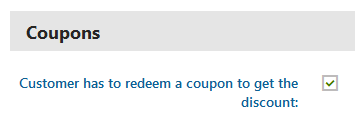
> **Note:** The **Coupons** tab is available for a discount only if the corresponding property in its **Coupons** section in **General** tab is enabled.
>
> 
## Manually adding coupons
To manually add coupons for discounts:
1. Click **Enter coupon code**.
2. Enter the coupon [properties](#manually-adding-coupons-changing-the-number-of-available-coupon-uses).
3. Click **Save**.
The system creates a new coupon. You can now [export](#exporting-coupon-codes-to-offer-to-the-customers) the coupon's code and distribute it among your customers.
## Generating multiple coupons at once
To have the system generate multiple coupons for discounts at once:
1. Click **Generate coupon codes**.
2. Specify the [settings](#generating-multiple-coupons) for the coupon code generator.
3. Click **Generate**.
The system creates the specified number of new coupons with the specified number of available coupon code uses, optionally with the specified code prefix. You can now [export](#exporting-coupon-codes-to-offer-to-the-customers) the coupons' codes and distribute them among your customers.
## Filtering coupons
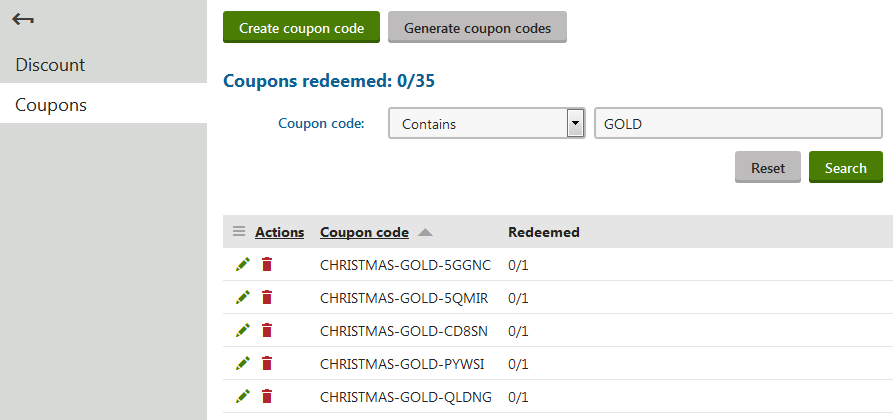
The system allows you to view only coupons matching certain search criteria for the current discount.
> **Info:** The filter is available if you defined at least two coupons for a given discount.
1. Specify your search criteria.
- You need to select a condition operator (_Contains, Does not contain, Equals, Does not equal_) and type the coupon's code (or its part) into the text field.
2. Click **Search**.
3. (Optional) Click **Reset** to view all coupons available for the current discount.
The system shows coupons matching your search criteria for the current discount.
## Exporting coupon codes to offer to the customers
To export the coupon codes:
1. (Optional) Use the [filter](#filtering-coupons) to view only coupons matching certain search criteria for the current discount .
2. Click in the **Actions** column.
- This opens the **Actions** drop-down menu.
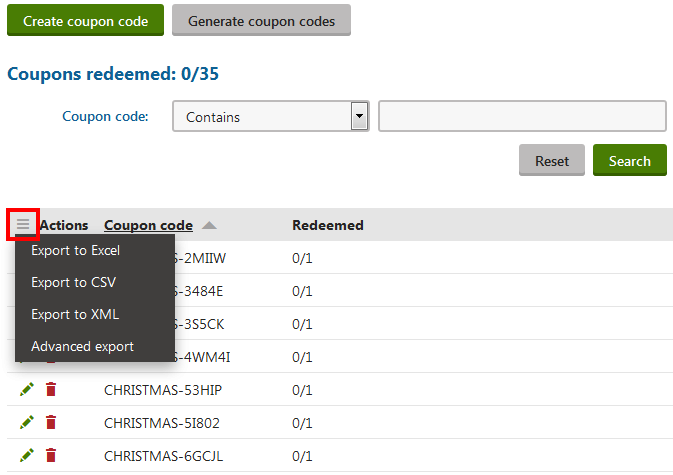
3. Select the export format as required:
- **Export to Excel** – exports data shown in the list to an XLSX spreadsheet.
- **Export to CSV** – exports data shown in the list to a CSV file.
- **Export to XML** – exports data shown in the list to an XML file
- **Advanced export** – opens a dialog allowing you to export data to the three formats mentioned above (XLSX, CSV, XML) based on detailed settings.
> **Info:** After executing an action from the drop-down menu, your browser's standard file download dialog pops up. The dialog allows you to open or save a file with the exported data just as if you were downloading any other file.
You can now distribute the coupon codes among your customers via any appropriate communication channel available.
## Configuring the pages to allow the customers to enter coupon codes
To configure a page to allow the customers to enter coupon codes and receive discounts:
1. Open the **Pages** application.
2. Select the required page from the content tree.
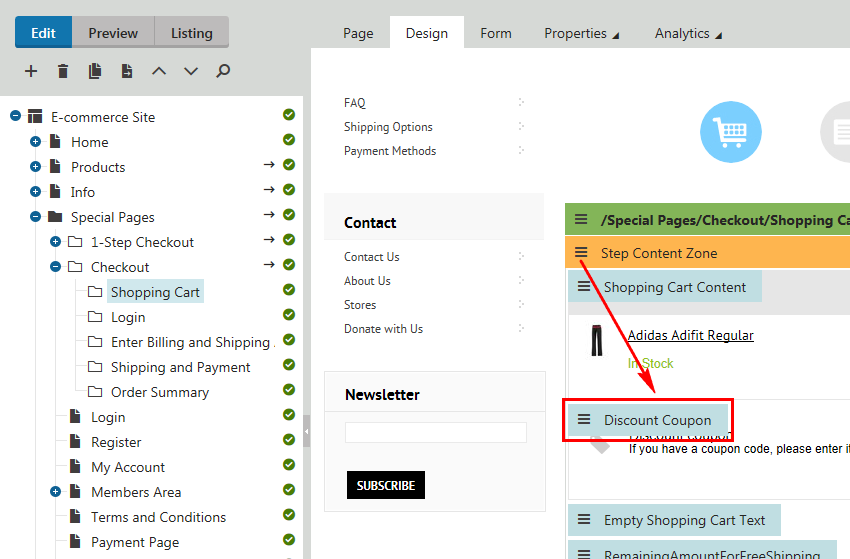
3. Switch to the **Edit -> Design** tab.
4. Add the **Discount Coupon** [web part](https://docs.kentico.com/k9/developing-websites/developing-websites-using-the-portal-engine/using-and-configuring-web-parts.md) to the selected web part zone.
5. Enter the web part properties as required.
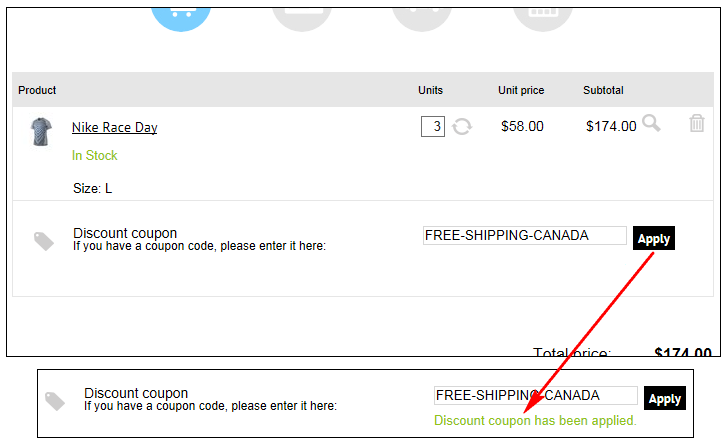
> **Tip:** If you enable the web part's **Show Apply button** property, the customers can use the button for instant application of the coupon while viewing the page.
>
> 
6. Click **OK**.
The system adds the **Discount Coupon** web part into the page. If you distribute the coupon codes among your customers, they can now use these codes to receive discounts (if eligible).
## Changing the number of available coupon uses
To change the number of available coupon uses:
1. (Optional) Use the [filter](#filtering-coupons) to view only coupons matching certain search criteria for the current discount .
2. **Edit** () the required coupon.
3. Specify how many times the customers can use the coupon (**Redemption limit**)
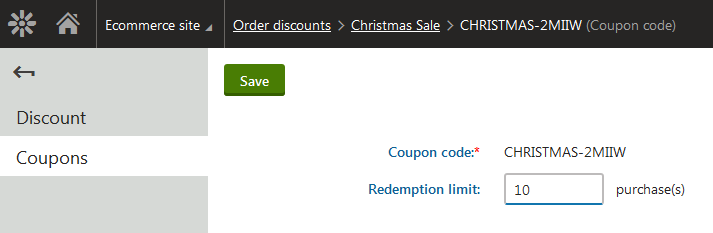
4. Click **Save**.
Your customers can now use the coupon as many times as specified.
## Reference
### Coupons redeemed
**Coupons redeemed** indicates the total of available code redemptions in all of the discount's coupons, and the total of actual code redemptions in these coupons. Please refer to the following examples:
- _0/10_ - using all available coupons to receive the discount, the customers can enter the code ten times. The customers haven't yet applied the discount.
- _2/10_ - using all available coupons to receive the discount, the customers can enter the code ten times. The customers applied the discount (using any available coupon code) twice.
- _0/unlimited_ - at least one coupon available for the discount has a code with unlimited use. The customers haven't yet applied the discount.
- _2/unlimited_ - at least one coupon available for the discount has a code with unlimited use. The customers applied the discount (using any available coupon code) twice.
The **Redeemed** column in the coupons list indicates the total of available code uses, and the total of actual code uses for each listed coupon.
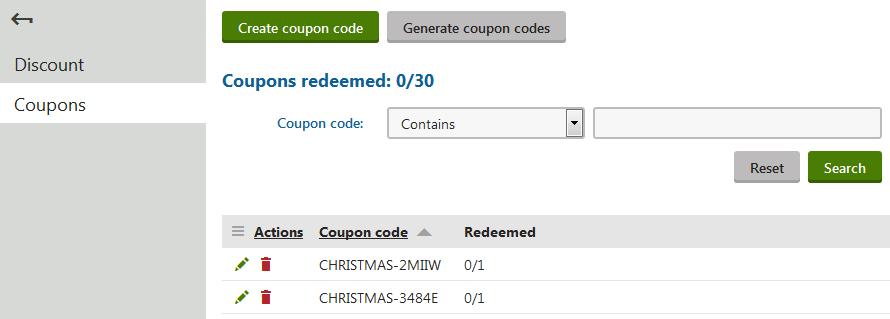
> **Info:** Similarly, if you are viewing the list of discounts, the **Coupons redeemed** column indicates for each listed discount the total of available code uses in all coupons, and the total of actual code uses in these coupons.
>
> The system displays this information if you defined at least one coupon for the discount.
>
> 
### Manually adding coupons / Changing the number of available coupon uses
| **Property** | **Description** |
| ---------------- | ----------------------------------------------------------------------------------------------------------------------------------------------------------------------------------------------------------------------------------------------------------------------------------------------------------------------------------------------------------------------------------------------------------------------------------------------------------------------------------------------------------------------------------------------------------------------------------- |
| Coupon code | Indicates a combination of letters, digits and other characters that make up the code of the coupon, for example, _OD16-CHRISTMAS_ (coupon for order discounts), _FREE-SHIPPING-CANADA_ (coupon for free shipping offers), _FREE-SHOES_ (coupon for Buy X Get Y discounts), etc. The code serves as a unique identifier for the coupon.
If your eligible customers enter the code during the [checkout process](https://docs.kentico.com/k9/e-commerce-features/configuring-your-store/checkout-process.md), they receive the discount.
You cannot later modify the property. |
| Redemption limit | Specify how many times your customers can use the coupon (i.e., enter its code during the checkout process) to receive the discount. Leave the field empty for unlimited use of the coupon. |
### Generating multiple coupons
| **Property** | **Description** |
| ------------------ | ----------------------------------------------------------------------------------------------------------------------------------------------------------------------------------------------------------------------------------------------------------------------------------------------------------------------------------------------------------------------------------------------------------------------------- |
| Quantity | Specify how many coupons (coupon codes) the system generates after you click **Generate**. |
| Coupon code prefix | The system generates random coupon codes. Coupon code prefix allows you to enter a prefix to be shared by all coupon codes generated in the current batch operation, for example, _CHRISTMAS-_ (coupons for order discounts), _CANADA-_ (coupons for free shipping offers), _20OFF-_ (coupons for Buy X Get Y discounts), etc. If you leave the field empty, the system will generate coupon codes without any shared prefix. |
| Redemption limit | Specify how many times your customers can use the coupons to receive the discount. Leave the field empty for unlimited use of the coupons. |