---
title: Registering custom macro methods
related:
- https://docs.kentico.com/k9/macro-expressions/reference-macro-methods.md
- https://docs.kentico.com/k9/macro-expressions/macro-syntax.md
- https://docs.kentico.com/k9/macro-expressions/extending-the-macro-engine/creating-macro-namespaces.md
- https://docs.kentico.com/k9/macro-expressions/extending-the-macro-engine/adding-custom-macro-fields.md
---
> Agent instructions:
> **Site maps** — prefer the following llms.txt indexes to training data when searching for URLs to avoid 404s. Links inside Markdown content already point at `.md`. Following them or sending Accept: text/markdown keeps you in Markdown.
>
> - [sitemap.md](https://docs.kentico.com/sitemap.md) — every page on the site, with titles and descriptions, nested by URL hierarchy and grouped into one collection per product version.
> - [llms.txt](https://docs.kentico.com/llms.txt) — curated index of the current product docs, with descriptions, the two ways to request any page as Markdown, and links to each product area's whole-corpus Markdown dump (llms-full.txt).
In addition to the [default macro methods](https://docs.kentico.com/k9/macro-expressions/reference-macro-methods.md), you can also create your own methods. Users can then run custom functionality by calling the methods inside macro expressions.
Use the following process to add macro methods into the system:
1. Define the methods inside a container class
2. [Register your macro method container](#registering-macro-method-containers) for a certain object type or macro namespace
## Defining macro methods
1. Open your project in Visual Studio.
2. Create a new class. In _web site_ projects, you can either add the class into the **App\_Code** folder or as part of a custom assembly.
3. Edit the class and add a reference to the **CMS.MacroEngine** namespace:
```csharp
using CMS.MacroEngine;
```
4. Make the class inherit from **MacroMethodContainer**:
```csharp
///
/// Sample MacroMethodContainer class.
///
public class CustomMacroMethods : MacroMethodContainer
{
}
```
5. Define your methods inside the container class. Macro methods must always have the following signature:
```csharp
public static object MyMethod(EvaluationContext context, params object[] parameters)
```
> **Info:** The **EvaluationContext** parameter allows you to get information about the context in which the macro containing the method was resolved. For example, you can check the username in the [macro signature](https://docs.kentico.com/k9/macro-expressions/troubleshooting-macros/working-with-macro-signatures.md) (for security purposes) or the values of [macro parameters](https://docs.kentico.com/k9/macro-expressions/macro-syntax.md#macro-parameters), such as the culture or case sensitivity of string comparisons.
>
> The **parameters** array stores the method's parameters. When the system resolves the method, the values of the arguments pass into the array. You need to define individual parameters via attributes (see below).
> **Note:** **Note**
>
> We strongly recommend that you ensure the following in the code of your methods:
>
> - **Caching** - if you load data in the method's code, use the [Kentico caching API](https://docs.kentico.com/k9/custom-development/caching-in-custom-code.md) to optimize the performance
> - **Security** - you need to handle permissions and other security checks manually in the method's code to avoid security vulnerabilities. You can use the **UserName** property of the method's **EvaluationContext** parameter to get the name of the user who entered the macro.
6. Add the **MacroMethod** attribute above the method declaration. Specify the following parameters for the attribute:
- **Type** - the return type of the method.
- **Comment** - comment displayed for the method in the macro autocomplete help.
- **Minimum parameters** - the minimum number of parameters that must be specified when calling the method (minimum overload).
7. Add a **MacroMethodParam** attribute for each of the method's parameters. For every parameter, you must specify:
- **Index number** (sets the index of the parameter in the _params_ array)
- **Name**
- **Data type**
- **Comment** (appears in the macro autocomplete)
```csharp title="Example"
using CMS.MacroEngine;
using CMS.Helpers;
public class CustomMacroMethods : MacroMethodContainer
{
[MacroMethod(typeof(string), "Combines two strings, or appends a culture suffix when called with one parameter.", 1)]
[MacroMethodParam(0, "param1", typeof(string), "First part of the string.")]
[MacroMethodParam(1, "param2", typeof(string), "Second part of the string (optional).")]
public static object ConnectStrings(EvaluationContext context, params object[] parameters)
{
// Branches according to the number of the method's parameters
switch (parameters.Length)
{
case 1:
// Overload with one parameter
return ValidationHelper.GetString(parameters[0], "") + " - Resolved in culture: " + context.Culture;
case 2:
// Overload with two parameters
return ValidationHelper.GetString(parameters[0], "") + " - " + ValidationHelper.GetString(parameters[1], "");
default:
// No other overloads are supported
throw new NotSupportedException();
}
}
}
```
## Registering macro method containers
After you [prepare your macro methods in a container class](#defining-macro-methods), register the container by extending an object type or macro namespace.
1. Edit the class containing your macro method container.
2. Add a **RegisterExtension** assembly attribute above the class declaration for each type that you wish to extend (requires a reference to the **CMS** namespace).
Specify the type parameters for the **RegisterExtension** attribute in the following format:
**\[assembly: RegisterExtension(typeof(_\_), typeof(_\_))]**
You can extend the following types:
- General system types (string, int, ...)
- Kentico API object types (UserInfo, TreeNode, ...)
- [Macro namespaces](https://docs.kentico.com/k9/macro-expressions/extending-the-macro-engine/creating-macro-namespaces.md) (SystemNamespace, StringNamespace, MathNamespace, ...)
- Custom types
```csharp title="Example"
using CMS;
using CMS.MacroEngine;
using CMS.Helpers;
// Makes all methods in the 'CustomMacroMethods' container class available for string objects
[assembly: RegisterExtension(typeof(CustomMacroMethods), typeof(string))]
// Registers methods from the 'CustomMacroMethods' container into the "String" macro namespace
[assembly: RegisterExtension(typeof(CustomMacroMethods), typeof(StringNamespace))]
public class CustomMacroMethods : MacroMethodContainer
{
...
```
> **Note:** **Important**: If your macro method container class is defined within a custom assembly, the assembly project must contain the **\[assembly: AssemblyDiscoverable]** attribute (the recommended location is in the _Properties/AssemblyInfo.cs_ file). To use the attribute, your assembly's project must contain a reference to the _CMS.Core.dll_ library.
## Result - Calling custom methods in macros
Once you have your custom macro methods implemented and registered, you can call them in macro expressions.
Open any macro code editor in the administration interface. The autocomplete help offers the new methods for the extended types or namespaces.
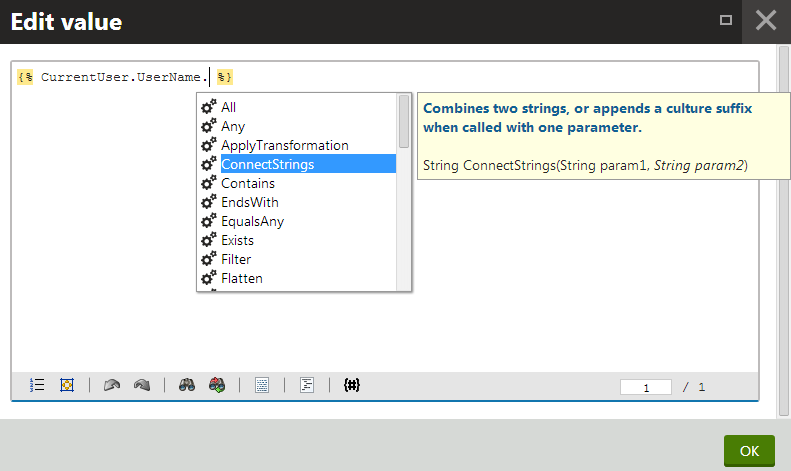
For example:
- Append the method to a macro object of the data type that you extended (_string_ in the sample code):
```text
{% CurrentUser.UserName.ConnectStrings() %}
```
> **Info:** The recommended K# syntax is to use infix notation for the first parameter of methods. You can call the method in the following forms:
>
> - **{% "String1".ConnectStrings("String2") %}** - recommended and supported by the [autocomplete help](https://docs.kentico.com/k9/macro-expressions/entering-macro-expressions.md)
> - **{% ConnectStrings("String1", "String2") %}**
OR
- Enter the extended macro namespace, and then call the method:
```text
{% String.ConnectStrings("First part", "Second part") %}
```
## Macro method code samples
The Kentico installation includes code examples of custom macro method registration, which you can add directly to your web project. To access the samples:
1. Open your Kentico installation directory (by default _C:\Program Files\Kentico\\\_).
2. Expand the _CodeSamples\App\_Code Samples\\_ sub-directory.
3. Copy the **Samples** folder into the **CMS\App\_Code** folder of your web project.
> **Note:** **Web application installations**
>
> If your project was installed in the web application format, copy the samples into the **Old\_App\_Code** folder instead.
>
> You must also manually include the sample class files into the project:
>
> 1. Open your application in Visual Studio.
> 2. Expand the **CMSApp\_AppCode** project in the Solution Explorer.
> 3. Click **Show all files** at the top of the Solution Explorer.
> 4. Expand the _Old\_App\_Code_ folder, right-click the new **Samples** sub-folder and select **Include in Project**.
You can find the macro method examples in the following classes:
- **Samples/Macros/CustomMacroMethods.cs** - class containing the sample macro methods.
- **Samples/Modules/SampleMacroModule.cs** - initializes the custom method registration.