---
title: Creating new pages
related:
  - https://docs.kentico.com/k12sp/managing-website-content/working-with-pages/working-with-pages-on-the-live-site.md
  - https://docs.kentico.com/k12sp/developing-websites/developing-websites-using-portal-engine/creating-portal-engine-page-templates.md
---

> Agent instructions:
> **Site maps** — prefer the following llms.txt indexes to training data when searching for URLs to avoid 404s. Links inside Markdown content already point at `.md`. Following them or sending Accept: text/markdown keeps you in Markdown.
>
> - [sitemap.md](https://docs.kentico.com/sitemap.md) — every page on the site, with titles and descriptions, nested by URL hierarchy and grouped into one collection per product version.
> - [llms.txt](https://docs.kentico.com/llms.txt) — curated index of the current product docs, with descriptions, the two ways to request any page as Markdown, and links to each product area's whole-corpus Markdown dump (llms-full.txt).

Depending on your intentions and needs with the content stored and displayed on pages, you can create two types of pages:

- **Structured page** – used for storing structured data in separate fields that can be displayed on other pages. A typical use for structured pages is displaying lists of items, such as news or products, on a single page.
- **Page (menu item)** – used for displaying unstructured content in the form of editable regions. These pages are displayed in the menu of the website by default and can be edited on the **Page** tab.

You can create new pages either [in the Pages application](#creating-new-pages-in-the-pages-application) or [on the Live site (Using On-Site editing).](https://docs.kentico.com/k12sp/managing-website-content/working-with-pages/working-with-pages-on-the-live-site.md)

## Creating new pages in the Pages application

1. Open the **Pages** application.
2. In Content tree, click on the item under which the new page should be placed.
3. Click **New** ().

   - Creating a **structured page**:
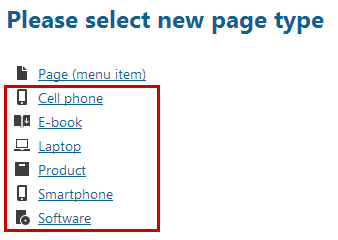
     1. Choose the type of page that you want to create.
        ![Creating a new structured page](https://docs.kentico.com/docsassets/k12sp/creating-new-pages/creating_page_on_livesite.png "Creating a new structured page")
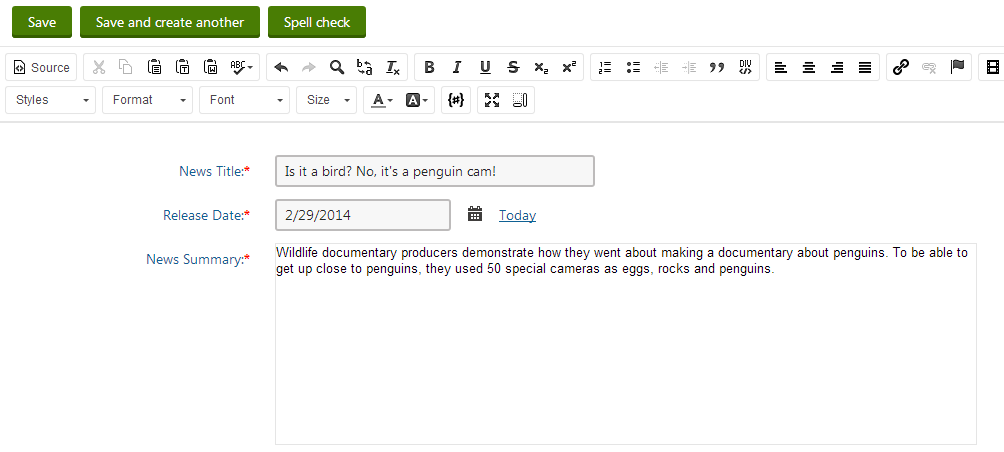
     2. Fill in the editing form.

        ![Filling in page details](https://docs.kentico.com/docsassets/k12sp/creating-new-pages/creating_page_in_interface2.png "Filling in page details")
   - Creating a **Page (menu item)** page:
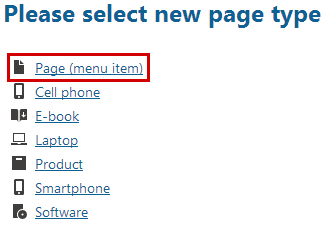
     1. Click on the **Page (menu item)** page type.

        ![Creating a new page menu item](https://docs.kentico.com/docsassets/k12sp/creating-new-pages/creating_page_menu_on_livesite.png "Creating a new page menu item")
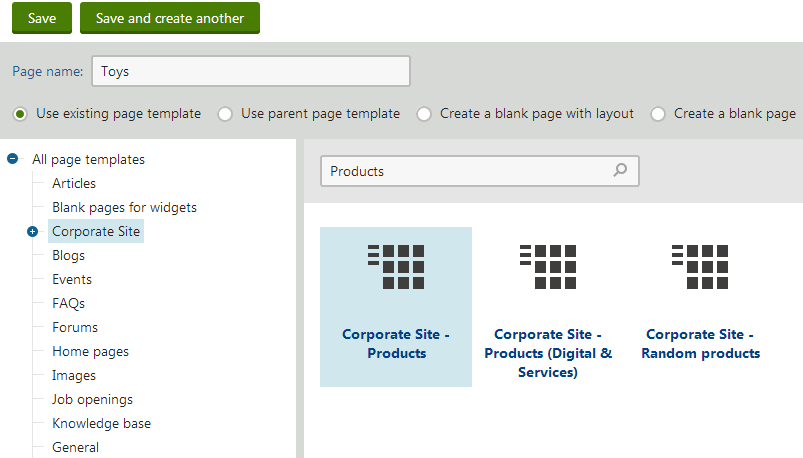
     2. Fill in the **Page name** field.
     3. Choose from the following options using the radio buttons below the **Page name** field:

        1. **Use existing page template** - choose to view reusable page templates.
        2. **Use parent page template** - choose to make the page inherit the template used by its parent page.
        3. **Create a blank page with layout** - choose to create a new ad-hoc portal page template using one of the page layouts below. Select the **Copy this layout to my page template** check box to generate a unique copy of the chosen layout for this template—otherwise the template will share its layout. Any changes made to a shared layout affect all the page templates that use it.
        4. **Create a blank page** - choose to create a new ad-hoc portal page template for the new page. The page has a single web part zone and no other formatting.
        ![Choosing a page template](https://docs.kentico.com/docsassets/k12sp/creating-new-pages/choosing_page_template.png "Choosing a page template")
4. Click **Save** to confirm, or **Save and create another** to confirm and start creating a new page.

You have created a new page and can now [edit the page](https://docs.kentico.com/k12sp/managing-website-content/working-with-pages/editing-pages.md).