---
title: Displaying image galleries
related:
- https://docs.kentico.com/k12sp/developing-websites/loading-and-displaying-data-on-websites/writing-transformations.md
- https://docs.kentico.com/k12sp/managing-website-content/working-with-files/media-library-files.md
---
> Agent instructions:
> **Site maps** — prefer the following llms.txt indexes to training data when searching for URLs to avoid 404s. Links inside Markdown content already point at `.md`. Following them or sending Accept: text/markdown keeps you in Markdown.
>
> - [sitemap.md](https://docs.kentico.com/sitemap.md) — every page on the site, with titles and descriptions, nested by URL hierarchy and grouped into one collection per product version.
> - [llms.txt](https://docs.kentico.com/llms.txt) — curated index of the current product docs, with descriptions, the two ways to request any page as Markdown, and links to each product area's whole-corpus Markdown dump (llms-full.txt).
We recommend creating image galleries in the [Media library](https://docs.kentico.com/k12sp/managing-website-content/working-with-files/media-library-files.md) application. You can then load the images in the media library using the **Media files data source** web part and display them using a repeater.

## Creating an image gallery
1. Create a [media library](https://docs.kentico.com/k12sp/managing-website-content/working-with-files/media-library-files/creating-media-libraries.md) and upload [images](https://docs.kentico.com/k12sp/managing-website-content/working-with-files/media-library-files/inserting-files-into-media-libraries.md). This doesn't have to be the first step, but having some images already in place can help you when setting the gallery up.
2. [Place](https://docs.kentico.com/k12sp/developing-websites/developing-websites-using-portal-engine/using-and-configuring-web-parts.md#adding-web-parts) the **Media files data source** web part on an existing page.
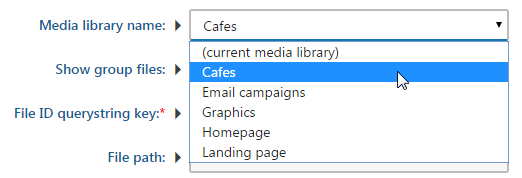
3. [Configure](https://docs.kentico.com/k12sp/developing-websites/developing-websites-using-portal-engine/using-and-configuring-web-parts.md#configuring-web-parts) the web part and select the media library that contains the images you want to display.
4. [Place](https://docs.kentico.com/k12sp/developing-websites/developing-websites-using-portal-engine/using-and-configuring-web-parts.md#adding-web-parts) a repeater web part, for example, the **Basic repeater** on the page.
5. [Configure](https://docs.kentico.com/k12sp/developing-websites/developing-websites-using-portal-engine/using-and-configuring-web-parts.md#configuring-web-parts) the web part and link the web part to the data source web part using the **Data source name** field.
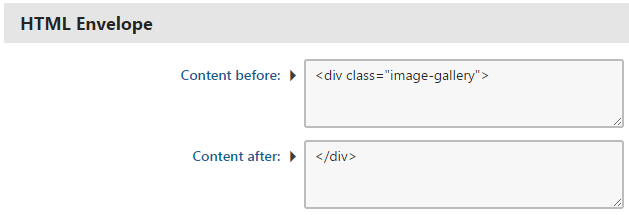
6. In the **HTML Envelope section**, configure the **Content before** and **Content after** properties if you want to wrap the image gallery in specific HTML.
7. Modify how the images are displayed in the web part's [transformations](https://docs.kentico.com/k12sp/developing-websites/loading-and-displaying-data-on-websites/writing-transformations.md). We recommend using the _MediaLibraryFunctions.GetMediaFileUrl_ [transformation method](https://docs.kentico.com/k12sp/developing-websites/loading-and-displaying-data-on-websites/writing-transformations/reference-transformation-methods.md) for retrieving URLs of files stored in media libraries.\
The following transformation creates a link to each of the images in the media library:
```xml
```
Note: if you're using [secured media libraries](https://docs.kentico.com/k12sp/configuring-kentico/configuring-the-environment-for-content-editors/configuring-media-libraries/securing-media-libraries.md), use the _MediaLibraryFunctions.GetMediaFileUrl_ method with the following parameters:
```csharp
<%# MediaLibraryFunctions.GetMediaFileUrl(Eval("FileLibraryID") ,Eval("FilePath"), Eval("FileGUID"), Eval("FileName"), GetDataControlValue("UseSecureLinks")) %>
```
8. You can then [style the gallery](https://docs.kentico.com/k12sp/developing-websites/designing-websites-using-css.md) to match your website. For example:
```css
.image-gallery {
min-height: 480px;
width: 100%;
padding: 10px 0px 10px 0px;
}
.image {
width: 25%;
float: left;
padding-right: 2px;
}
.image-tile {
width: 100%;
}
```