
CMSEditableImage
The CMSEditableImage control provides an editable region that allows content editors to add and display an image.
- The control provides an image selection interface on the Page tab of the Pages application and when viewed in on-site editing mode.
- On the live site, the control displays the selected image without the editing interface.
Web part equivalent (portal engine): Editable image
CMSPortalManager required
The CMSEditableImage cannot communicate with the database directly and it requires the CMSPortalManager control to load and save the image content. You only need one manager control for any number of editable image controls.
It is recommended to add the CMSPortalManager to the master page used by your ASPX templates.
Getting started
The following tutorial shows how to use the CMSEditableImage control to create a region where users can select and display images:
Create a new ASPX page template (with a master page).
Select the CMSTemplates/CorporateSite/root.master file as the web form’s master page.
- The default master page contains the required CMSPortalManager control.
In Visual Studio, drag the CMSEditableImage control from the toolbox onto the page template’s form.
Set the control’s ImageTitle property to: Image Example
<cms:CMSEditableImage ID="CMSEditableImage1" runat="server" ImageTitle="Image Example" />Create a page based on the template in the Kentico administration interface.
The control displays an image selection dialog in the Edit mode of the Pages application.
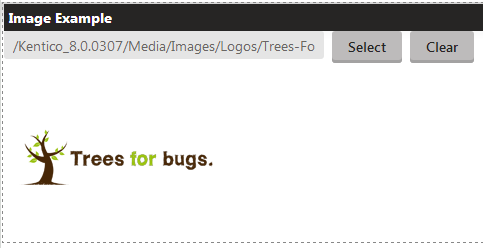
If you select an image and click Save, the control displays the given image on the live version of the page.
Configuration
You can set the following properties for the CMSEditableImage control:
|
Property name |
Description |
|
AlternateText |
Sets the text of the ALT attribute that the control generates for the displayed image. |
|
DisplaySelectorTextBox |
Indicates whether the control displays a textbox with the image path in Edit mode. |
|
ImageControl |
Allows you to access the internal Image control. |
|
ImageCSSClass |
Sets the name of the CSS class applied to the image. |
|
ImageHeight |
Image height in pixels. The control resizes the image to this width. |
|
ImageStyle |
Sets the inline style applied to the image. |
|
ImageTitle |
Sets the title displayed above the image in Edit mode. |
|
ImageWidth |
Image width in pixels. The control resizes the image to this width. |