---
title: Enabling health monitoring
related:
  - https://docs.kentico.com/k82/configuring-kentico/health-monitoring/registering-performance-counters.md
  - https://docs.kentico.com/k82/configuring-kentico/health-monitoring/installing-the-health-monitoring-windows-service.md
  - https://docs.kentico.com/k82/configuring-kentico/health-monitoring/monitoring-using-the-performance-monitor.md
---

> Agent instructions:
> **Site maps** — prefer the following llms.txt indexes to training data when searching for URLs to avoid 404s. Links inside Markdown content already point at `.md`. Following them or sending Accept: text/markdown keeps you in Markdown.
>
> - [sitemap.md](https://docs.kentico.com/sitemap.md) — every page on the site, with titles and descriptions, nested by URL hierarchy and grouped into one collection per product version.
> - [llms.txt](https://docs.kentico.com/llms.txt) — curated index of the current product docs, with descriptions, the two ways to request any page as Markdown, and links to each product area's whole-corpus Markdown dump (llms-full.txt).

> **Info:** **Kentico EMS required**
>
> Features described on this page require the **Kentico EMS** license.

Once you have Kentico performance counters registered in Windows, you need to enable Health monitoring in the Kentico settings:

1. Open the **Settings** application in the Kentico administration interface.
2. Select the **System -> Health monitoring** category.
3. Select the **Enable health monitoring** checkbox.
4. Click **Save**.

You can also adjust additional settings related to performance counters:

| Setting                         | Description                                                                                                                                                                                                                                                                                                                             |
| ------------------------------- | --------------------------------------------------------------------------------------------------------------------------------------------------------------------------------------------------------------------------------------------------------------------------------------------------------------------------------------- |
| Enable health monitoring        | Indicates if monitored values are written to both General and Site performance counters related to this instance of Kentico. If disabled, no values are written to any of these performance counters.                                                                                                                                   |
| Application monitoring interval | Time interval (in seconds). In this periodic interval, the application reads monitored values and writes them to performance counters.                                                                                                                                                                                                  |
| Use external service            | Indicates if the external Windows service is used to read and write monitored values to the _Scheduled tasks in queue_, _E-mails in queue_ and _Error e-mails in queue_ performance counters.<br>These counters require database access to get their values, so using the external service may optimize your application's performance. |
| Service monitoring interval     | Time interval (in seconds). In this periodic interval, the external Windows service reads monitored values and writes them to performance counters. If you are using the Health Monitoring Windows service and change this value, it is necessary to restart the Windows service in order for the new value to be used.                 |
| Enable site counters            | Indicates if values are written to site specific performance counters. If disabled, values are written to general counters only.                                                                                                                                                                                                        |
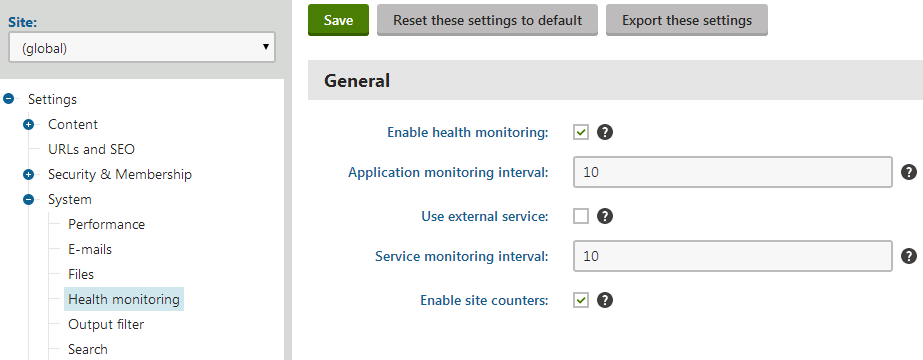
![Health monitoring settings](https://docs.kentico.com/docsassets/k82/enabling-health-monitoring/Health_Monitoring_Settings.png "Health monitoring settings")

## Restarting health monitoring after a license change

To use health monitoring, your site must have a valid Kentico EMS license. If your license expires (or you remove it manually), all health monitoring performance counters stop working. After you [enter a new license key](https://docs.kentico.com/k82/configuring-kentico/managing-sites/managing-site-licenses.md), health monitoring remains disabled until you restart the application:

1. Open the **System** application in the Kentico administration interface.
2. On the **General** tab, click **Restart application**.

Once the restart finishes, the health monitoring functionality will start working again.
