---
title: Importing products using API
related:
- https://docs.kentico.com/k82/e-commerce-features/configuring-and-managing-your-store/products/importing-products-using-kentico-import-toolkit.md
---
> Agent instructions:
> **Site maps** — prefer the following llms.txt indexes to training data when searching for URLs to avoid 404s. Links inside Markdown content already point at `.md`. Following them or sending Accept: text/markdown keeps you in Markdown.
>
> - [sitemap.md](https://docs.kentico.com/sitemap.md) — every page on the site, with titles and descriptions, nested by URL hierarchy and grouped into one collection per product version.
> - [llms.txt](https://docs.kentico.com/llms.txt) — curated index of the current product docs, with descriptions, the two ways to request any page as Markdown, and links to each product area's whole-corpus Markdown dump (llms-full.txt).
You can import [products](https://docs.kentico.com/k82/e-commerce-features/configuring-and-managing-your-store/products.md) from an external source of data into Kentico using the API. As a source of data, you can use, for example, a CSV (comma-separated values) file.
1. Back up your Kentico database.
2. Prepare your external source of data, i.e. a CSV file. Make sure that all product properties required for import into the Kentico database are included.
In this example, the CSV file contains the following records (comma-separated):
- **Field 1** - specifies the name of the product, e.g. _Apple iPhone 5_.
- **Field 2** - specifies the description of the product, e.g. _New version of iPhone_.
- **Field 3** - specifies the price of the product. Use a dot (.) to separate decimal places, e.g. _849.99_.
- **Field 4** - specifies the [department](https://docs.kentico.com/k82/e-commerce-features/configuring-and-managing-your-store/departments.md) where the product will be placed after import. You need to enter the department code name, e.g. _EcommerceSite.Electronics_. If you leave the record empty or enter an invalid department code name, no department will be assigned to the product after import.

3. Copy the following files to your web project folder.
- **ImportProducts.aspx**
- [Importing products using API#ImportProducts.aspx.cs](#importproducts.aspx.cs)
- **products.csv**
#### ImportProducts.aspx
```csharp
<%@ Page Language="C#" AutoEventWireup="true" CodeFile="ImportProducts.aspx.cs" Inherits="ImportProducts" Theme="Default" %>
Import
```
#### ImportProducts.aspx.cs
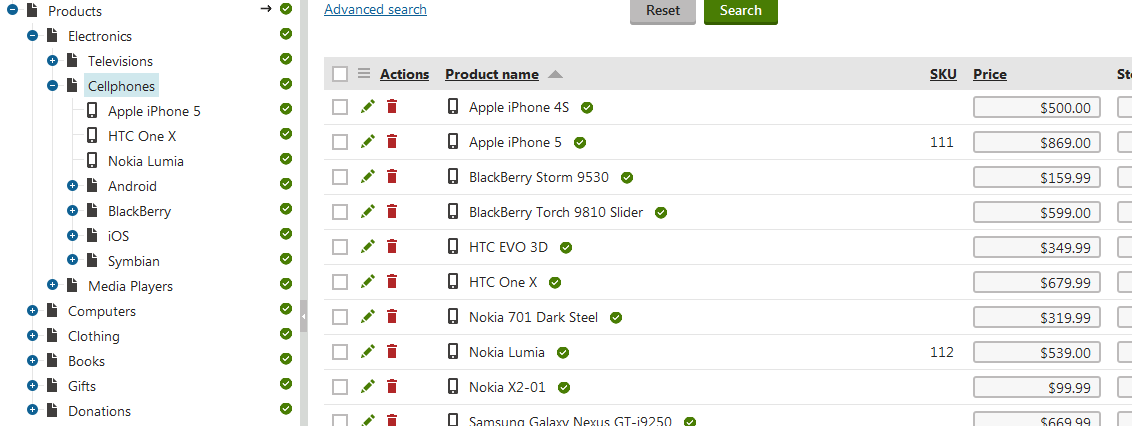
The following sample code allows you to import products specified in your external source of data to the **Products -> Electronics -> Cellphones** section as **Cellphones**.
Modify the code to suit your needs:
- [Change import location](#changing-import-location)
- [Change product type](#changing-product-type)
```csharp
using System;
using CMS.DataEngine;
using CMS.DocumentEngine;
using CMS.Ecommerce;
using CMS.Helpers;
using CMS.IO;
using CMS.Membership;
using CMS.SiteProvider;
public partial class ImportProducts : System.Web.UI.Page
{
#region "Private variables"
// Page owner
private string userName = "Administrator";
private TreeProvider tree;
private string siteName = "";
private string cultureCode;
private int siteId;
private string className = "CMSProduct.CellPhone";
#endregion
#region "Methods"
protected void Page_Load(object sender, EventArgs e)
{
// Get site info
siteName = SiteContext.CurrentSiteName;
siteId = SiteContext.CurrentSiteID;
// Get default site culture
cultureCode = CultureHelper.GetDefaultCultureCode(siteName);
// Get user info
UserInfo ui = UserInfoProvider.GetUserInfo(userName);
if (ui != null)
{
tree = new TreeProvider(ui);
}
else
{
tree = new TreeProvider();
}
// Import products
lblError.Text = Import(Server.MapPath("products.csv"));
}
///
/// Imports products from the specified file in *.csv format
///
///
///
private string Import(string filePath)
{
string error = "";
FileStream file = null;
try
{
// Specify file with product data
file = FileStream.New(filePath, FileMode.Open, FileAccess.Read);
}
catch (Exception ex)
{
error = "Error loading file '" + filePath + "': " + ex.Message;
}
if (error == "")
{
// Get product parent page
TreeNode parentPage = GetProductParentPage();
// Get default product page type
DataClassInfo productPageType = GetProductPageType();
if ((parentPage == null) || (productPageType == null))
{
error = "Unable to create products, some information missing";
}
else
{
var reader = StreamReader.New(file);
int count = 0;
// Read file
while (!reader.EndOfStream)
{
string line = reader.ReadLine();
if (line != null && line.Trim() != "")
{
// Get product data
string[] productData = line.Trim().Split(',');
// Create product (SKU)
var sku = new SKUInfo
{
SKUName = productData[0],
SKUDescription = productData[1],
SKUPrice = ValidationHelper.GetDouble(productData[2], 0),
SKUEnabled = true,
SKUSiteID = siteId,
SKUProductType = SKUProductTypeEnum.Product
};
DepartmentInfo department = DepartmentInfoProvider.GetDepartmentInfo(productData[3], siteName);
if (department != null)
{
// Assign product to its department
sku.SKUDepartmentID = department.DepartmentID;
}
try
{
SKUInfoProvider.SetSKUInfo(sku);
}
catch
{
error += "Unable to create product '" + sku.SKUName + "'.
";
}
// If product was created successfully
if (sku.SKUID > 0)
{
// Create product page type and assign SKU to it
var productDoc = (SKUTreeNode)TreeNode.New(productPageType.ClassName, tree);
productDoc.DocumentSKUName = sku.SKUName;
productDoc.DocumentSKUDescription = sku.SKUDescription;
productDoc.NodeSKUID = sku.SKUID;
productDoc.DocumentCulture = cultureCode;
try
{
productDoc.Insert(parentPage, true);
count++;
}
catch
{
error += "Unable to create page '" + sku.SKUName + "'.
";
SKUInfoProvider.DeleteSKUInfo(sku.SKUID);
}
}
}
}
// Close file
if (file != null)
{
file.Close();
}
// Close reader
reader.Close();
// Display number of created products
lblInfo.Text = "Number of created products: " + count;
}
}
return error;
}
///
/// Ensures parent page for product pages exists.
///
private TreeNode GetProductParentPage()
{
// Try to get products' parent page
TreeNode parent = tree.SelectSingleNode(siteName, "/Products/Electronics/Cellphones", TreeProvider.ALL_CULTURES, true, "cms.menuitem");
// Parent not found
if (parent == null)
{
// Get site root
TreeNode root = tree.SelectSingleNode(siteName, "/", TreeProvider.ALL_CULTURES, true, "cms.root");
if (root != null)
{
// Create new parent page
parent = TreeNode.New("cms.menuitem", tree);
parent.SetValue("MenuItemName", "Custom products");
parent.DocumentName = "Custom products";
parent.DocumentCulture = cultureCode;
parent.Insert(root, true);
}
}
return parent;
}
///
/// Ensures default product page type exists.
///
private DataClassInfo GetProductPageType()
{
DataClassInfo defaultProductType = DataClassInfoProvider.GetDataClassInfo(className);
return defaultProductType;
}
#endregion
}
```
#### Changing import location
If you need to change import location, customize the _GetProductParentPage()_ method.
Specifically, you need to modify the value of the _parent_ variable:
```csharp
parent = tree.SelectSingleNode(siteName, "/Products/Electronics/Cellphones", TreeProvider.ALL_CULTURES, true, "cms.menuitem");
```
For example, if you want to import your products directly into the **Products** section, change the path to _"/Products"_.
> **Info:** If you enter an invalid parent node path, the system creates a new page located in the root directory.
>
> The system then adds the imported products under this parent page.
#### Changing product type
If you need to change the product type, customize the value of the _className_ variable:
```csharp
string className = "CMSProduct.CellPhone";
```
For example, if you want to import your products as **Tablets**, change the value to _"CMSProduct.Tablet"_.
> **Note:** To be able to perform the import, your website must have appropriate [product types](https://docs.kentico.com/k82/e-commerce-features/configuring-and-managing-your-store/products/managing-product-types-and-product-section-types.md) defined.
4. Open the _ProductImport.aspx_ file in your Internet browser.
The system runs the script and informs you about the import result.

If you open the **Products** application, you can see that the imported products are listed under **Electronics -> Cellphones**.