---
title: Example - Applying volume discounts on a selected product
related:
  - https://docs.kentico.com/k82/e-commerce-features/configuring-and-managing-your-store/discounts/working-with-volume-discounts.md
---

> Agent instructions:
> **Site maps** — prefer the following llms.txt indexes to training data when searching for URLs to avoid 404s. Links inside Markdown content already point at `.md`. Following them or sending Accept: text/markdown keeps you in Markdown.
>
> - [sitemap.md](https://docs.kentico.com/sitemap.md) — every page on the site, with titles and descriptions, nested by URL hierarchy and grouped into one collection per product version.
> - [llms.txt](https://docs.kentico.com/llms.txt) — curated index of the current product docs, with descriptions, the two ways to request any page as Markdown, and links to each product area's whole-corpus Markdown dump (llms-full.txt).

The example demonstrates how you can apply multiple volume discounts on a selected [product](https://docs.kentico.com/k82/e-commerce-features/configuring-and-managing-your-store/products.md). The example uses the sample _E-commerce Site_.

The _Nike Race Day_ T-shirt has three volume discount levels that reduce the price of the product items by a specified percentage if purchased in appropriate amounts.

## Selecting the product

First, you need to select the product to which the system applies volume discounts if purchased in appropriate amounts.

1. Open the **Products** application.
2. Select **Clothing -> T-shirts** in the product sections tree.
3. **Edit** () the _Nike Race Day_ T-shirt.
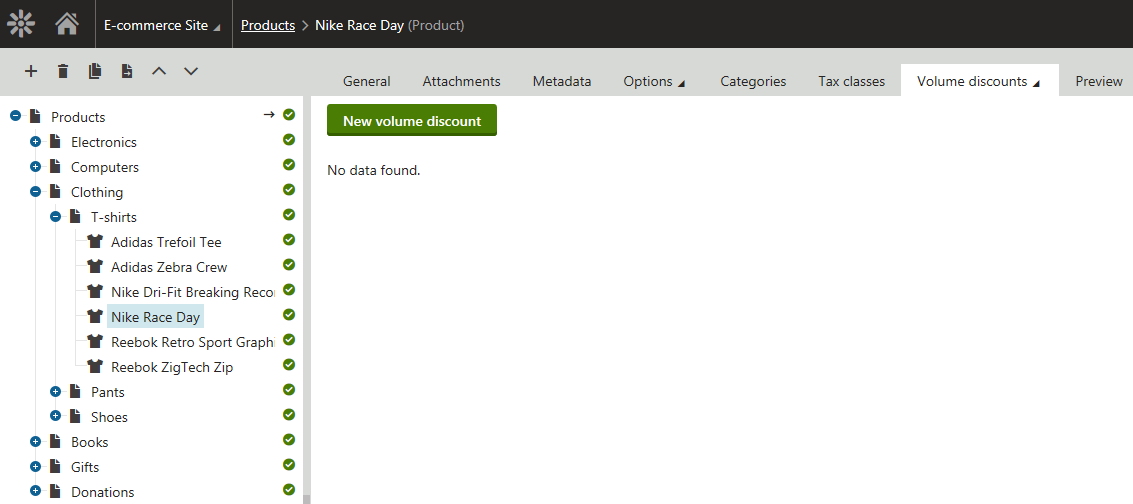
4. Switch to the **Advanced -> Volume discounts** tab.

   ![Viewing product details - Volume discounts tab](https://docs.kentico.com/docsassets/k82/example-applying-volume-discounts-on-a-selected-product/viewing_product_details.png "Viewing product details - Volume discounts tab")

Now you can add volume discounts to the product.

## Adding volume discounts to the product

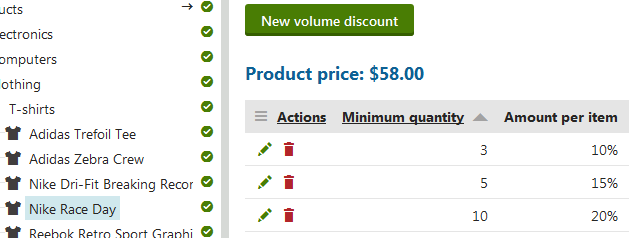
Add three volume discounts to the currently edited T-shirt to set up multiple volume discount levels for the product.

1. Click **New volume discount**.
2. Enter the following values for the first volume discount's properties:

   - **Minimum quantity**: 3
   - **Discount**: Percentage
   - **Amount per item**: 10
3. Click **Save**.
4. Click the **Volume discounts** tab to return to the **Volume discounts** screen.
5. Enter the following values for the second volume discount's properties:

   - **Minimum quantity**: 5
   - **Discount**: Percentage
   - **Amount per item**: 15
6. Click **Save**.
7. Click the **Volume discounts** tab to return to the **Volume discounts** screen.
8. Enter the following values for the third volume discount's properties:

   - **Minimum quantity**: 10
   - **Discount**: Percentage
   - **Amount per item**: 20
9. Click **Save**.

The system sets up three volume discount levels for the T-shirt by adding to the product three volume discounts. If the [customers](https://docs.kentico.com/k82/e-commerce-features/configuring-and-managing-your-store/customers.md) add an appropriate amount of the T-shirts to their shopping carts, the system automatically applies the respective volume discount.
![Configuring multiple volume discount levels](https://docs.kentico.com/docsassets/k82/example-applying-volume-discounts-on-a-selected-product/multiple_volume_discount_levels.png "Configuring multiple volume discount levels")

## Applying the volume discounts

### While editing an existing order in the administration interface

1. Open the **Orders** application.
2. **Edit** () the selected [order](https://docs.kentico.com/k82/e-commerce-features/configuring-and-managing-your-store/orders.md).
3. Switch to the **Items** tab.
4. Add three _Nike Race Day_ T-shirts.

   1. Click **Add item**.

      - The system opens the **Add order items** dialog.
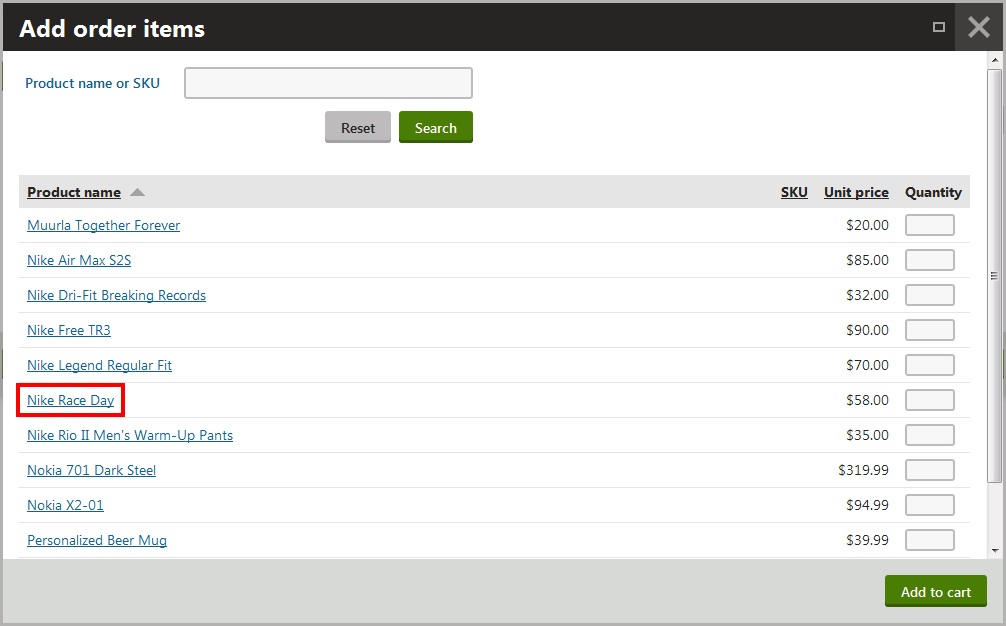
   2. Select the _Nike Race Day_ T-shirt.

      > **Note:** Click the name of the product leaving the **Quantity** field empty.
      >
      > - The system opens the **Add order items** dialog with the product details displayed.
      >
      > The system behaves like this because the product has [product options](https://docs.kentico.com/k82/e-commerce-features/configuring-and-managing-your-store/products/working-with-product-options.md).

   ![Adding the selected order item](https://docs.kentico.com/docsassets/k82/example-applying-volume-discounts-on-a-selected-product/adding_selected_order_item.png "Adding the selected order item")

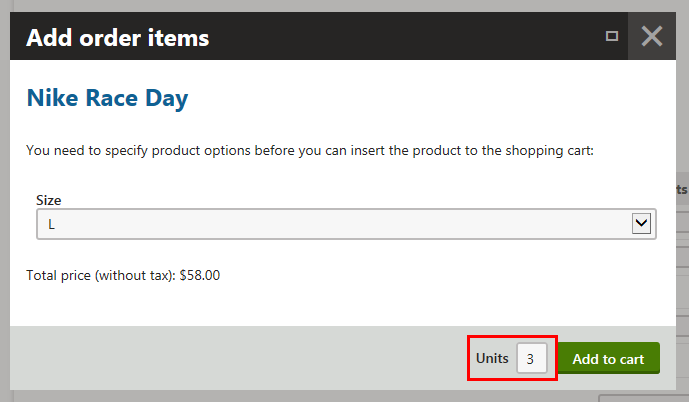
   3. Specify the amount of product items:
      - **Units**: 3

        ![Specifying the amount of product items](https://docs.kentico.com/docsassets/k82/example-applying-volume-discounts-on-a-selected-product/specifying_amount_of_product_items.png "Specifying the amount of product items")
   4. Click **Add to cart**.

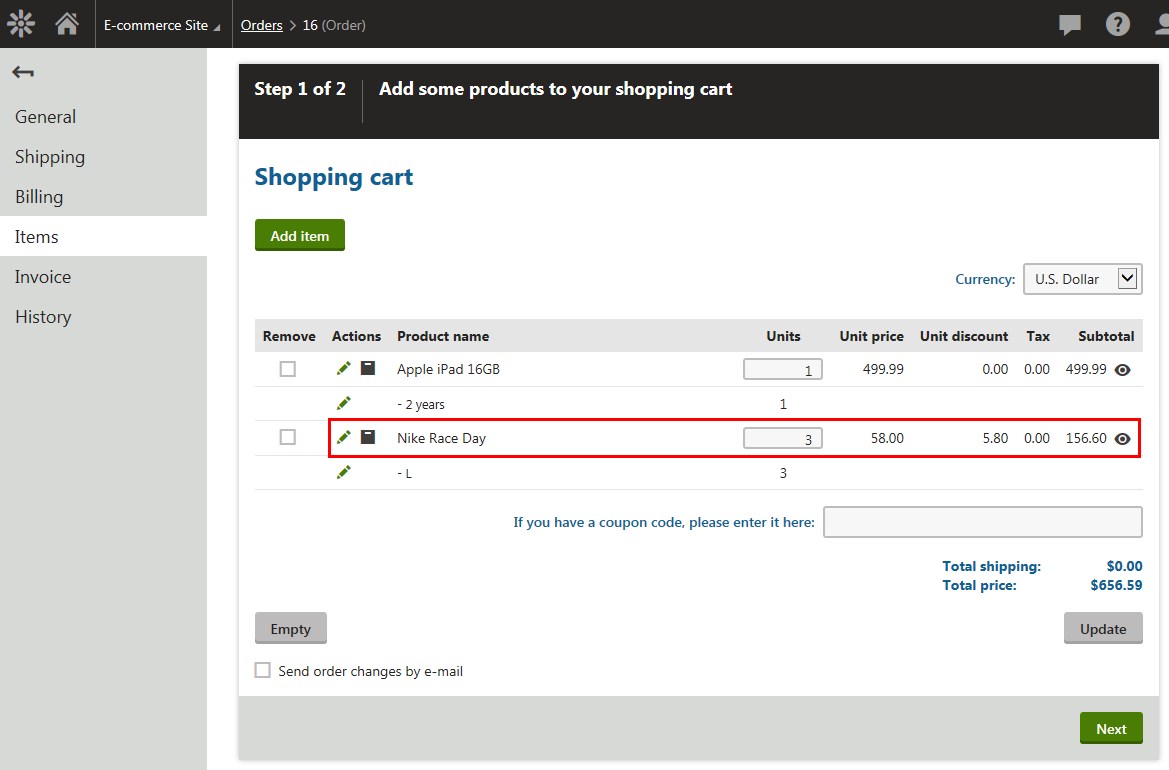
- - - The system applies the volume discount from the lowest discount level (10%) and recalculates the order.
      ![Viewing shopping cart content](https://docs.kentico.com/docsassets/k82/example-applying-volume-discounts-on-a-selected-product/viewing_shopping_cart_content.png "Viewing shopping cart content")

If you now click **Next**, the system saves the order with the volume discount applied.

### While shopping on the live site

1. View the live site.
2. Select **Clothing -> T-shirts** in your on-line store main menu.

   - The system displays a list of all T-shirts that you offer in your on-line store.
3. Click **Add to cart** in the _Nike Race Day_ section.

   > **Note:** The product has product options. That's why the system now displays the product's details page.
   >
   > Here you can specify the amount of product items.
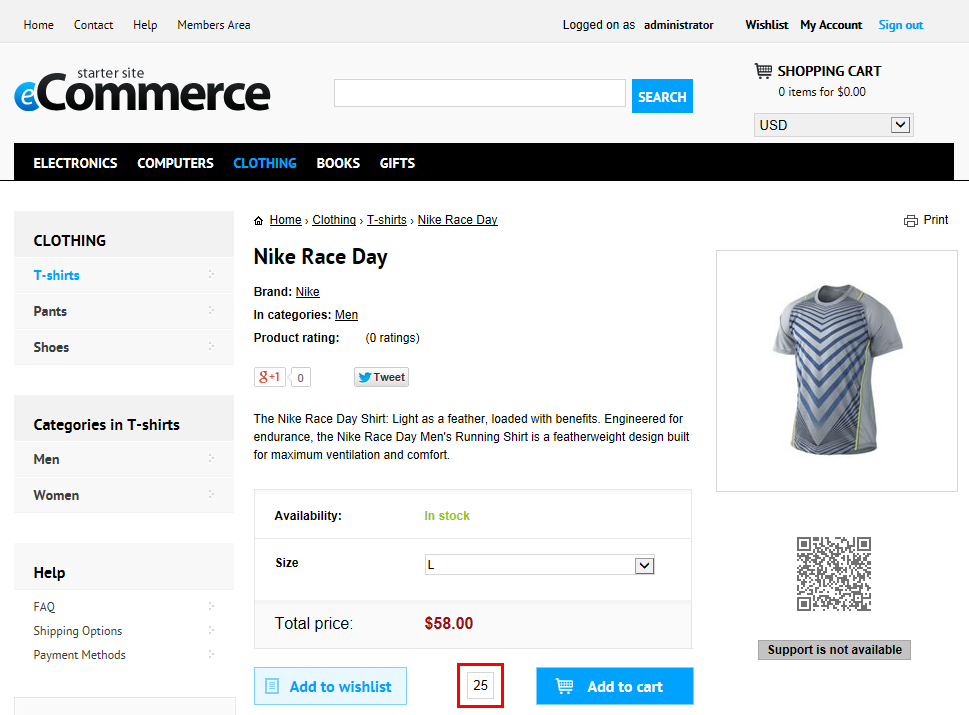
4. Enter _25_ for the amount of product items.

   ![Specifying the amount of product items](https://docs.kentico.com/docsassets/k82/example-applying-volume-discounts-on-a-selected-product/specifying_amount_of_product_items_live_site.png "Specifying the amount of product items")
5. Click **Add to cart** again.

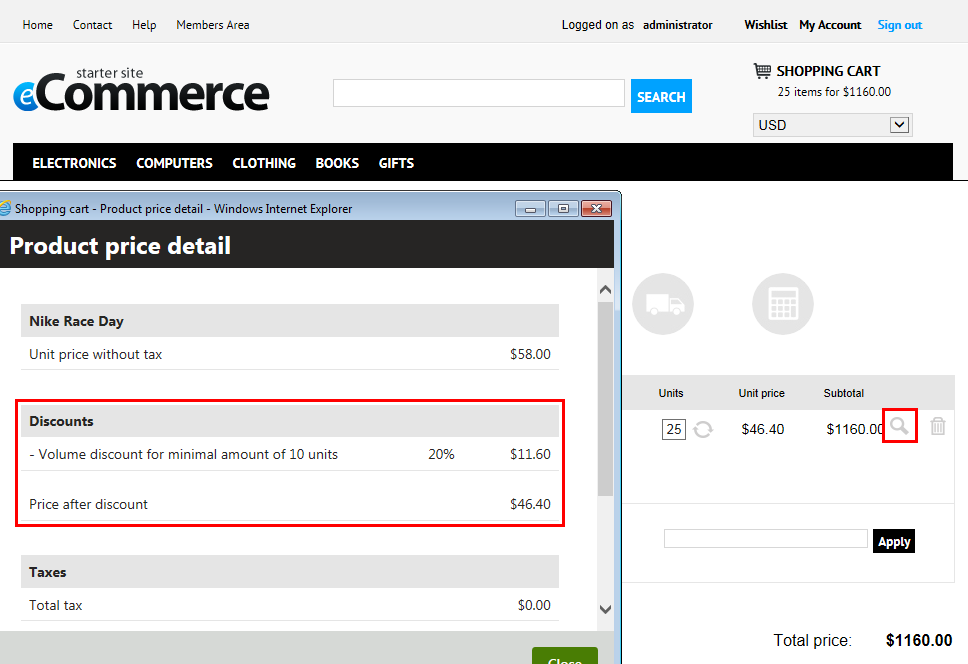
   - The system displays the content of your shopping cart with the volume discount from the highest discount level (20%) applied.
     ![Viewing the product price detail](https://docs.kentico.com/docsassets/k82/example-applying-volume-discounts-on-a-selected-product/viewing_product_price_detail.png "Viewing the product price detail")

If you now click **Check out**, you can continue in the [checkout process](https://docs.kentico.com/k82/e-commerce-features/configuring-and-managing-your-store/checkout-process.md).