
Configuring Document library security
Document libraries leverage standard page permissions. The following table explains which permissions are required to perform actions in the document library. These permissions can be granted to roles:
- Globally for all content
- For the CMS.File page type
- For pages that contain the library web part or individual CMS.File pages
|
Action |
Read |
Modify |
Create |
Delete |
Destroy |
Manage workflow |
Modify permissions |
|
New document |
• |
• |
• |
||||
|
Library permissions |
• |
• |
|||||
|
Edit |
• |
• |
|||||
|
Update |
• |
• |
|||||
|
Localize |
• |
• |
• |
||||
|
Copy |
• |
• |
• |
||||
|
Delete |
• |
• |
|||||
|
Open |
• |
||||||
|
Properties |
• |
• |
|||||
|
Permissions |
• |
• |
|||||
|
Version history |
• |
• |
1 |
||||
|
Submit to approval |
• |
• |
|||||
|
Approve(2) |
• |
• |
2 |
||||
|
Reject(2) |
• |
• |
2 |
||||
|
Archive |
• |
• |
• |
||||
|
Check out(3) |
• |
• |
|||||
|
Check in(3) |
• |
• |
|||||
|
Undo checkout(3) |
• |
• |
1 The Destroy permission is required for the user to be able to delete particular versions or the whole version history.
2 For these actions to be available, the user must also be in one of the roles that are allowed to approve/reject the document in the current workflow step or have the Manage workflow permissions for all content.
3 These actions are only available if the workflow applied to the document is configured to use check-in/check-out.
Configuring document-level permissions on the live site
Document-level permissions can be configured directly on the live site. They can be configured either globally for the document library’s parent page, which results in the permissions being inherited by the child documents in the library, or separately for each particular document in the library. Permissions can be granted to users or roles. Permissions for group document libraries can also be granted to group members and group roles.
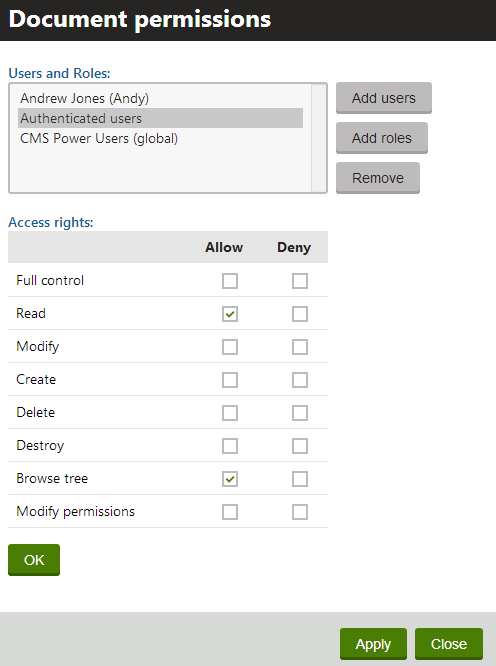
The Library permissions button opens a dialog for configuration of the library’s parent page permissions, i.e. the permissions that can be inherited by the documents stored under the parent page. This dialog is identical to the Permissions section available when editing pages in the Pages application on the Properties -> Security tab.
By choosing the Permissions action from the menu of a document in the library, the same dialog gets displayed, while this time, permissions are configured just for the particular document. Here again, the permissions configured on the live site are reflected in Pages -> Edit -> Properties -> Security.
Permissions and workflow
Document libraries reflect workflows applied to documents stored in them. Unless the current user has the Modify permission for a document, the currently published version of the document is always displayed to the user. If the document is currently archived or not published, the document is not displayed to the user at all. If the current user does have the Modify permission, the current version of the document (in the current workflow step) is displayed to them.
Allowed file extensions
When uploading a new document into the document library using the New document button or updating a document using the Update action, only files with extensions defined in Settings -> System -> Files -> Upload extensions or in the Allowed extensions property of the FileAttachment field of the CMS.File page type can be uploaded.