---
title: SharePoint integration examples (obsolete)
---
> Agent instructions:
> **Site maps** — prefer the following llms.txt indexes to training data when searching for URLs to avoid 404s. Links inside Markdown content already point at `.md`. Following them or sending Accept: text/markdown keeps you in Markdown.
>
> - [sitemap.md](https://docs.kentico.com/sitemap.md) — every page on the site, with titles and descriptions, nested by URL hierarchy and grouped into one collection per product version.
> - [llms.txt](https://docs.kentico.com/llms.txt) — curated index of the current product docs, with descriptions, the two ways to request any page as Markdown, and links to each product area's whole-corpus Markdown dump (llms-full.txt).
This page demonstrates how you can use SharePoint integration in Kentico:
- [SharePoint integration examples (obsolete)](#site-hierarchy) - learn how you can display site lists.
- [SharePoint integration examples (obsolete)](#list-items) - learn how you can display items from lists.
- [SharePoint integration examples (obsolete)](#picture-libraries) - learn how you can retrieve picture library type lists.
- [SharePoint integration examples (obsolete)](#list-of-pictures) - learn how you can display pictures from picture libraries.
## Site hierarchy
This section describes how you can display site lists resembling the site hierarchy panel on a SharePoint site.
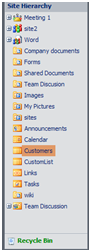
Add one of the SharePoint [web parts](https://docs.kentico.com/k82/developing-websites/developing-websites-using-the-portal-engine/using-and-configuring-web-parts.md) (e.g. the **SharePoint repeater** web part) into a page, and configure the web part in the following way:
- **SharePoint site URL** - enter the URL of your SharePoint server.
- **Username** and **Password** - enter your username and password, or leave the fields empty if you configured them in _Settings -> Integration -> Microsoft SharePoint_.
- **Mode**: _Display site lists_
- **Transformation** - the system provides a transformation for displaying site hierarchies called _SiteHierarchy_, which you can find under the _SharePoint - Transformations_page type. For correct behavior, you need to edit the transformation and change the name of the SharePoint server in the transformation code.
Leave the default values for the remaining properties and click **OK**. The system creates a link to each of the lists on the SharePoint server.
## List items
Using the _Display list items_ mode, you can display items from any list from the SharePoint server.
The example uses a custom SharePoint list called _Customers_. The list stores information about company customers in fields such as _Customer name_, _Street_, _City_, _Phone_, etc. You want to display data from this list on your Kentico website.
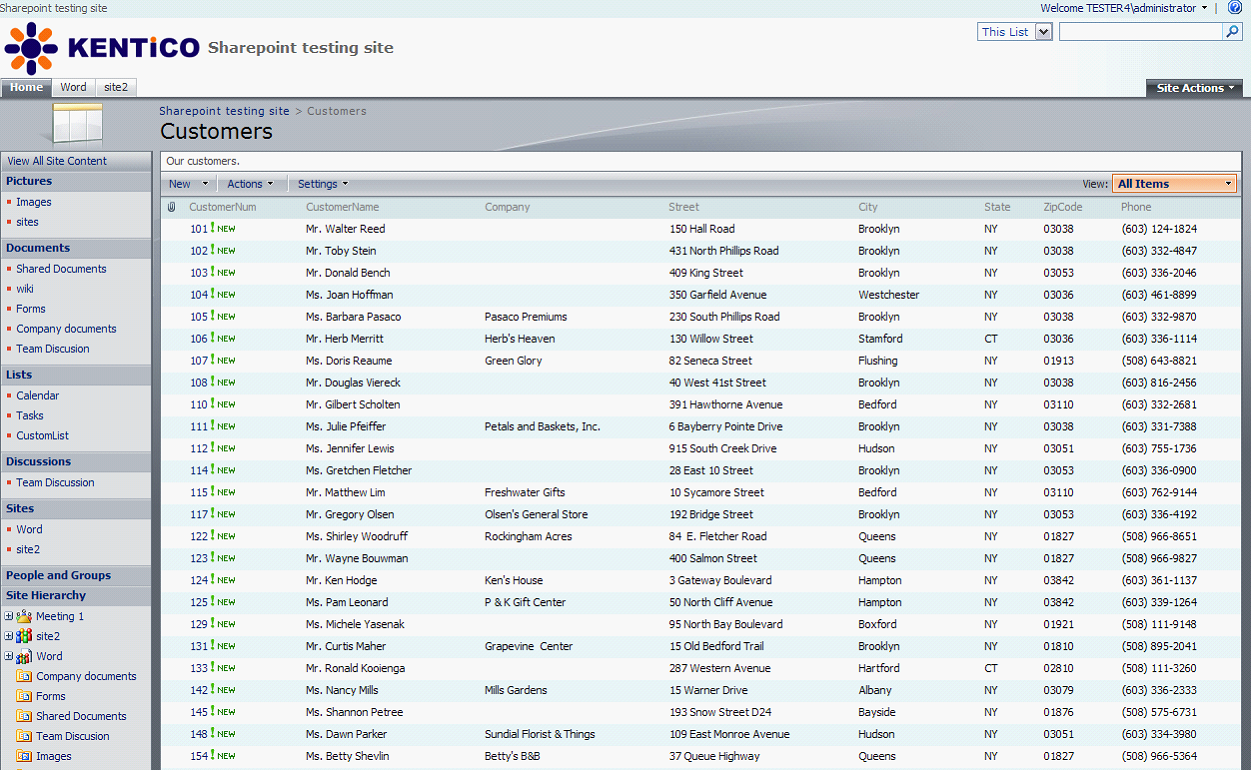
Add one of the SharePoint [web parts](https://docs.kentico.com/k82/developing-websites/developing-websites-using-the-portal-engine/using-and-configuring-web-parts.md) (e.g. **SharePoint repeater**) into a page:
1. Configure the web part in the following way:
- **SharePoint site URL** - enter the URL of your SharePoint server.
- **Username** and **Password** - enter your username and password, or leave the fields empty if you configured them in _Settings -> Integration -> Microsoft SharePoint._
- **Mode**: _Display list items_
- **Transformation** - the system provides a transformation for displaying item lists called _ListItems_, which you can find under the _SharePoint - Transformations_ page type. For correct behavior, you need to edit the transformation and change the name of the SharePoint server in the transformation code.
- **Show raw response**: enabled; this is because you need to inspect the retrieved data and change the transformation to suit your needs.
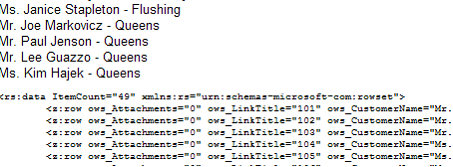
Leave the default values for the remaining properties and click **OK**. You should see a result similar to the screenshot below.
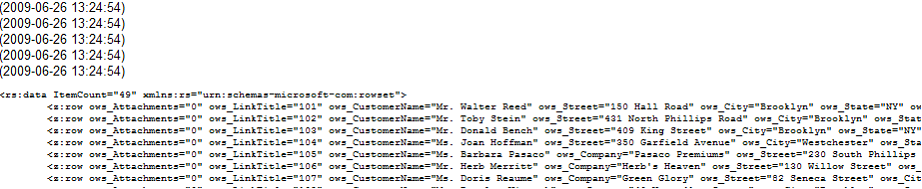
To see the customers' name and city, look into the raw output and search for the respective fields. You can find them under the _ows\_CustomerName_ and _ows\_City_ attributes.
2. Now that you know the names of the attributes, you need to edit the transformation code or create a new transformation.
Replace the original transformation:
```html
<%# Eval("ows_Title") %> (<%# Eval("ows_Created")%>)
```
with something like this:
```html
<%# Eval("ows_CustomerName") %> - <%# Eval("ows_City")%>
```
The output now displays the desired values.
3. To click individual items and see more details, you need to prepare the **Selected item transformation**. The transformation may look like the following code sample:
```xml
<%# Eval("ows_CustomerName") %>
<%# Eval("ows_City")%>
<%# Eval("ows_Street")%>
<%# Eval("ows_Phone")%>
```
4. In the web part properties, enter the name of the field by which you want to select items. In this case, it is the _ID_ field. In the raw response output, you can see it as _ows\_ID_. Enter the following values:
- **Selected item querystring key name**: _id_
- **Selected item field name**: _ID_
- **Selected item field type**: _Counter_
Finally, alter the original transformation to suit the values you entered. This means you need to create a link to customer details using the _id_ parameter in the query string. It can look like this:
```xml
">
<%# Eval("ows_CustomerName") %> - <%# Eval("ows_City")%>
```
The final result, a simple text list of customers with links, looks like this:
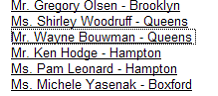
After clicking a customer name, the system displays customer details.

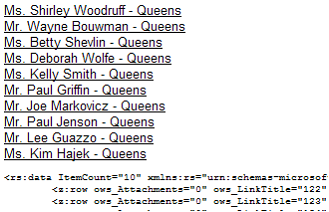
5. Now configure the **Advanced** settings. You want that the system displays a maximum of 10 customers. Besides, the displayed customers are from _Queens_ only.
Enter number 10 into the **Row limit** field and use this code as the **Query**:
```csharp
Queens
```
The _\_ tag means equals, the field name is _City_, and its value of type _Text_ equals to _Queens_.
Click **OK**. Now you should see the filtered output as in the following screenshot:
## Picture libraries
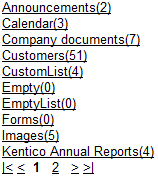
This section describes how you can use SharePoint to retrieve only a picture library type list. To achieve this, you need to configure the following properties:
- **SharePoint site URL** - enter the URL of your SharePoint server.
- **Username** and **Password** - enter your username and password, or leave the fields empty if you configured them in _Settings -> Integration -> Microsoft SharePoint_.
- **Mode**: _Display picture libraries_
- **Transformation** - the system provides a transformation for displaying picture libraries called _PictureLibLists_, which you can find under the _SharePoint - Transformations_ page type. For correct behavior, you need to edit the transformation and change the name of the SharePoint server in the transformation code.
Leave the default values for the remaining properties and click **OK**. You should see a result similar to the screenshot below. The system displays a list of picture libraries with links to the SharePoint server.

## List of pictures
The _Display list of pictures_ mode allows you to display pictures from picture libraries on a SharePoint server.
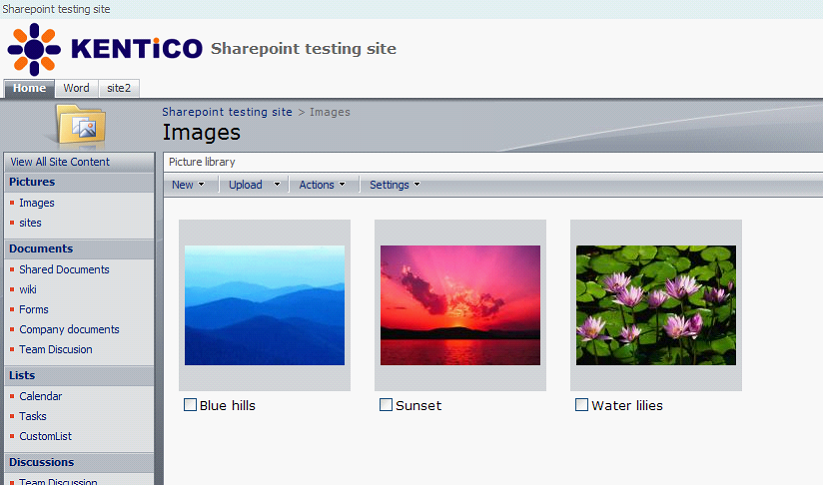
The example uses a SharePoint picture library called _Images_. To display the pictures on your Kentico website, you need to enter the following properties while configuring a suitable web part (for example, the **SharePoint repeater** web part):
- **SharePoint site URL** - enter the URL of your SharePoint server.
- **Username** and **Password** - enter your username and password, or leave the fields empty if you configured them in _Settings -> Integration -> Microsoft SharePoint_.
- **Mode**: _Display list of pictures_
- **List name**\*: Images\*
- **Transformation** - the system provides a transformation for displaying picture lists called _Pictures_, which you can find under the _SharePoint - Transformations_page type. For correct behavior, you need to edit the transformation and change the name of the SharePoint server in the transformation code.
Leave the default values for the remaining properties and click **OK**. You should see a result similar to the screenshot below.
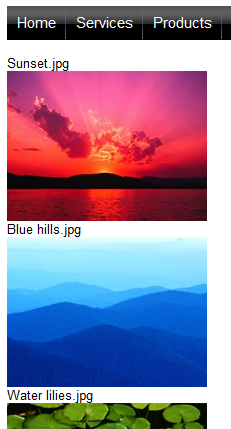
The transformation code looks like this:
```html
<%# SharePointFunctions.SplitSharePointField((string)Eval("ows_FileLeafRef"),1) %>
 &maxsidesize=200" />
```
The system downloads the images through the **GetSharePointFile.aspx** page, same as documents. So you need to create in the transformation _\![]() _ tags with _src_ attributes pointing to this page. For ease of use, the system provides the **GetSharePointFileUrl** method in the **SharePointFunctions** class, which takes two parameters and returns the URL that downloads the file. The first parameter is the server name (or website URL), the second one is the location of the file in SharePoint. The final URL looks like this:
- _\~/CMSModules/Sharepoint/CMSPages/GetSharePointFile.aspx?server=server\_name\&name=Images/Sunset.jpg_
> **Note:** The credentials from the settings are always used for downloading the file when the **GetSharePointFile** page is used.
The system provides another useful method in the **SharePointFunctions** class called **SplitSharePointField**. SharePoint, for some reason, creates combined attribute values for certain fields, for example, _ows\_FileLeafRef="2;#Blue hills.jpg"_.
However, you often need to use only a part of such a value. The **SplitSharePointField** method serves the purpose. The first argument is a combined value and the second one is the index of the part you want to have in the output.
### The GetSharePointFile.aspx page
The **GetSharePointFile.aspx** page is a special page located in the **\~/CMSModules/Sharepoint/CMSPages** directory in your Kentico installation. The correct URL to access the page is:
- _\~/ CMSModules/Sharepoint/CMSPages/GetSharePointFile.aspx?server=server\_name\&name=Images/Sunset.jpg_
The page downloads a specified file from the SharePoint server and sends it further to the user. The credentials that you configured in **Settings -> Integration -> Microsoft SharePoint** are used for authentication by the web service. You can control the Content-Disposition HTTP header using the _disposition_ query parameter.
#### Images
The page supports _maxsidesize_, _width_ and _height_ parameters to control the size of the image, and the Kentico cache is used. You can configure the [cache](https://docs.kentico.com/k82/configuring-kentico/optimizing-website-performance/configuring-caching/caching-files-and-resources.md) in **Settings -> System -> Performance**: **Cache files (minutes)**, **Client cache (minutes)**.
#### Servers
You can specify servers that the system can retrieve the files from. Enter names of the servers, separated by semicolons, into the **Allowed servers** setting in **Settings -> Integration -> Microsoft SharePoint**.
> **Warning:** The settings configured in **Settings -> Integration -> Microsoft SharePoint** are automatically used for authentication by the **GetSharePointFile.aspx** page, and the URL to access the page can be entered manually.
>
> That's why we recommend that you enter the credentials of a user authorized to access only the files you want to display on your website.
_ tags with _src_ attributes pointing to this page. For ease of use, the system provides the **GetSharePointFileUrl** method in the **SharePointFunctions** class, which takes two parameters and returns the URL that downloads the file. The first parameter is the server name (or website URL), the second one is the location of the file in SharePoint. The final URL looks like this:
- _\~/CMSModules/Sharepoint/CMSPages/GetSharePointFile.aspx?server=server\_name\&name=Images/Sunset.jpg_
> **Note:** The credentials from the settings are always used for downloading the file when the **GetSharePointFile** page is used.
The system provides another useful method in the **SharePointFunctions** class called **SplitSharePointField**. SharePoint, for some reason, creates combined attribute values for certain fields, for example, _ows\_FileLeafRef="2;#Blue hills.jpg"_.
However, you often need to use only a part of such a value. The **SplitSharePointField** method serves the purpose. The first argument is a combined value and the second one is the index of the part you want to have in the output.
### The GetSharePointFile.aspx page
The **GetSharePointFile.aspx** page is a special page located in the **\~/CMSModules/Sharepoint/CMSPages** directory in your Kentico installation. The correct URL to access the page is:
- _\~/ CMSModules/Sharepoint/CMSPages/GetSharePointFile.aspx?server=server\_name\&name=Images/Sunset.jpg_
The page downloads a specified file from the SharePoint server and sends it further to the user. The credentials that you configured in **Settings -> Integration -> Microsoft SharePoint** are used for authentication by the web service. You can control the Content-Disposition HTTP header using the _disposition_ query parameter.
#### Images
The page supports _maxsidesize_, _width_ and _height_ parameters to control the size of the image, and the Kentico cache is used. You can configure the [cache](https://docs.kentico.com/k82/configuring-kentico/optimizing-website-performance/configuring-caching/caching-files-and-resources.md) in **Settings -> System -> Performance**: **Cache files (minutes)**, **Client cache (minutes)**.
#### Servers
You can specify servers that the system can retrieve the files from. Enter names of the servers, separated by semicolons, into the **Allowed servers** setting in **Settings -> Integration -> Microsoft SharePoint**.
> **Warning:** The settings configured in **Settings -> Integration -> Microsoft SharePoint** are automatically used for authentication by the **GetSharePointFile.aspx** page, and the URL to access the page can be entered manually.
>
> That's why we recommend that you enter the credentials of a user authorized to access only the files you want to display on your website.