---
title: Example - Adding an order rule
related:
- https://docs.kentico.com/k82/e-commerce-features/configuring-and-managing-your-store/discounts/configuring-discount-rules.md
---
> Agent instructions:
> **Site maps** — prefer the following llms.txt indexes to training data when searching for URLs to avoid 404s. Links inside Markdown content already point at `.md`. Following them or sending Accept: text/markdown keeps you in Markdown.
>
> - [sitemap.md](https://docs.kentico.com/sitemap.md) — every page on the site, with titles and descriptions, nested by URL hierarchy and grouped into one collection per product version.
> - [llms.txt](https://docs.kentico.com/llms.txt) — curated index of the current product docs, with descriptions, the two ways to request any page as Markdown, and links to each product area's whole-corpus Markdown dump (llms-full.txt).
The example demonstrates how you can add an order rule whose macro condition calls a custom method. Your eligible [customers](https://docs.kentico.com/k82/e-commerce-features/configuring-and-managing-your-store/customers.md) receive a 10% discount on their [orders](https://docs.kentico.com/k82/e-commerce-features/configuring-and-managing-your-store/orders.md) if they add at least two [products](https://docs.kentico.com/k82/e-commerce-features/configuring-and-managing-your-store/products.md) from the _Computers_ category to their shopping carts.
The example uses the sample _E-commerce Site_.
## Adding a custom class into the system's code
First, you need to add a new class inherited from the **MacroMethodContainer** class. The class contains a custom method that can be called by discount rules.
1. Add a new class _**CustomEcommerceMacroMethods**_ to your **App\_Code\CMSModules\Ecommerce\\** sub-folder.
2. Add the following code to the class:
> **Note:** The class contains the _**IsProductInCategoryInShoppingCart**_ custom method that will later be called by the custom order rule.
```csharp
using System;
using System.Collections.Generic;
using System.Linq;
using System.Web;
using CMS.DocumentEngine;
using CMS.Ecommerce;
using CMS.Helpers;
using CMS.MacroEngine;
using CMS.SiteProvider;
using CMS.Taxonomy;
///
/// Summary description for CustomEcommerceMacroMethods
///
public class CustomEcommerceMacroMethods : MacroMethodContainer
{
///
/// Returns true if shopping cart contains at least defined number of products in defined category.
///
/// Evaluation context with child resolver
/// Method parameters
[MacroMethod(typeof(bool), "Returns true if shopping cart contains defined number of products in defined category.", 2)]
[MacroMethodParam(0, "shoppingCart", typeof(ShoppingCartInfo), "Shopping cart")]
[MacroMethodParam(1, "categoryGUID", typeof(Guid), "CategoryGUID")]
[MacroMethodParam(2, "itemsCount", typeof(int), "Number of items")]
public static object IsProductInCategoryInShoppingCart(EvaluationContext context, params object[] parameters)
{
switch (parameters.Length)
{
case 3:
return IsProductInCategoryInShoppingCart(parameters);
default:
throw new NotSupportedException();
}
}
private static bool IsProductInCategoryInShoppingCart(object[] parameters)
{
ShoppingCartInfo cart = (ShoppingCartInfo)parameters[0];
string categoryName = ValidationHelper.GetString(parameters[1], String.Empty);
int minItemsCount = ValidationHelper.GetInteger(parameters[2], 1);
// Get site category info
CategoryInfo category = CategoryInfoProvider.GetCategoryInfo(categoryName, SiteContext.CurrentSiteName);
// SKU IDs in the shopping cart except product options and variants
var itemsIds = cart.CartItems
.Where(item => !(item.SKU.IsProductOption || item.SKU.IsProductVariant))
.Select(item => item.SKUID)
.ToList();
// Get NodeSKUIDs of product pages in the shopping cart in given category
string wherePages = CategoryInfoProvider.GetCategoryDocumentsWhereCondition(category.CategoryIDPath, false);
var pages = DocumentHelper.GetDocuments()
.Where(wherePages)
.WhereIn("NodeSKUID", itemsIds)
.Columns("NodeSKUID").ToList();
// Count the number of product units in given category in the shopping cart
int count = 0;
foreach(ShoppingCartItemInfo cartItem in cart.CartItems)
{
// If cart item SKUID matches some of product page NodeSKUID in given category
if (pages.Exists(doc => doc.NodeSKUID == cartItem.SKUID))
{
count += cartItem.CartItemUnits;
}
}
return (minItemsCount <= count);
}
}
```
3. [Register](https://docs.kentico.com/k82/macro-expressions/extending-the-macro-engine/registering-custom-macro-methods.md) the _**CustomEcommerceMacroMethods**_ container class by extending the **ShoppingCartInfo** type. Create a new class in the **App\_Code** folder with the following code:
```csharp
using CMS.Base;
using CMS.Ecommerce;
[MacroMethodLoader]
public partial class CMSModuleLoader
{
///
/// Attribute class ensuring the registration of custom macro methods.
///
private class MacroMethodLoader : CMSLoaderAttribute
{
///
/// Called automatically when the application starts.
///
public override void Init()
{
// Makes the IsProductInCategoryInShoppingCart macro method available for shopping cart objects
Extend.With();
}
}
}
```
> **Note:** The macro resolver now recognizes the **IsProductInCategoryInShoppingCart** method for shopping cart objects.
4. Save the modified classes. Build your solution if you are using a web application project.
You can now add a new order rule. Because the _**CustomEcommerceMacroMethods**_ container class is registered, any order discount rule can now call the _**IsProductInCategoryInShoppingCart**_ custom method for shopping cart objects.
## Adding an order rule
This section demonstrates how you can add an order rule limiting the application of [order discounts](https://docs.kentico.com/k82/e-commerce-features/configuring-and-managing-your-store/discounts/working-with-order-discounts.md) ([free shipping offers](https://docs.kentico.com/k82/e-commerce-features/configuring-and-managing-your-store/discounts/working-with-free-shipping-offers.md)). Eligible customers receive a discount on their orders if the orders contain at least N products from a selected product category (if the rule is used in an active order discount).
1. Open the **Store configuration** application.
2. Switch to the **Discount rules -> Order rules** tab.
3. Click **New order rule**.
- The system opens a new page where you can specify the order rule properties and define the rule's parameters.
**Specifying the rule's properties**
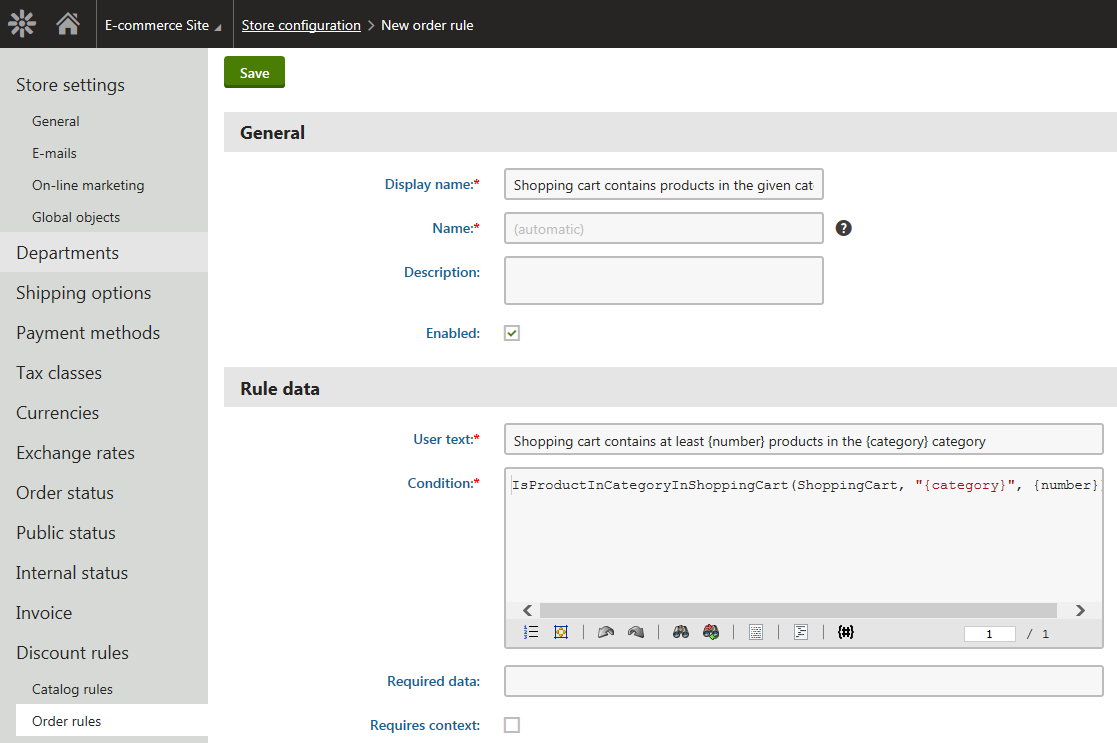
1. Enter the following values for the rule's properties:
- **Display name**: Shopping cart contains products in the given category
- **User text**: Shopping cart contains at least {number} products in the {category} category
- **Condition**: IsProductInCategoryInShoppingCart(ShoppingCart, "{category}", {number})
2. Click **Save**.
- The system saves the order rule, leaving it open for further editing.
**Defining the rule's parameters**
3. Switch to the **Parameters** tab.
- You specified two parameters that modify the rule's condition (_number_, _category_). That's why the system automatically adds two parameters. You can now adjust the parameters' settings.
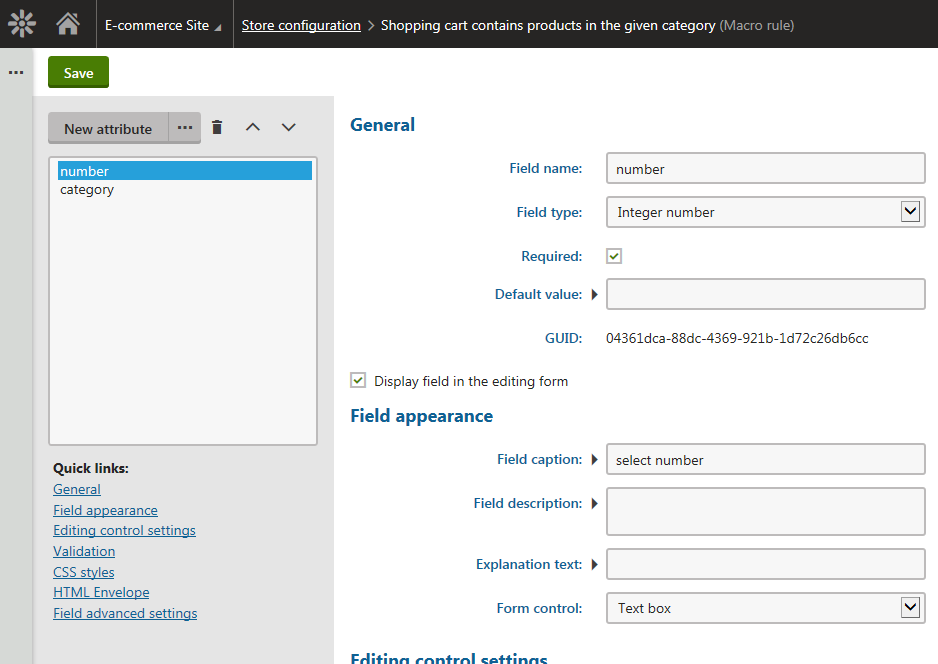
4. Select **number** from the parameters list and enter (verify) the following values for its properties:
- **Field name**: number
- **Data type**: Integer number
- **Required**: Yes (checked)
- **Display field in the editing form**: Yes (checked)
- **Field caption**: select number
- **Form control**: Text box
5. Click **Save**.
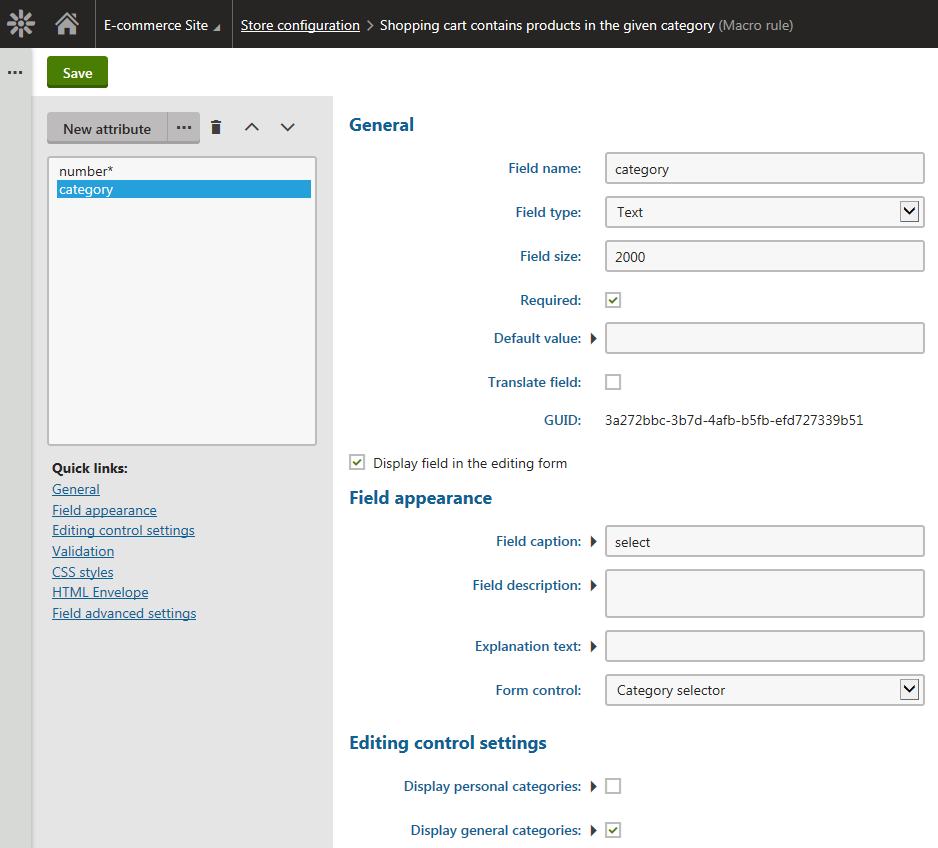
6. Select **category** from the parameters list and enter (verify) the following values for its properties:
- **Field name**: category
- **Data type**: Text
- **Size**: 2000
- **Required**: Yes (checked)
- **Display field in the editing form**: Yes (checked)
- **Field caption**: select
- **Form control**: Category selector
- **Display personal categories**: No (unchecked)
- **Display general categories**: Yes (checked)
7. Click **Save**.
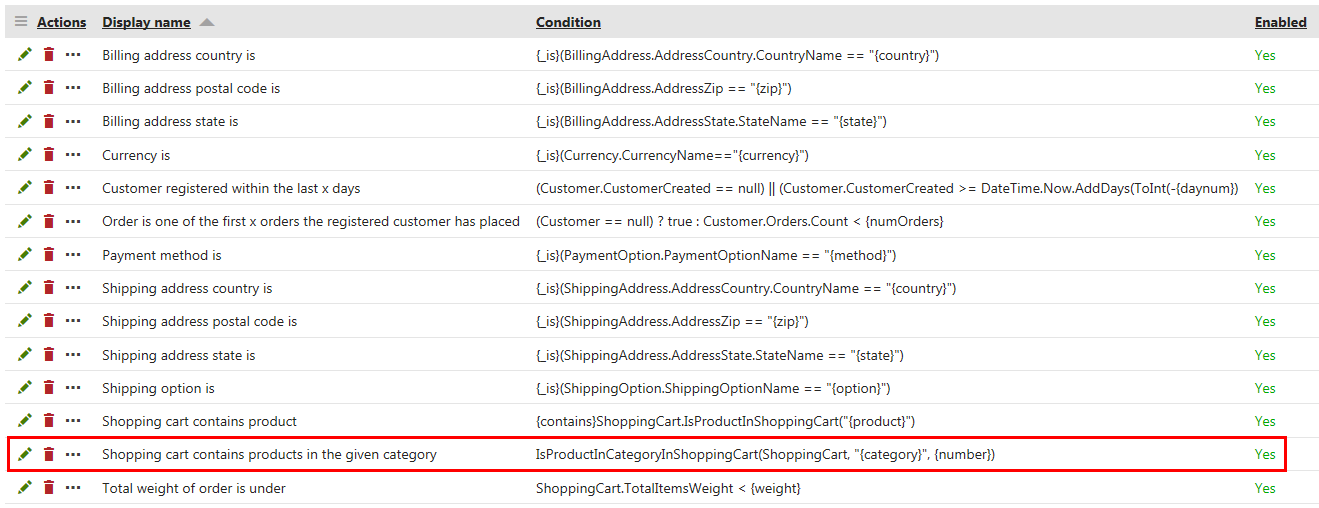
The system adds a new order rule with two parameters. The rule's condition calls the _IsProductInCategoryInShoppingCart_ custom method. You can now use the rule in order discounts.
## Adding an order discount
This section demonstrates how you can add an order discount allowing the customers to receive a 10% discount on their orders. The customers receive the discount if their orders contain at least two products from the **Computers** category.
> **Tip:** You can assign products (product pages) to categories while editing the products in the **Products** application on the **Categories** tab.
1. Open the **Order discounts** application.
2. Click**New order discount**.
- The system opens the **New order discount** page where you can specify the order discount properties.
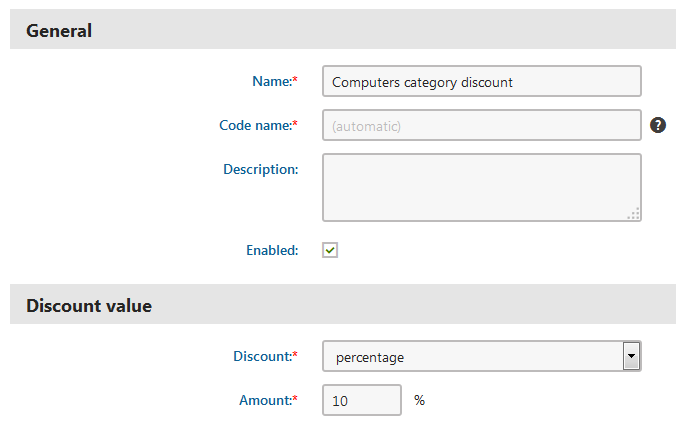
3. Enter the following values for the order discount's general and value properties:
- **Name**: Computers category discount
- **Enabled**: Yes (checked)
- **Discount**: Percentage
- **Amount**: 10
4. Specify the discount's condition:
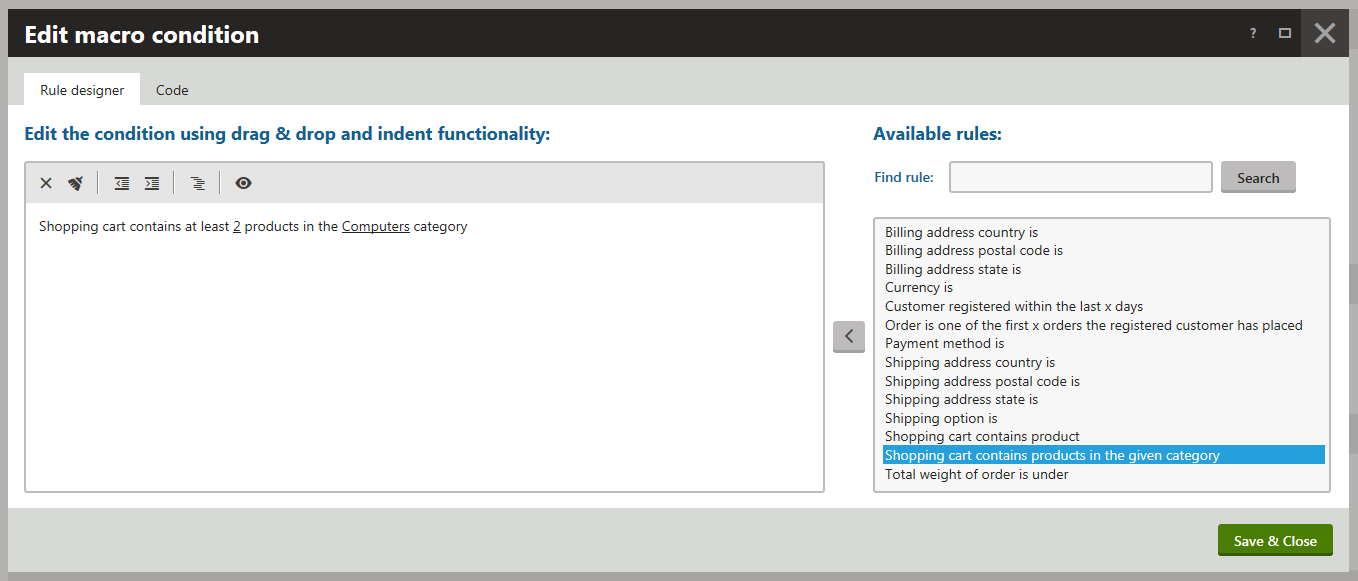
1. Click **Edit** to edit the discount's **Further conditions** property.
- This opens the **Edit macro condition** dialog on the **Rule designer** tab.
2. Select the **Shopping cart contains products in the given category** rule in the right part of the dialog.
3. Click **Add rule** () to add the rule to the condition.
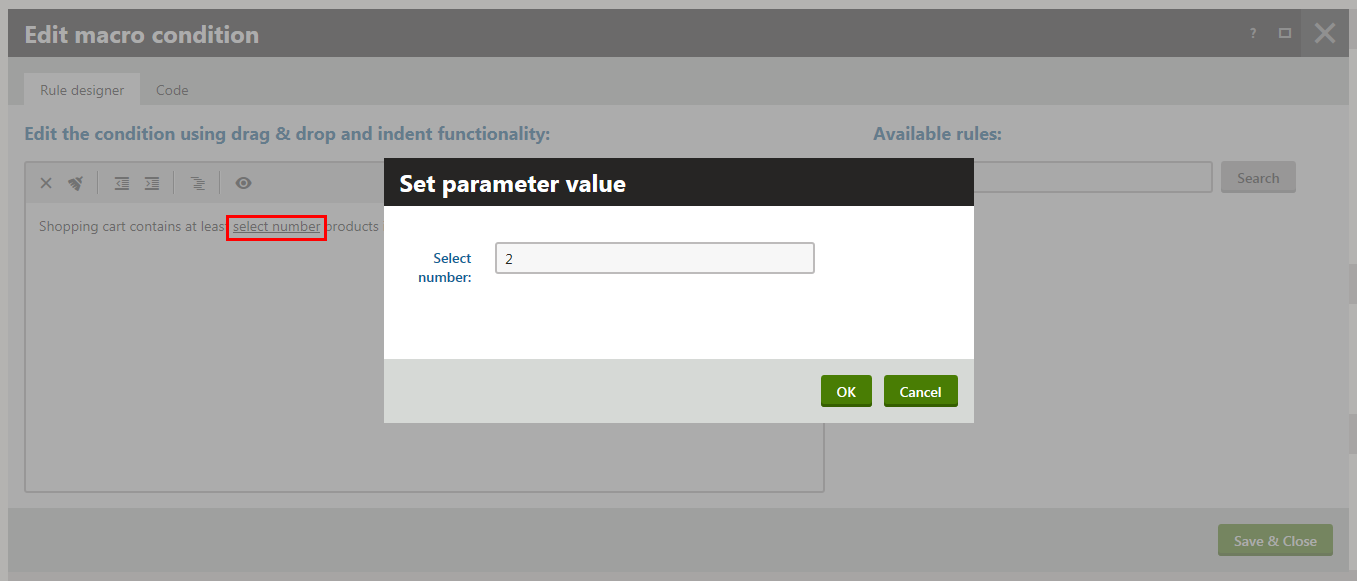
4. Click select number in the left part of the dialog.
- The system opens the **Set parameter value** dialog for the **number** parameter.
5. Enter _2_.
6. Click **OK**.
- The system closes the **Set parameter value** dialog for the **number** parameter. The **Edit macro condition dialog** is open for editing.
7. Click select in the left part of the dialog.
- The system opens the **Set parameter value** dialog for the **category** parameter.
**Selecting the product category**
1. Click **Select**.
- The system opens the **Select category** dialog.
2. Select the **Computers** category.
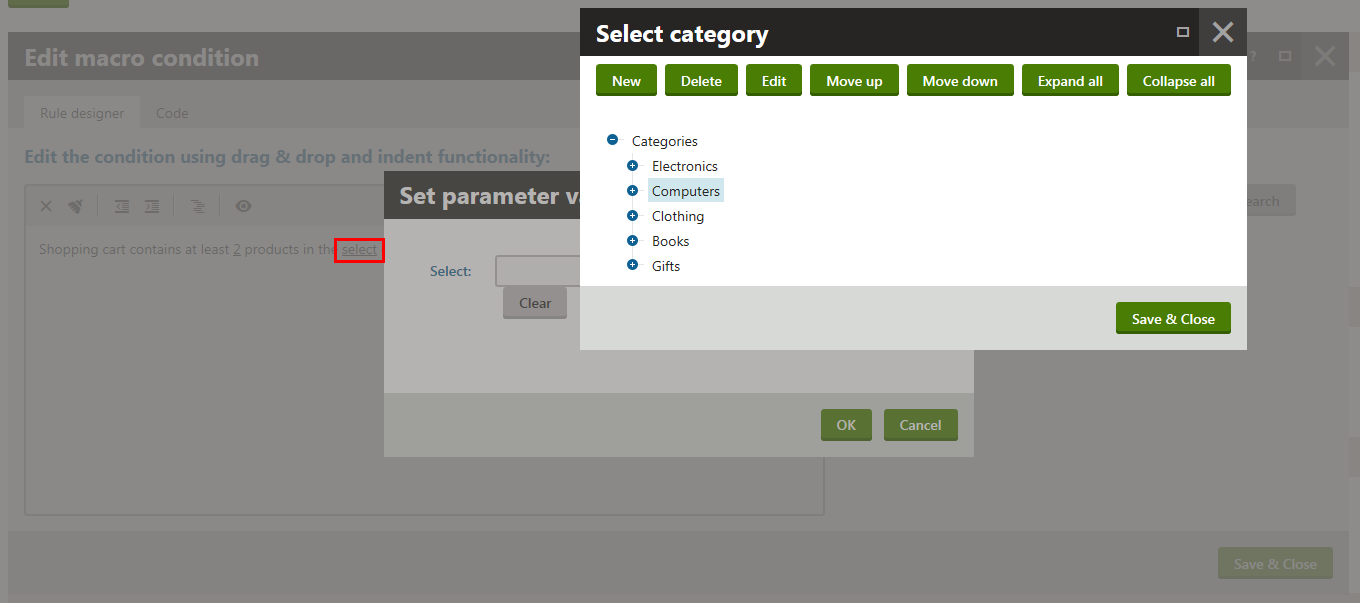
3. Click **Save & Close**.
- The system closes the **Select category** dialog. The **Set parameter value** dialog is open for editing.
4. Click **OK**.
- The system closes the **Set parameter value** dialog for the **category** parameter. The **Edit macro condition dialog** is open for editing.
8. Click **Save & Close** to save the rule's condition and leave the **Edit macro condition** dialog.
5. Click **Save**.
The system saves the order discount. If your customers now add at least two products from the **Computers** category to their shopping carts, they receive a 10% discount on their orders.
## Reviewing the order discount's application
1. View the live site.
2. Select **Computers -> Laptops** in your on-line store main menu.
- The system displays a list of all laptop computers that you offer in your on-line store.
3. Click **Add to cart** in the _Sony VAIO Z Series_ section.
> **Note:** The product has [product options](https://docs.kentico.com/k82/e-commerce-features/configuring-and-managing-your-store/products/working-with-product-options.md). That's why the system now displays the product's details page.
>
> Here you can specify the amount of product items.
4. Enter _1_ for the amount of product items.
5. Click **Add to cart**.
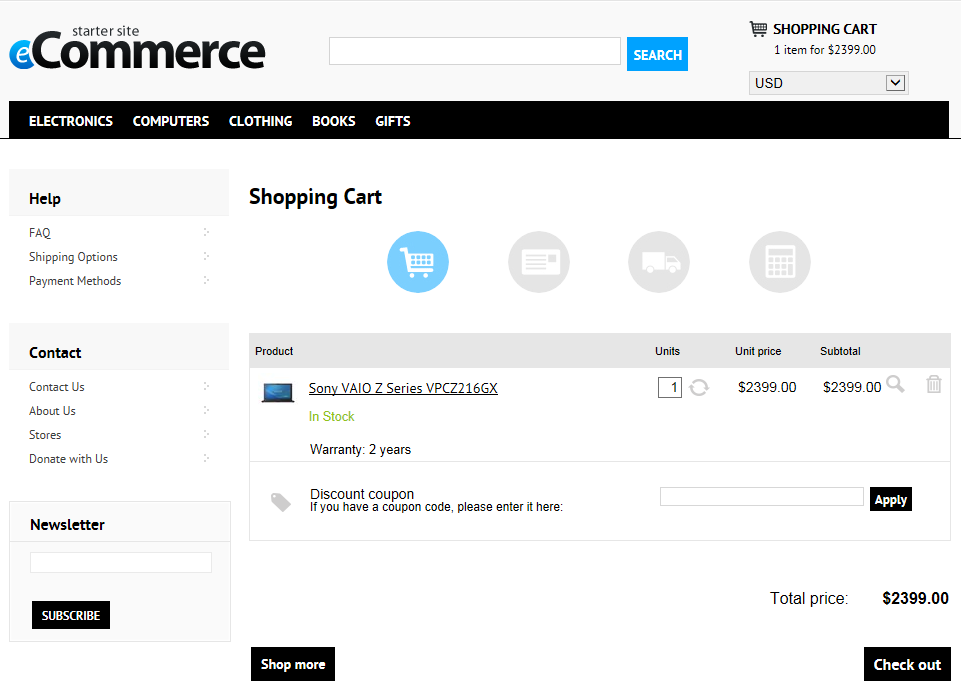
- The system displays the content of your shopping cart. The shopping cart contains only one product assigned to the **Computers** category. That's why the system doesn't apply the _Computers category discount_ order discount.
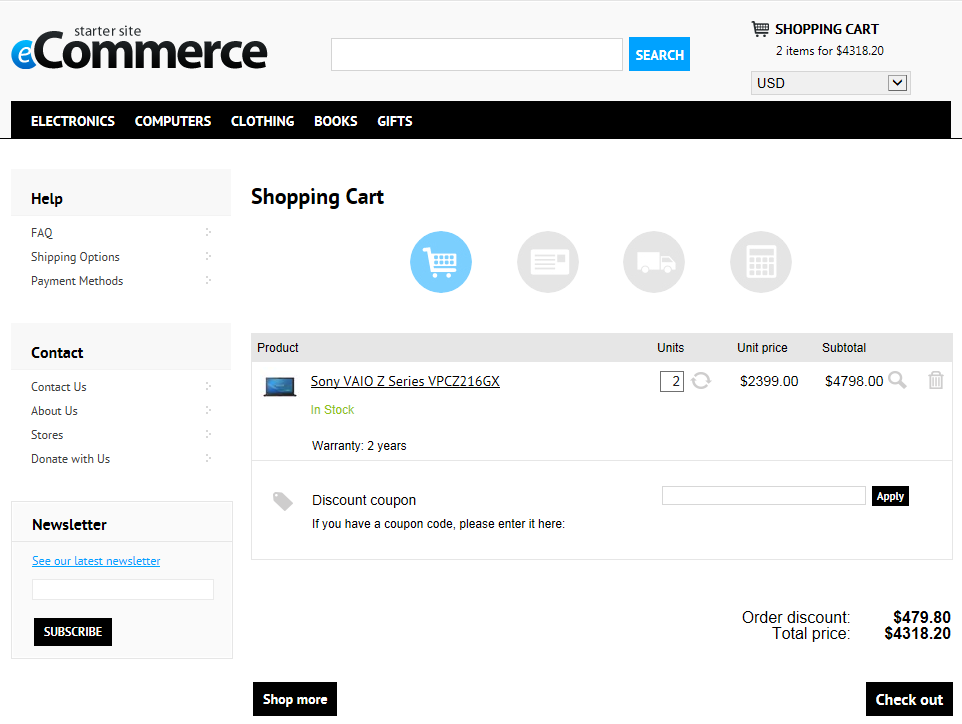
6. Repeat steps 2 through 5 or use the **Units** field on the **Shopping cart** page to add another _Sony VAIO Z Series_ laptop to the shopping cart.
- The system displays the content of your shopping cart with the _Computers category discount_ discount applied on your order.
If you now click **Check out**, you can continue in the [checkout process](https://docs.kentico.com/k82/e-commerce-features/configuring-and-managing-your-store/checkout-process.md).