
Configuring Windows Communication Foundation
This page describes the installation and configuration process of Windows Communication Foundation (WCF). You have to configure WCF to use the following features:
WCF overview
WCF is a component of the .NET Framework that provides a programming model for building service-oriented multi-platform applications that communicate across the web. For more information about the technology, visit http://msdn.microsoft.com/en-us/netframework/aa663324.
Installing WCF
WCF is automatically installed with .NET 3.0 and any higher version. However, you still need to install the WCF HTTP Activation feature yourself.
Go to Control Panel -> Programs and Features in Windows and click Turn Windows features on or off in the left menu.
Windows 7 / Windows Server 2008
- Under the Microsoft .NET Framework 3.5 node, select the Windows Communication Foundation HTTP Activation check box.
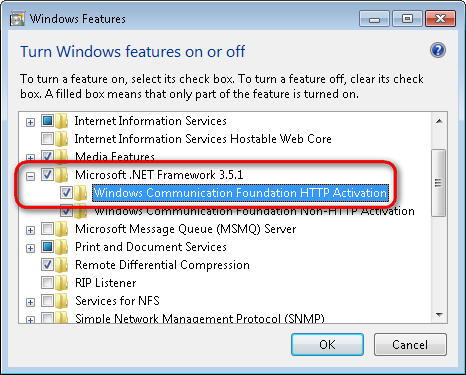
- Click OK to start the installation.
Error: “Could not load type ‘System.ServiceModel.Activation.HttpModule’ from assembly ’System.ServiceModel”
If your application returns the above error after enabling HTTP Activation, you need to manually register the correct version of ASP.NET.
See https://msdn.microsoft.com/en-us/library/hh169179%28v=nav.70%29.aspx for detailed information.
Windows 8 / Windows Server 2012
- Expand the .NET Framework 4.5 Advanced Services node.
- Make sure that the WCF Services -> HTTP Activation feature is installed.
The system installs WCF on your computer.
After installing WCF on a machine that already had ASP.NET installed, you may need to re-register ASP.NET into IIS.
Tip: If you encounter issues with the Kentico WCF features in your environment, you can use tracing and message logging tools to identify the source of the problem. See the Tracing and Message Logging article for more information.
Configuring WCF services to use SSL
WCF services in Kentico applications are defined as service endpoints. By default, the service endpoints point to HTTP bindings. To use the services with SSL enabled, you must point the service endpoints to secure HTTPS bindings. Service endpoints and bindings are defined in local, application-specific, web.config files. You configure each service separately.
Locate the application-specific web.config file according to the following table:
Application
Web.config location
Chat
/CMSModules/Chat
Marketing automation
/CMSModules/Automation
Workflow
/CMSModules/Workflows
Open the web.config file and uncomment the secure endpoint code. The endpoint is defined in the configuration/system.serviceModel/services section.
Example - commented HTTPS (secure) endpoint for Workflow<!--<endpoint name="Secure" address="" behaviorConfiguration="WorkflowDesignerEndpointBehavior" binding="webHttpBinding" bindingConfiguration="WorkflowDesignerSecureBinding" contract="CMS.WebServices.IWorkflowDesignerService" />-->(Optional) If you don’t want the service to use the non-secure HTTP, comment out (or delete) the non-secure endpoint code.
Example - HTTP (non-secure) endpoint for Workflow<endpoint name="Public" address="" behaviorConfiguration="AutomationDesignerEndpointBehavior" binding="webHttpBinding" contract="CMS.WebServices.IWorkflowDesignerService" />
The system now communicates with the services defined in the services section using the specified endpoints.