
Contact segmentation
Kentico EMS required
Features described on this page require the Kentico EMS license.
You can organize contacts into segments called contact groups. Segmentation allows you to divide your website’s visitors and users into groups of people with shared characteristics, which you can then accurately target in your on-line marketing efforts (such as Email marketing). You can either add contacts to groups manually or set up the system to assign contacts to groups automatically based on conditions.
Segmenting contacts using Personas
Personas are a different approach to segmenting contacts. Contact groups differ from personas in the following:
- Contacts are assigned to contact groups based on conditions. In personas, you can additionally make use of attributes and activities.
- Visitors are assigned to the most relevant persona only, while they can be in multiple contact groups at a time.
- You can assign personas to content (tagging by personas). You can then have the content served to visitors based on their personas.
Contact groups can be site-specific or shared across all websites in the system (global contact groups). Contacts can belong to any number of different contact groups.
Merged contacts in contact groups
When merging contacts, note that only the parent contacts are assigned to contact groups.You can manage contact groups in the Contact groups application.
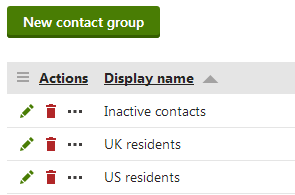
Click New contact group to create contact groups.
Manually adding contacts to groups
To add individual contacts to contact groups:
- Edit a contact group.
- Open the Contacts tab.
- Click Add contacts.
- Select the contacts and click OK.
You can find all contacts in the contact group listed on the Contacts tab.
Adding accounts
You can add entire contact accounts to groups:
- Edit the contact group.
- Open the Accounts tab.
- Click Add accounts.
- Select the accounts and click OK.
Adding an account automatically assigns all of the account’s contacts into the group. You can find all contacts added via accounts on the group’s Contacts tab (identified by the Yes value in the From account column).
Removing contacts from groups
To remove individual contacts from contact groups:
- Edit the contact group.
- Open the Contacts tab.
- Click Remove () next to the given contact.
You can remove multiple contacts using the options below the list:
- Choose which contacts to remove:
- All contacts
- Selected contacts - mark specific contacts using the checkboxes on the left side of the list.
- Select the Remove action.
- Click OK.
Setting up condition based contact groups
Condition based contact groups automatically gather all contacts that fulfill certain criteria (defined through a macro condition).
Edit the contact group.
On the General tab, enable Condition-based contact group.
Specify the condition in the Condition field.
- If you write the macro condition manually, the expression must return either true or false.
(Optional) Enable Scheduled rebuild. Ensures that the contact group is automatically rebuilt every day by a scheduled task.
Rebuilding contact groups
Rebuilding ensures that the group only contains contacts that fulfill the current condition. You only need to rebuild after modifying the group’s condition. When a contact is created or updated, the system automatically checks if the contact fulfills the conditions of contact groups and adds or removes them accordingly.
Do not run the recalculation during the peak traffic hours of a live website. Contact group recalculation can be a resource intensive process that may reduce the website’s performance. You can change the time of Scheduled rebuild in the Scheduled tasks application.
You can manually rebuild the contact group at any time by clicking Rebuild contact group.
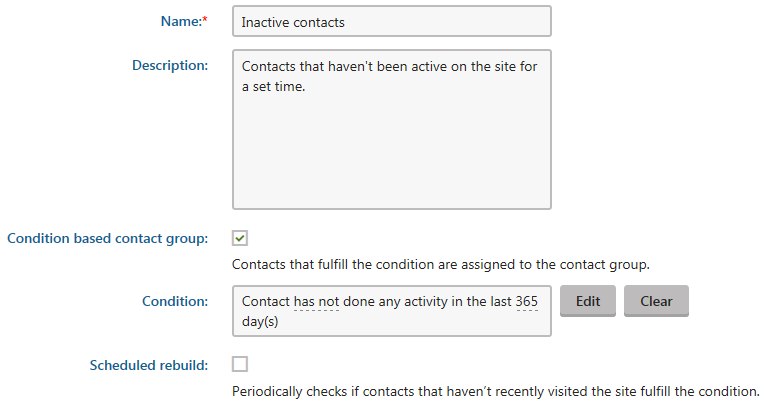
Click Save.
You can find all contacts added through the condition on the group’s Contacts tab (identified by the Yes value in the Condition-based column).
Improving contact group performance
If you are using custom macro rules, developers can significantly improve contact group performance by implementing a translation for these rules.