
Synchronizing the content
Once you configure content staging, the system tracks all changes made to pages and objects. You can view the synchronization tasks representing the changes in the Staging application.
Before you synchronize content between two servers, we recommend setting the same Code name for the source and target sites. To change the value, open the Sites application and Edit () the appropriate sites.
The interface for viewing changes and performing synchronization is divided into the following tabs:
All tasks tab
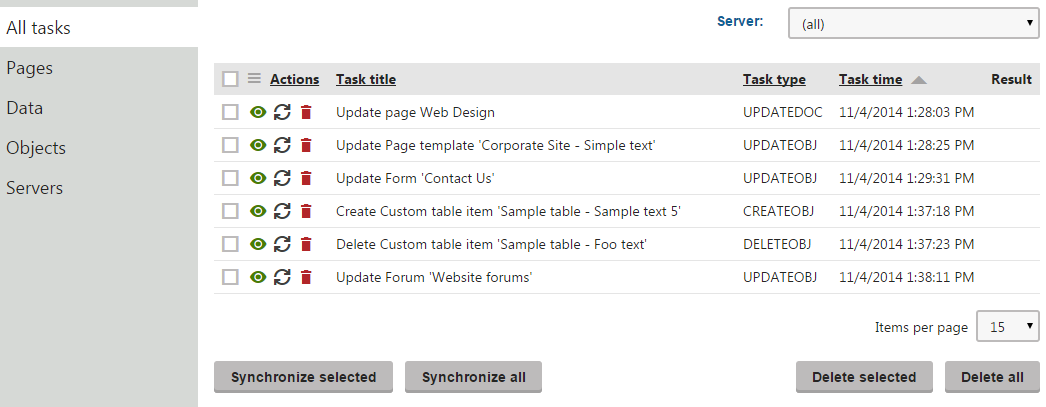
On the All tasks tab, you can see a list of all staging tasks, i.e. all changes made to the system that can be synchronized on the target server.
Using the Server drop-down, you can choose the target server that you want to synchronize. By choosing (all), you perform synchronization for all available target servers. Then you can perform one of the following actions using the buttons below the list.
- Synchronize selected - performs synchronization for all selected tasks on the target server.
- Synchronize all - performs synchronization for all listed tasks on the target server. If you made any changes to content on the target server in the meantime, these changes will be overwritten.
- Delete selected - deletes all selected tasks for the target server.
- Delete all - deletes all listed tasks on the target server.
You can also perform the following actions separately with specific staging tasks:
- View - opens a new window with detailed information about the staging task.
- Synchronize - performs the synchronization task on the target server.
- Delete - deletes the synchronization task from the list.
Pages tab
On the Pages tab, you can see logged changes made to the website’s pages. By clicking the website root in the content tree, you can view a list of all changes (synchronization tasks) made to all the pages on your site. Click individual pages to view only the changes made to the selected page and its descendants (subtree).
The following types of tasks are logged for pages. You can see the type in the Task type column:
- CREATEDOC - the page was created.
- UPDATEDOC - the page was modified.
- MOVEDOC - the page was moved to another location in the content tree.
- DELETEDOC - the page was deleted.
- DELETEALLCULTURES - all culture versions of the page were deleted.
- PUBLISHDOC - the page was published.
- ARCHIVEDOC - the page was archived.
- REJECTDOC - the page was rejected to the previous workflow step.
- BREAKACLINHERITANCE - the page was configured to no longer inherit security settings from its parent.
- RESTOREACLINHERITANCE - the page was configured to start inheriting security settings from its parent.
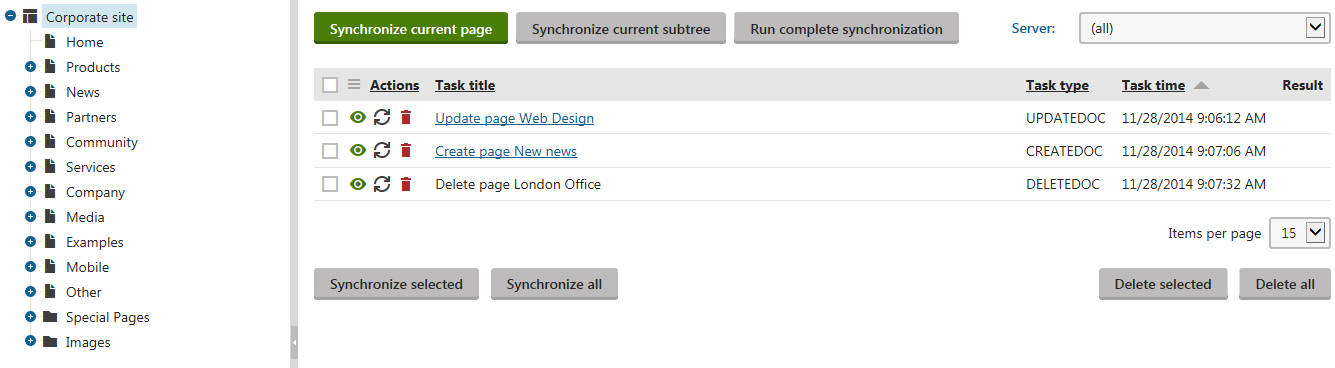
You can perform the same actions as on the All tasks tab, as described in the All tasks tab section.
If you wish to synchronize the current state of existing pages to a target server manually, use the buttons above the task list:
- Synchronize current page - synchronizes the page currently selected in the tree.
- Synchronize current subtree - synchronizes the selected page and all descendants in the subtree.
- Run complete synchronization - synchronizes the site’s entire content tree.
The buttons do not automatically ensure full synchronization of the content tree. Manual synchronization first creates update tasks for the selected pages and then automatically synchronizes all existing staging tasks for the given website section.
You cannot manually generate synchronization tasks for actions like moving of pages in the content tree, deletion of pages or changes in workflow state (publishing, archiving, rejecting). The system logs such tasks automatically when the corresponding events occur on the site.
Data tab
On the Data tab, you can see the logged changes for the data of custom tables.
The following types of tasks are logged for custom tables data. You can see the type in the Task type column:
- CREATEOBJ - a new item was added to a table.
- UPDATEOBJ - an item in a table was updated.
- DELETEOBJ - an item in a table was deleted.
Staging tasks for custom table items are logged based on their ItemGUID columns. Changes made to items that do not have this column (typically custom tables imported from older versions of Kentico) are not logged.
You can edit custom tables in the Custom tables application. The application displays a warning message with a link that lets you generate GUIDs for custom tables.
You can perform the same actions as on the All tasks tab, as described in the All tasks tab section.
You can also synchronize custom tables manually:
- Run complete synchronization - updates all data in all custom tables.
- Synchronize current subtree - updates data in the selected custom table.
Note: The buttons cannot manually synchronize the deletion of custom table records. The manual synchronization first creates update tasks for all data records in the selected custom tables and then automatically synchronizes all existing staging tasks for the given tables. Deletion only occurs if delete tasks are already logged by the system.
Objects tab
On the Objects tab, you can view logged changes made to objects in the system.
The tree allows you to filter the tasks according to object types. The Website category contains object changes related to the currently selected site, and the Global objects category contains changes of global objects.
The system logs the following Task types for objects:
- CREATEOBJ - a new object was created.
- UPDATEOBJ - the object was modified.
- DELETEOBJ - the object was deleted.
- ADDTOSITE - the object was assigned to a site. Applicable only to site-related objects.
- REMOVEFROMSITE - the object was removed from a site. Applicable only to site-related objects.
The following types of tasks are logged for folders in media libraries:
- CREATEFOLDER - a folder was created.
- RENAMEFOLDER - the folder was renamed.
- COPYFOLDER - the folder was copied.
- MOVEFOLDER - the folder was moved.
- DELETEFOLDER - the folder was deleted.
- DELETEROOTFOLDER - the root folder of a media library was deleted.
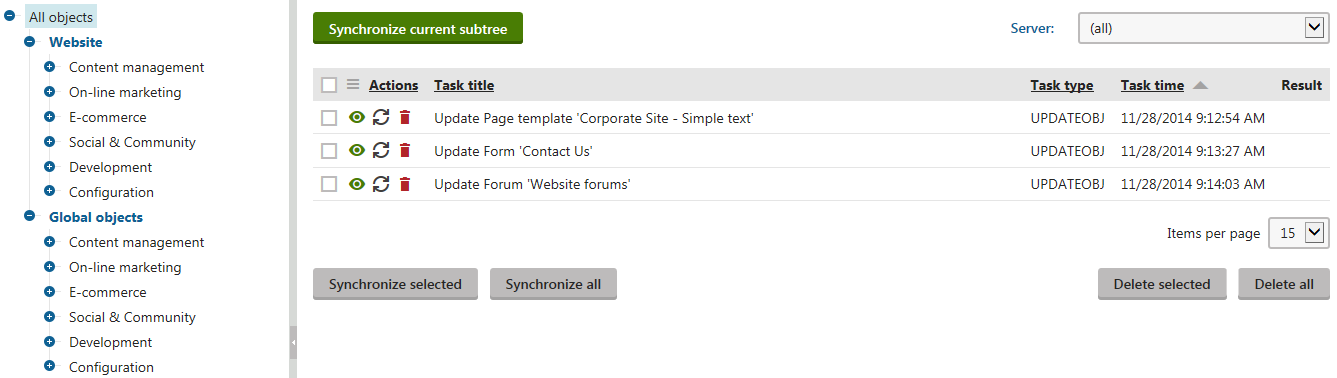
You can perform the same actions as on the All tasks tab, as described in the All tasks tab subsection.
When you select an object category, you can click Synchronize current subtree to manually synchronize all objects in the given category. The button first creates update tasks for all selected objects and then automatically synchronizes all existing staging tasks for the given objects. You cannot manually generate synchronization tasks for the deletion of objects or for the assignment of objects to sites. The system creates such tasks automatically when the corresponding events occur.
Warning
When you stage an object, the synchronization also includes all child objects and bindings (relationships with other objects) in most cases. To avoid potential problems, we strongly recommend having mirrored content and consistent objects on all staging environments whenever possible.
For example: A role is not assigned to any users in the development environment, but to 100 users on the target production server. If you synchronize the role object through staging, the users are removed from the role on the target server.
Synchronizing global objects on instances with multiple sites
Changes made to global objects, such as page types, produce staging tasks for all staging servers on all sites. We recommend synchronizing such changes at the same time on all servers and sites to prevent overwriting of data (you may overwrite newer data by synchronizing old tasks later).
If you run a multi-site instance where you have full control over all sites, you can set up the following scenario:
- Define the same set of target servers for each site (in the Staging application):
- Each server must have an identical Code name across all sites.
- The Service URLs of each site’s servers must use the domain names of the matching site on the target instance.
- Add the <add key=“CMSStagingTreatServerNamesAsInstances” value=“true” /> key to the appSettings section of your application’s web.config file.
When you now synchronize a staging task representing a global object, the system automatically deletes the task from servers with the same code name on other sites. If you synchronize a global task for all servers, the task is removed completely on the remaining sites.