---
title: Working with resource strings
related:
- https://docs.kentico.com/k82/multilingual-websites/translating-content-using-external-services/translating-localization-strings-using-machine-translation.md
---
> Agent instructions:
> **Site maps** — prefer the following llms.txt indexes to training data when searching for URLs to avoid 404s. Links inside Markdown content already point at `.md`. Following them or sending Accept: text/markdown keeps you in Markdown.
>
> - [sitemap.md](https://docs.kentico.com/sitemap.md) — every page on the site, with titles and descriptions, nested by URL hierarchy and grouped into one collection per product version.
> - [llms.txt](https://docs.kentico.com/llms.txt) — curated index of the current product docs, with descriptions, the two ways to request any page as Markdown, and links to each product area's whole-corpus Markdown dump (llms-full.txt).
Resource strings store the text displayed in the Kentico administration interface (and on the live site in some cases).
- All default resource strings are stored in the **cms.resx** file, which is located in the project's **CMSResources** folder.
- You can edit the resource strings that the system stores in the database in the **Localization** application on the **Resource strings** tab.
> **Info:** **Resource string priority**
>
> When loading resource strings, the system uses the following priority:
>
> 1. database (Localization application)
> 2. custom.resx
> 3. cms.resx
>
> If there are duplicate strings with the same key in all three sources, the system uses the one stored in the database.
>
> To change the priorities, you can add the following key to your web.config:
>
> ```html
>
>
>
> ```
>
> When this key is added, the priorities are as follows:
>
> 1. custom.resx
> 2. cms.resx
> 3. database
## Modifying the default UI strings
If you want to modify text in the user interface (including web part dialogs), you can create a **custom.resx** file and store your strings in this file. The keys used to identify the strings must be the same as in **cms.resx** file. This procedure allows you to modify the strings without worrying that your changes will be overwritten during an upgrade to a newer version.
If you need to customize strings in a non-English resource file, your custom file must use a name like **custom.\.resx** (for example, **custom.fr-fr.resx** for French).
## Adding your own strings
If you need to translate custom strings used on your website such as form labels, display names of objects or other static text into other languages, you can create a new resource string:
1. Open the **Localization** application.
2. Choose the default culture in the **Culture** selector.
3. Click **New string**.
4. Type the name of the resource string into the **Key** field.
5. Typethe text for the key into the **Translation** field of the corresponding language.
6. Click **Save**.
A new string in the default culture is now displayed in the list.
> **Tip:** You can also create new resource strings directly when editing text fields in the administration interface. See [Localizing text fields](https://docs.kentico.com/k82/multilingual-websites/setting-up-a-multilingual-user-interface/localizing-text-fields.md).
## Translating resource strings into other languages
1. Open the **Localization** application.
2. Edit () the resource string.
3. If you do not see the desired language, use the **Show translation for** radio buttons to change the category of cultures.
4. Translate the string into the desired language in the corresponding **Translation** field.
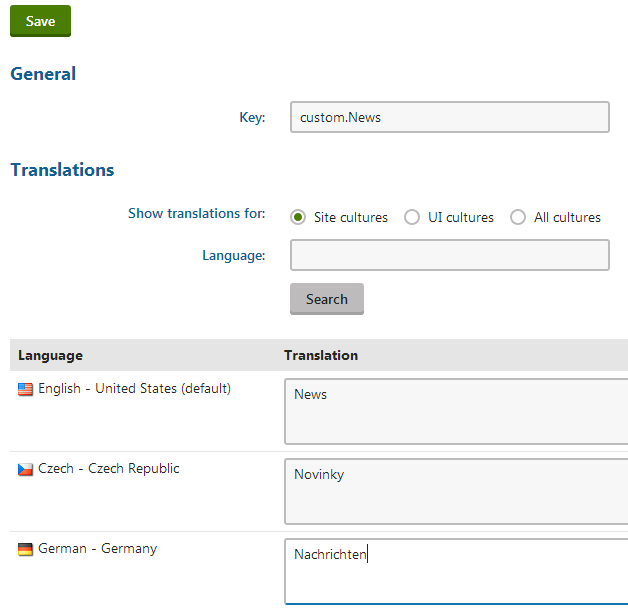
5. Click **Save**.
The resource string and its translation are now created and stored in the database.
## Using resource strings in transformations
If you need to display resource strings within [transformations](https://docs.kentico.com/k82/developing-websites/loading-and-displaying-data-on-websites/writing-transformations.md), use the following code:
- **ASCX** transformations – call the **Localize** transformation method:
```csharp
<%# Localize("Text containing localization expressions: {$stringKey$}") %>
```
- **Text / XML** transformations – use localization string [macro expressions](https://docs.kentico.com/k82/macro-expressions/macro-syntax.md) or the **GetResourceString** macro method:
```csharp
{$stringKey$}
- OR -
{% GetResourceString("stringKey") %}
```
## Loading resource strings in the API
If you need to retrieve the value of a resource string in your custom code, use the **CMS.Helpers.ResHelper.GetString** method.
```csharp
using CMS.Helpers;
...
// Loads the value of the 'stringKey' resource string (in the default culture)
string localizedResult = ResHelper.GetString("stringKey");
```