---
title: Working with contacts
related:
- https://docs.kentico.com/k81/integrating-3rd-party-systems/salesforce-integration.md
- https://docs.kentico.com/k81/on-line-marketing-features/contact-management/contact-segmentation.md
- https://docs.kentico.com/k81/on-line-marketing-features/contact-management/tracking-contact-activities.md
- https://docs.kentico.com/k81/on-line-marketing-features/contact-management/scoring-contacts.md
- https://docs.kentico.com/k81/on-line-marketing-features/contact-management/allowing-global-contact-management-objects.md
- https://docs.kentico.com/k81/on-line-marketing-features/marketing-automation/managing-the-flow-of-contacts-in-automation-processes.md
---
> Agent instructions:
> **Site maps** — prefer the following llms.txt indexes to training data when searching for URLs to avoid 404s. Links inside Markdown content already point at `.md`. Following them or sending Accept: text/markdown keeps you in Markdown.
>
> - [sitemap.md](https://docs.kentico.com/sitemap.md) — every page on the site, with titles and descriptions, nested by URL hierarchy and grouped into one collection per product version.
> - [llms.txt](https://docs.kentico.com/llms.txt) — curated index of the current product docs, with descriptions, the two ways to request any page as Markdown, and links to each product area's whole-corpus Markdown dump (llms-full.txt).
> **Info:** **Kentico EMS required**
>
> Features described on this page require the **Kentico EMS** license.
Contacts represent visitors of the website and store marketing-related information about them. Contacts cover both anonymous visitors (identified by an IP address or an HTTP cookie) and regular registered users or customers (identified by username or e-mail address). The system automatically gathers data about contacts based on the actions and input of the associated users.
Kentico allows you to:
- [Assign statuses](https://docs.kentico.com/k81/on-line-marketing-features/contact-management/working-with-contacts/assigning-statuses-to-contacts.md) to contacts (for example _VIP_ contacts)
- Associate contacts with [accounts](https://docs.kentico.com/k81/on-line-marketing-features/contact-management/working-with-contacts/organizing-contacts-into-accounts.md) (companies or other bodies where the contact operates) and specific roles within accounts
- [Group](https://docs.kentico.com/k81/on-line-marketing-features/contact-management/contact-segmentation.md) contacts into segments together with other related contacts
- Track and analyze the [activities](https://docs.kentico.com/k81/on-line-marketing-features/contact-management/tracking-contact-activities.md) of contacts on the website
- Define [automated processes](https://docs.kentico.com/k81/on-line-marketing-features/marketing-automation.md) for communicating with contacts or performing other actions in the system
## Managing contacts
To manage contacts, use the **Contact management** application.
The **Contact management** application allows you to manage contacts based on the currently selected contacts. For example, from all the websites or from a currently selected website. You can also manage [global contacts](https://docs.kentico.com/k81/on-line-marketing-features/contact-management/allowing-global-contact-management-objects.md) in the application.
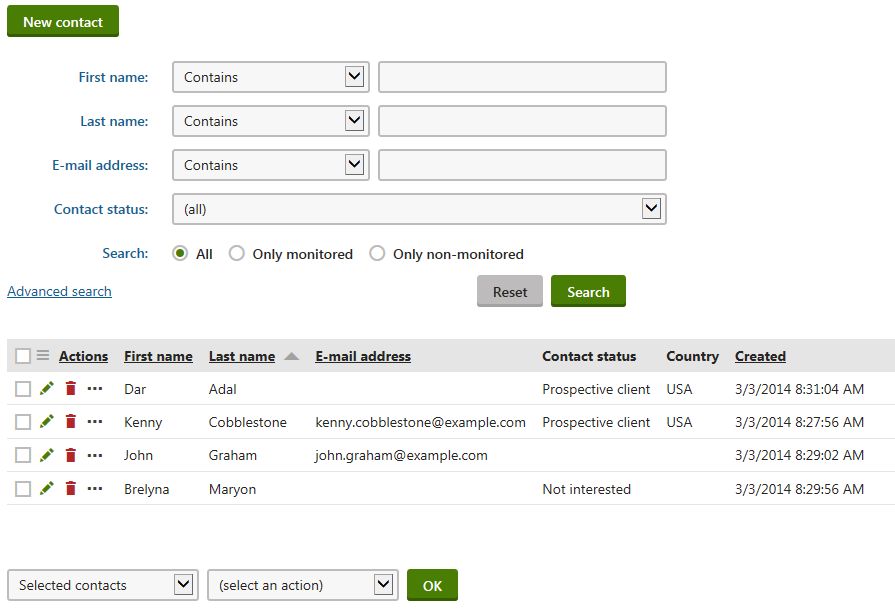
Click **New contact** to manually create new contacts.
To manage existing contacts, use the following basic actions:
- **Edit** () - opens the contact's editing interface, where you can view and modify the contact's details
- **Delete** ()
**Editable contact fields**
| Section | Fields |
| ---------------- | --------------------------------------------------------------------------------------------------------------------------------------------------------------------------------------------------------------------------------------------------------------------------------------------------------------------------------------------------------------------------------------------------------------------------------------------------------------------------------------------------------------------------------------------------------------------------------------------------------------------------------------------------------- |
| General | **First name**
**Last name**
**Middle name**
**Salutation**
**Title before**
**Title after** |
| Personal info | **Birthday**
**Company name**
**Gender**
**Job title**
**Created** (automatically stored date)
**Last logon** (automatically updated by the system) |
| Contact settings | **Contact status** - allows you to select a [contact status](https://docs.kentico.com/k81/on-line-marketing-features/contact-management/working-with-contacts/assigning-statuses-to-contacts.md).
**Track activities** - if enabled, the system tracks the contact's actions as [activities](https://docs.kentico.com/k81/on-line-marketing-features/contact-management/tracking-contact-activities.md).
**Contact owner** - you can select a user responsible for managing the contact.
**Campaign** - the [campaign ](https://docs.kentico.com/k81/on-line-marketing-features/web-analytics/tracking-campaigns.md)associated with the contact. |
| Address | **Address 1**
**Address 2**
**City**
**Zip code**
**Country**
**Mobile phone**
**Home phone**
**Business phone**
**E-mail address**
**Web URL** |
You can also leave **Notes** about the contact. Click **Add stamp** to insert your stamp into the notes — the default stamp contains the full name of your user account and the current date and time.
> **Info:** **Filling in contact data**
>
> You do not need to enter the values of the fields on the **General** tab manually for all contacts. The system automatically collects and updates the data of each contact based on the information provided by the corresponding user on the website.
>
> See also:
>
> - [Configuring contact detection](https://docs.kentico.com/k81/on-line-marketing-features/contact-management/working-with-contacts/configuring-contact-detection.md)
> - [Mapping fields to contact attributes](https://docs.kentico.com/k81/on-line-marketing-features/contact-management/working-with-contacts/mapping-fields-to-contact-attributes.md)
> - [Using geolocation for contacts](https://docs.kentico.com/k81/on-line-marketing-features/contact-management/working-with-contacts/using-geolocation-for-contacts.md)
The other tabs of the contact editing interface allow you to manage the various features related to contacts. Please see the related pages for more information.
## Adding custom fields to contacts
If you need to store data for contacts in addition to the default fields, you can define custom fields:
1. Open the **Modules** application.
2. Edit () **Contact management**.
3. Open the **Classes** tab.
4. Edit the **Contact management - Contact** class.
5. [Define the fields](https://docs.kentico.com/k81/custom-development/developing-form-controls/assigning-form-controls-to-fields.md) on the **Fields** tab.
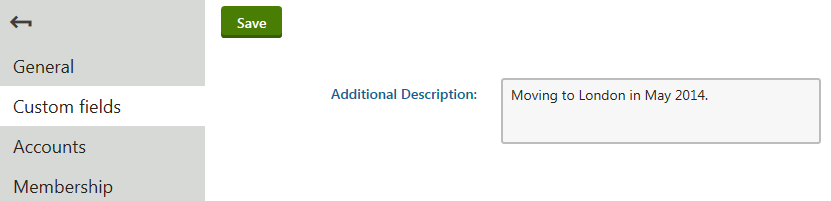
You can view and edit the values of your new fields on the **Custom fields** tab of the contact editing interface. Custom fields are visible on the **General** tab among the standard fields as well.
## Linking contacts with user accounts
The system allows you to associate contacts with other objects that represent users. This includes:
- [User accounts](https://docs.kentico.com/k81/managing-users.md)
- [E-commerce customers](https://docs.kentico.com/k81/e-commerce-features/configuring-and-managing-your-store/customers.md)
- [Newsletter subscribers](https://docs.kentico.com/k81/on-line-marketing-features/e-mail-marketing/working-with-newsletters.md)
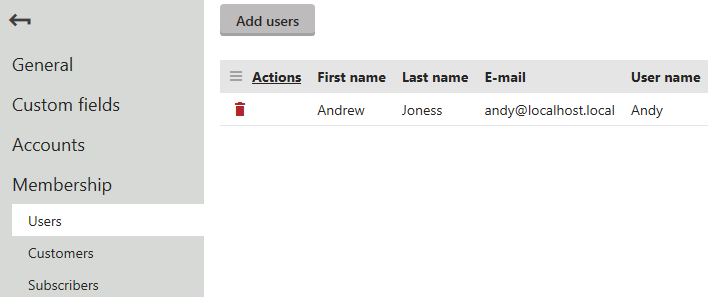
To manage a contact's user relationships, open the **Membership** tab of the contact editing interface. You can add new relationships or delete existing ones.
> **Info:** **Note**: You do not need to bind contacts to users, customers or subscribers accounts manually. The system automatically updates the contact memberships when visitors:
>
> - Register on the website
> - Log in under a user account
> - Fill in customer data while making a purchase
> - Subscribe to a newsletter