---
title: Adding custom activities
---
> Agent instructions:
> **Site maps** — prefer the following llms.txt indexes to training data when searching for URLs to avoid 404s. Links inside Markdown content already point at `.md`. Following them or sending Accept: text/markdown keeps you in Markdown.
>
> - [sitemap.md](https://docs.kentico.com/sitemap.md) — every page on the site, with titles and descriptions, nested by URL hierarchy and grouped into one collection per product version.
> - [llms.txt](https://docs.kentico.com/llms.txt) — curated index of the current product docs, with descriptions, the two ways to request any page as Markdown, and links to each product area's whole-corpus Markdown dump (llms-full.txt).
> **Info:** **Kentico EMS required**
>
> Features described on this page require the **Kentico EMS** license.
In addition to the [default activity types](https://docs.kentico.com/k81/on-line-marketing-features/contact-management/tracking-contact-activities/reference-activity-types.md), you can also define custom activity types for tracking any other actions on your website.
## Creating new activity types
To add custom activity types:
1. Open the **Contact management** application.
2. Switch to **Configuration -> Activity** **types**.
3. Click **New activity type**.
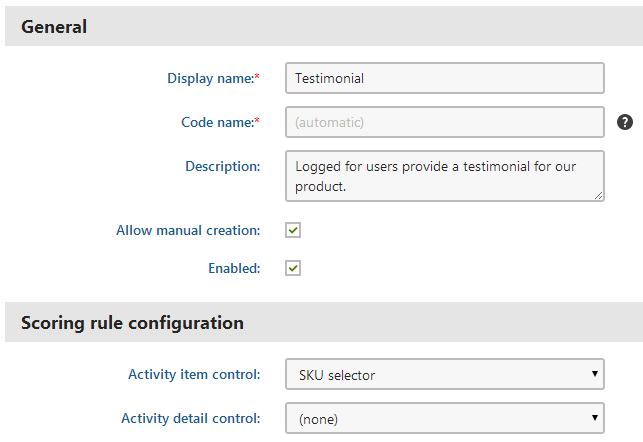
4. Fill in the following fields as required:
| Display name | The name of the activity type used in the Kentico user interface. |
| --------------------- | ------------------------------------------------------------------------------------------------------------------------------------------------------------------------------------------------------- |
| Code name | Serves as a unique identifier for the activity type (for example in the API).
You can leave the _(automatic)_ option to have the system generate an appropriate code name based on the display name. |
| Description | Text description about the purpose of the activity type. |
| Allow manual creation | If you enable this option, users with access to the on-line marketing administration interface are allowed to manually log activities of this custom type. |
| Enabled | Indicates whether the system logs activities of this type. |
5. (Optional) Set the **Activity item** and **Activity detail** field options in the **Scoring rule configuration** section.
- The system offers the _Activity detail_ and _Activity item_ fields when defining [scoring rules](https://docs.kentico.com/k81/on-line-marketing-features/contact-management/scoring-contacts.md) based on the custom activity.
- For example, an activity type representing testimonials has an _SKU selector_ item control. This allows the score administrators to create different scoring rules for testimonials related to different products.
- The _(none)_ value hides the given field when creating scoring rules based on the custom activity.
- The _(default)_ value provides standard comparison options for text and numeric values.
6. Click **Save**.
Your custom activity type is now ready. You can either log the custom activities manually in the user interface, or set up the system to log them automatically.
## Manually logging custom activities
To log a single activity of a custom type for a contact:
1. Open the **Contact management** application on the **Activities** tab.
2. Click **New custom activity**.
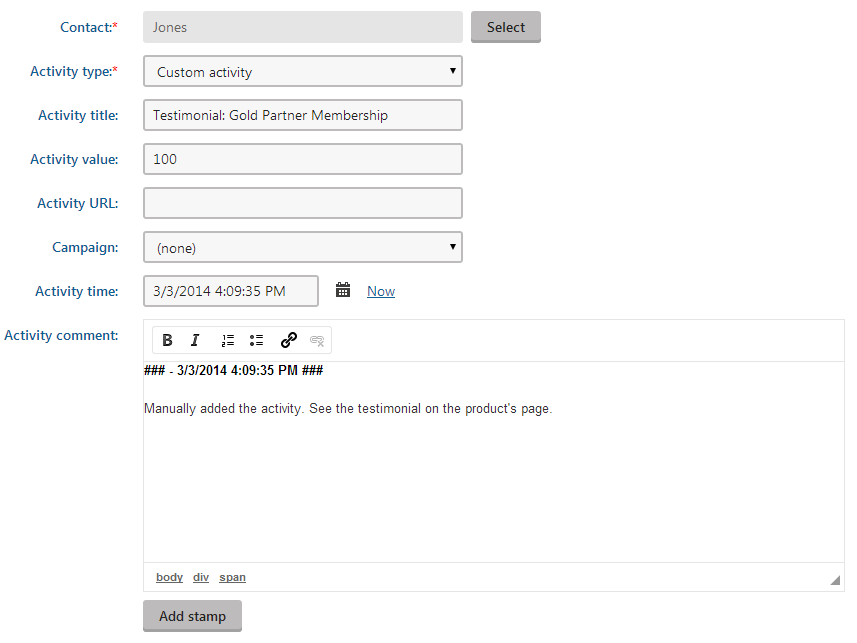
3. Fill in the details of the activity:
| Contact | Select the contact associated with the activity. |
| -------------- | ------------------------------------------------------------------------------------------------------------------------------------------------------------------------------------------------------------------------------------------------------------------------------ |
| Activity type | Select one of your custom activity types. |
| Activity title | Add basic information about the event that the activity represents. |
| Activity value | Here you can assign a value to the activity. You can associate values with activities such as ratings or e-commerce purchases. |
| Activity URL | The URL of the page where the activity occurred. |
| Campaign | The marketing campaign associated with the activity. Used e.g. if you need to monitor the behavior of the visitors of your website. |
| Created | The time when the activity occurred. |
| Comment | Here you can add any additional information related to the activity, either as plain text or with basic formatting.
Click **Add stamp** to insert your stamp into the comment. The default stamp contains the full name of your user account and the current date and time. |
4. Click **Save**.
You can now see the custom activity logged for the given contact.
## Automatically logging custom activities
In most cases, logging activities manually one-by-one is not a practical option. If you need the system to automatically record custom activities for contacts who perform a specific action, you can use one of the following approaches:
- Log the activity as part of a [marketing automation](https://docs.kentico.com/k81/on-line-marketing-features/marketing-automation.md) process via the [Log custom activity](https://docs.kentico.com/k81/on-line-marketing-features/marketing-automation/working-with-the-automation-process-designer/adding-marketing-actions-to-automation-processes.md#logging-custom-activities) action step.
- Develop custom components for your website that log the activity [through the API](https://docs.kentico.com/k81/custom-development/miscellaneous-custom-development-tasks/managing-on-line-marketing-activities-api.md).