
Creating media libraries
There are two kinds of media libraries that you can create:
- Site related media libraries - belong to a specific site.
- Group media libraries - media libraries belonging to a specific group.
Creating media libraries on a live site
Note that your site may be set up so that both site related and group media libraries can be created directly on the live site.
Creating site-related media libraries
Open the Media libraries application.
Click on New media library.
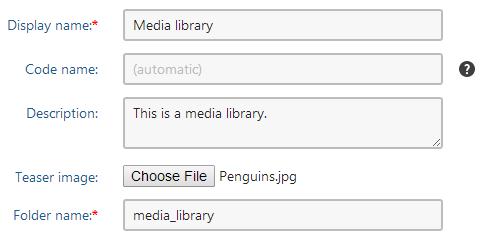
Fill in the following details:
Display name - the name of the media library displayed in the administration interface and on the live site.
Code name - the name of the media library used by developers in code.
Description- the text describing the media library.
Teaser image - the image used as the media library teaser.
Folder name - the name of the folder where files will be stored.
Savethe Media library. The Media library interface appears.
- The Filestab allows you to manage the media library content.
- The Generaltab is used to edit the properties that you entered when creating the media library.
- The Securitytab allows you to adjust permissions to work with folders and files in the given media library. For more details on how to adjust permissions in media libraries, please refer to the Assigning permissions to media libraries topic.
Creating group media libraries
- Open the Groups application.
- (Optional) if you don’t have one yet, create a New group.
- Edit the group for which you want to create the media library.
- Switch to the Media librariestab.
- Click New media library.
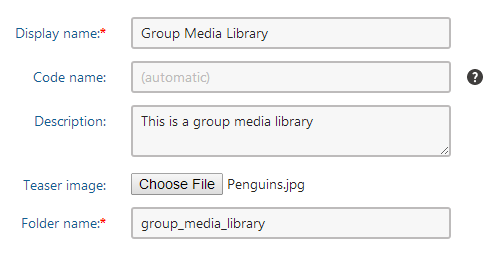
- Fill in the following details:
Display name - the name of the media library displayed in the administration interface and on the live site.
Code name - the name of the media library used by developers in code.
Description- the text describing the media library.
Teaser image - the image used as the media library teaser.
Folder name - the name of the folder where files will be stored. This folder will be created under <web project>\<site name>\media\ or in a custom location.
- Savethe Media library. The Media library interface appears.
- The Filestab allows you to manage the media library content.
- The Generaltab is used to edit media library general properties that you entered when creating the media library.
- The Securitytab allows you to adjust permissions to work with folders and files in the given media library. For more details on how to adjust permissions in media libraries, please refer to the Assigning permissions to media libraries topic.