---
title: Managing E-products
related:
  - https://docs.kentico.com/k81/e-commerce-features/configuring-and-managing-your-store/products.md
  - https://docs.kentico.com/k81/e-commerce-features/configuring-and-managing-your-store/products/managing-product-representations/managing-standard-products.md
  - https://docs.kentico.com/k81/e-commerce-features/configuring-and-managing-your-store/products/managing-product-representations/managing-e-commerce-memberships.md
  - https://docs.kentico.com/k81/e-commerce-features/configuring-and-managing-your-store/products/managing-product-representations/managing-donations.md
  - https://docs.kentico.com/k81/e-commerce-features/configuring-and-managing-your-store/products/managing-product-representations/managing-bundles.md
---

> Agent instructions:
> **Site maps** — prefer the following llms.txt indexes to training data when searching for URLs to avoid 404s. Links inside Markdown content already point at `.md`. Following them or sending Accept: text/markdown keeps you in Markdown.
>
> - [sitemap.md](https://docs.kentico.com/sitemap.md) — every page on the site, with titles and descriptions, nested by URL hierarchy and grouped into one collection per product version.
> - [llms.txt](https://docs.kentico.com/llms.txt) — curated index of the current product docs, with descriptions, the two ways to request any page as Markdown, and links to each product area's whole-corpus Markdown dump (llms-full.txt).

The **E-product** representation is designed for various electronic files that your [customers](https://docs.kentico.com/k81/e-commerce-features/configuring-and-managing-your-store/customers.md) can download after the purchase. Specifically, you can use this product representation for software installation files, audio files, videos, e-books, etc.

## Defining e-products

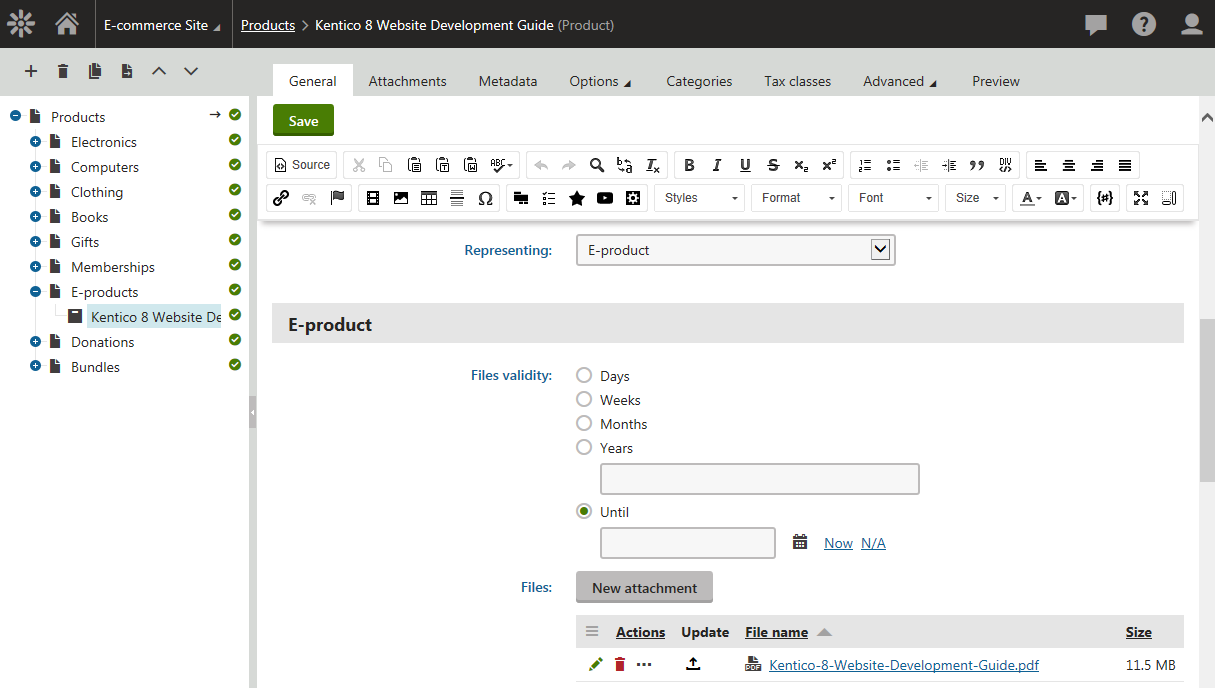
If you are [adding](https://docs.kentico.com/k81/e-commerce-features/configuring-and-managing-your-store/products/adding-new-products.md) a new [product](https://docs.kentico.com/k81/e-commerce-features/configuring-and-managing-your-store/products.md) or editing an existing one (on the **General** tab), you need to select _E-product_ as the value of the product's **Representing** property. After doing so, the system displays the **E-product** section, allowing you to enter properties specific for the E-product representation.

| **E-product**  |                                                                                                                                                                                                                                                                                                                                                                                                                                                                                                                                                                                                                                                                                                                                                                                                                                                                                                                                                                                                                                                                                                          |
| -------------- | -------------------------------------------------------------------------------------------------------------------------------------------------------------------------------------------------------------------------------------------------------------------------------------------------------------------------------------------------------------------------------------------------------------------------------------------------------------------------------------------------------------------------------------------------------------------------------------------------------------------------------------------------------------------------------------------------------------------------------------------------------------------------------------------------------------------------------------------------------------------------------------------------------------------------------------------------------------------------------------------------------------------------------------------------------------------------------------------------------- |
| Files validity | Indicates how long your customers can download the file(s) after the purchase.<br>You can set the validity either for a limited period (_Days_, _Weeks_, _Months_, _Years_, _Until_ a given date) or for an unlimited period. To set e-product validity for an unlimited period of time, select _Until_ and leave the text box below empty.                                                                                                                                                                                                                                                                                                                                                                                                                                                                                                                                                                                                                                                                                                                                                              |
| Files          | Here you can upload file(s) that will make up the e-product.<br>After uploading a file (by clicking **New attachment** and opening the required file), the system displays the name and size of the file, and allows you to perform the following actions:<br>**Edit** () - if the file is an image, clicking the icon opens the image in the built-in Image editor; see [Editing images](https://docs.kentico.com/k81/managing-website-content/working-with-files/editing-images.md). If the file is not an image, clicking the icon opens the file in the built-in Metadata editor; see [Editing file metadata](https://docs.kentico.com/k81/configuring-kentico/managing-files/editing-file-metadata.md).<br>**Delete** () - removes the attached file from the e-product.<br>**Other actions** (**...**) - allows you to **Clone** the attached file.<br>**Update** () - allows you to replace the attached file with a different file.**Note:** You can upload only files with allowed extensions, as defined in the **Upload extensions** property in **Settings -> System -> Files -> Security**. |

![Defining e-product properties](https://docs.kentico.com/docsassets/k81/managing-e-products/defining_eproduct_properties.png "Defining e-product properties")

## Enabling e-product download links

From the customers' point of view, the system allows to purchase e-products the same way as products of other representations.

> **Note:** The customers can [download e-product files](#downloading-e-product-files) only if the respective orders are marked as paid.

You can configure the system to automatically mark orders as paid when the orders are moved to a selected [order status](https://docs.kentico.com/k81/e-commerce-features/configuring-and-managing-your-store/order-statuses.md), i.e. the status has the **Mark order as paid** property enabled.

You can also mark selected orders as paid manually by enabling the **Order is paid** property for these orders. See [Orders](https://docs.kentico.com/k81/e-commerce-features/configuring-and-managing-your-store/orders.md#marking-orders-as-paid) for more details.

Marking orders for e-products as paid, both automatically and manually, results in creating new download links for the corresponding e-product files, with their validity set as of the time of marking.

> **Info:** If orders for e-products already marked as paid are unmarked, download links related to these e-products are removed. This means that the customers cannot download the corresponding e-product files.

## Downloading e-product files

Once the download links are created (i.e. when the order is marked as paid), the customers can get to the links the following ways:

- On the **My account** page on the **Orders** tab, the customers can view a list of all their orders (the **My account** [web part](https://docs.kentico.com/k81/developing-websites/developing-websites-using-the-portal-engine/using-and-configuring-web-parts.md) must be configured accordingly). Each listed order containing at least one e-product has a **View** link. By clicking this link, the system displays a list of e-products purchased in the given order, together with the corresponding download links.
- If e-mail notifications about paid orders are enabled, the customers receive notification e-mails based on the _E-commerce - Order payment notification to customer_ e-mail template when their orders are paid. The e-mail template contains a macro ensuring that download links to corresponding e-product files are included in the e-mails (if any).

## Notifying about e-product expiration

If an e-product download link is close to its expiration, the system can send the customer an automatic notification e-mail. You can specify how many days prior to expiration the system sends the notification by entering the **Send e-products reminder (days)** setting's value in **Settings -> E-commerce**.

The **E-product reminder** scheduled task (available in the **Scheduled tasks** application) monitors upcoming expirations. The task is defined globally by default, which means that it monitors upcoming expirations of e-products purchased on all sites running in the system.

> **Tip:** In order for the scheduled task to monitor expiration of e-products purchased only on selected sites, you can configure the task separately for these sites.

> **Info:** The content of the notification e‑mails is based on the _E-commerce - E-product expiration notification_ e‑mail template (available in the **E‑mail templates** application). The template is defined globally by default, but you can create site-specific templates with the same code names. The system then uses these templates for all e-product expiration notification e-mails on the respective sites. See [Scheduling tasks](https://docs.kentico.com/k81/configuring-kentico/scheduling-tasks.md) for detailed information on Kentico scheduled tasks.