---
title: Installing your sample E-commerce Site
related:
  - https://docs.kentico.com/k81/installation.md
---

> Agent instructions:
> **Site maps** — prefer the following llms.txt indexes to training data when searching for URLs to avoid 404s. Links inside Markdown content already point at `.md`. Following them or sending Accept: text/markdown keeps you in Markdown.
>
> - [sitemap.md](https://docs.kentico.com/sitemap.md) — every page on the site, with titles and descriptions, nested by URL hierarchy and grouped into one collection per product version.
> - [llms.txt](https://docs.kentico.com/llms.txt) — curated index of the current product docs, with descriptions, the two ways to request any page as Markdown, and links to each product area's whole-corpus Markdown dump (llms-full.txt).

Examples in the _**E-commerce features**_ section are based on the sample _E-commerce Site_. In order to try out the examples in practice, we recommend that you install the _E-commerce Site_ first.

You have either installed Kentico (but without the _E-commerce Site_) already, or you are going to run a new installation of the system.

## New Kentico installation

1. Launch _Kentico\_.exe_ and follow the instructions in [Installing Kentico - custom installation](https://docs.kentico.com/k81/installation/installing-kentico-custom-installation.md).
2. In the last dialog, i.e. **Sample sites**, select _**E-commerce Site**_ and click **Install.**

> **Info:** Alternatively, if you prefer a fully automatic installation, follow the instructions in [Quick installation on a local machine](https://docs.kentico.com/k81/installation/quick-installation-on-a-local-machine.md).

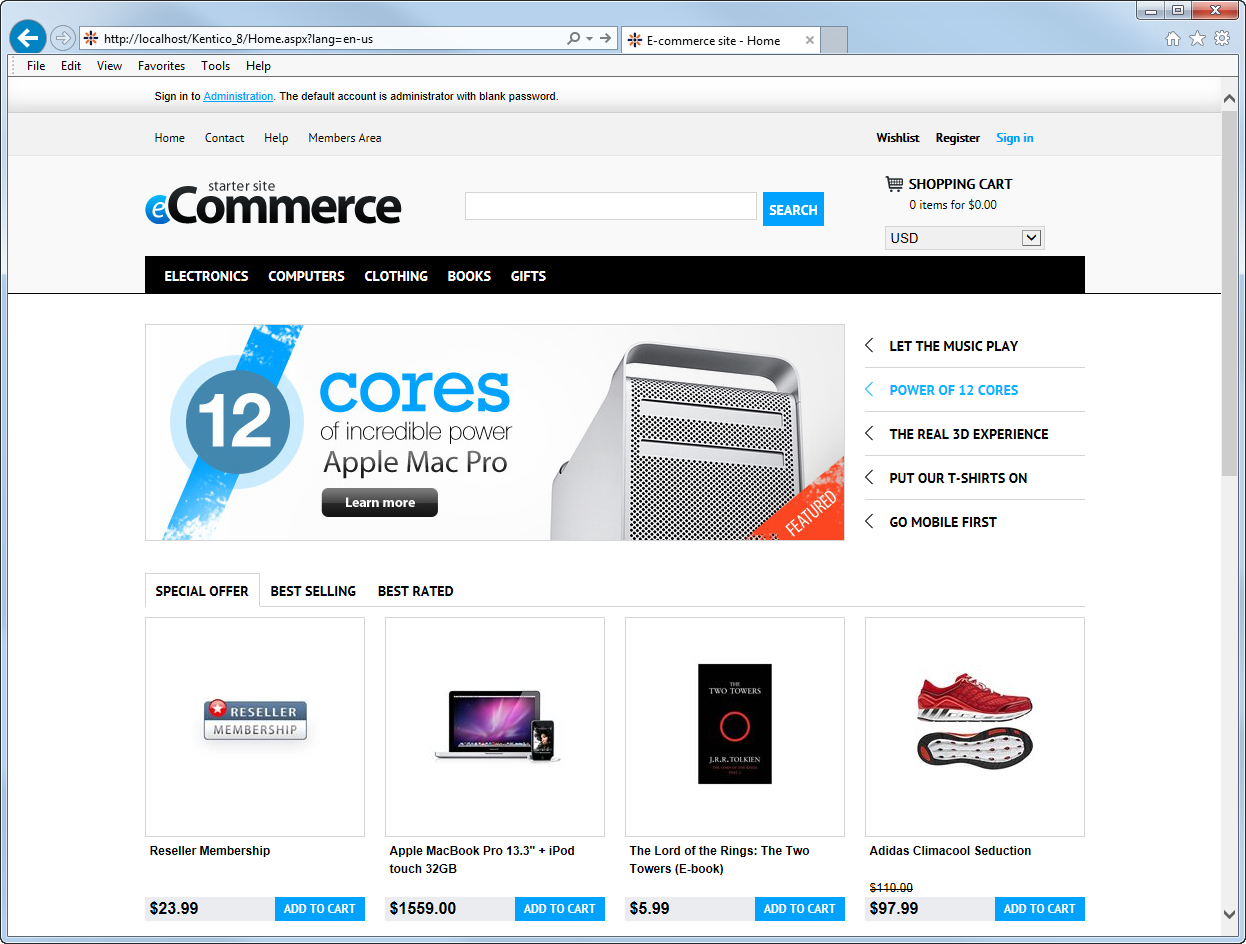
After the system successfully finishes the installation, you can launch the sample _E-commerce Site_.

![E-commerce Site home page](https://docs.kentico.com/docsassets/k81/installing-your-sample-e-commerce-site/ec_site_home_page.png "E-commerce Site home page")

## Existing Kentico installation

If you have already installed Kentico but without the sample _E-commerce Site_, you can add the site using the [New site wizard](https://docs.kentico.com/k81/configuring-kentico/managing-sites/installing-new-sites.md).

1. Open the **Sites** application and click **New site wizard**.

   ![Launching the New site wizard](https://docs.kentico.com/docsassets/k81/installing-your-sample-e-commerce-site/launching_new_site_wizard.png "Launching the New site wizard")
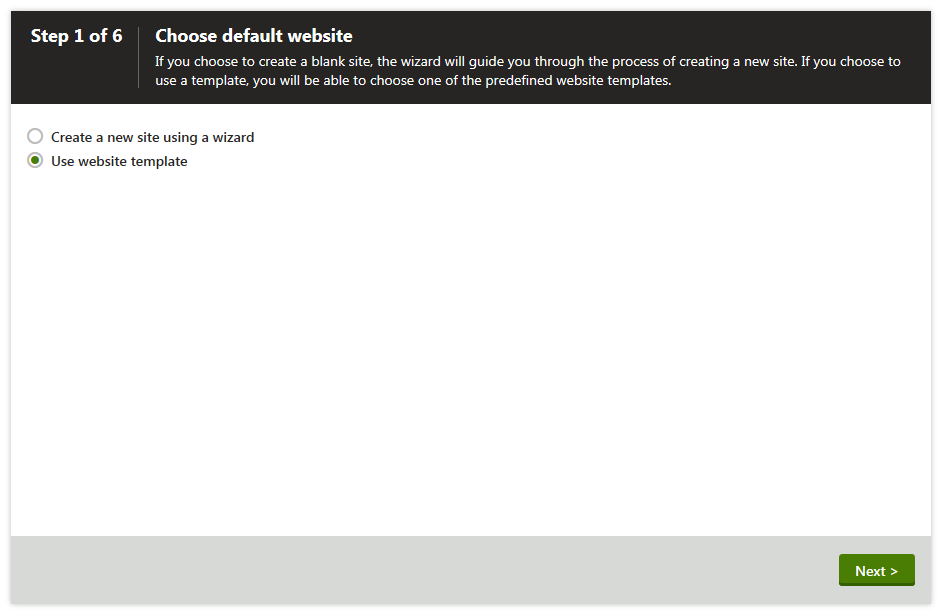
2. In **Step 1** of the wizard, select **Use website template** and click **Next**.

   ![Selecting the Use website template option](https://docs.kentico.com/docsassets/k81/installing-your-sample-e-commerce-site/selecting_template_option.png "Selecting the Use website template option")
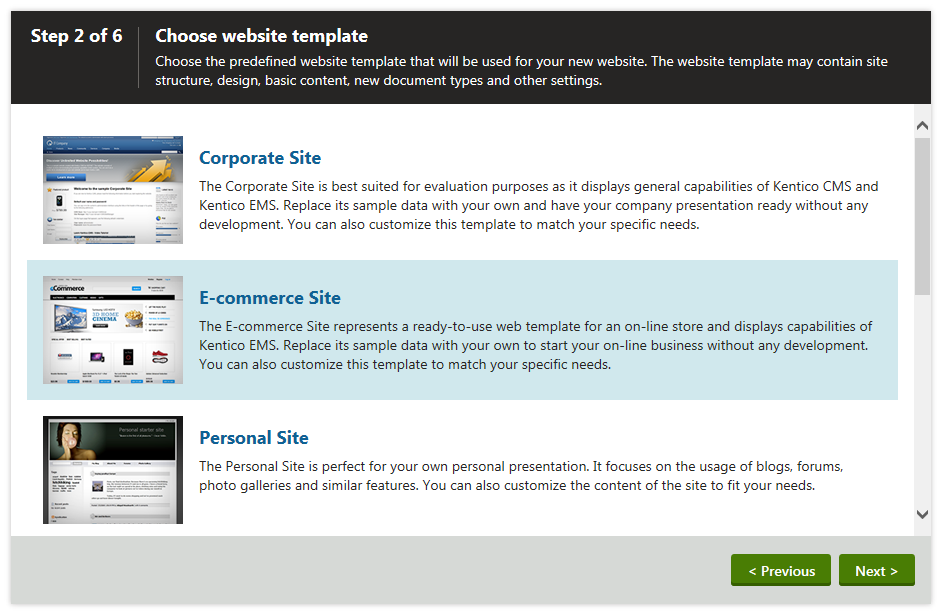
3. In **Step 2**, select **E-commerce Site** from the list of available website templates and click **Next**.

   ![Selecting E-commerce Site from the list of available website templates](https://docs.kentico.com/docsassets/k81/installing-your-sample-e-commerce-site/selecting_ec_site.png "Selecting E-commerce Site from the list of available website templates")
4. Go through the rest of the wizard as described in [Creating new sites from templates](https://docs.kentico.com/k81/configuring-kentico/managing-sites/installing-new-sites/creating-new-sites-from-templates.md).

   > **Info:** We recommend that you leave the default settings unless you really need to change them according to your specific requirements.

   When the wizard finishes, you can see in the **Sites** application that the sample _E-commerce Site_ is listed among other available sites.
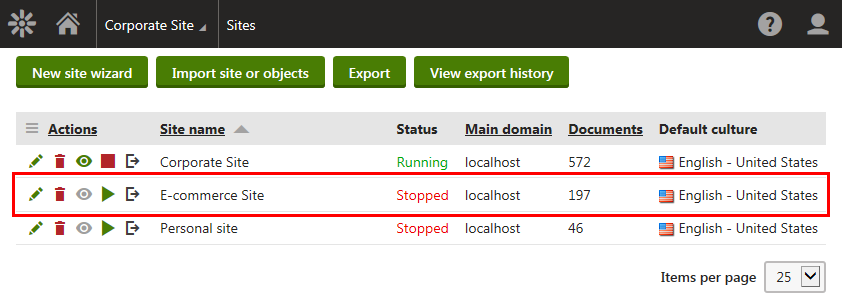
   ![Available sites](https://docs.kentico.com/docsassets/k81/installing-your-sample-e-commerce-site/available_sites.png "Available sites")
5. Run the _E-commerce Site_.
6. Go to **Applications** and click **Live site**.

The system opens the home page of the sample _E-commerce Site_.

![E-commerce Site home page](https://docs.kentico.com/docsassets/k81/installing-your-sample-e-commerce-site/ec_site_home_page.png "E-commerce Site home page")