---
title: Installing and running WebClient service
---

> Agent instructions:
> **Site maps** — prefer the following llms.txt indexes to training data when searching for URLs to avoid 404s. Links inside Markdown content already point at `.md`. Following them or sending Accept: text/markdown keeps you in Markdown.
>
> - [sitemap.md](https://docs.kentico.com/sitemap.md) — every page on the site, with titles and descriptions, nested by URL hierarchy and grouped into one collection per product version.
> - [llms.txt](https://docs.kentico.com/llms.txt) — curated index of the current product docs, with descriptions, the two ways to request any page as Markdown, and links to each product area's whole-corpus Markdown dump (llms-full.txt).

The WebClient service is a client prerequisite for connecting to a WebDav server. The service comes pre-installed if you are using desktop versions of Microsoft Windows. However, you need to install it as part of the Desktop Experience feature when using Windows Server 2008 and 2012.

## Installing the WebClient service on Windows Server 2008 and 2012

1. Start the **Windows Server Manager**.
2. In the tree view, click on the **Features** node.
3. In the details pane, click **Add Features**.
4. In the **Add Features Wizard**, check the **Desktop Experience** box, and then click **Next**.
5. Click **Install**.
6. When the **Add Features Wizard** has finished, click **Close**.
7. Restart the computer.

## Running the WebClient service

1. Press WinKey + R or type into the search dialog: _services.msc_
2. Press Enter. The Services window opens.
3. Right-click the **WebClient** service.
4. Click on **Properties**. The WebClient properties window opens.
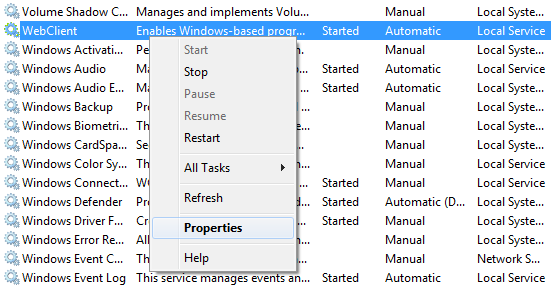
   ![Configuring the WebClient service properties](https://docs.kentico.com/docsassets/k81/installing-and-running-webclient-service/configuring_webclient_service_properties.png "Configuring the WebClient service properties")
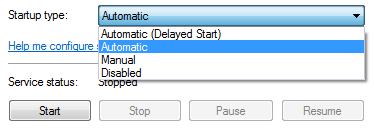
5. If the service is stopped, click on **Start**.
6. Change the **Startup type** to **Automatic**.

   ![Starting the WebClient service](https://docs.kentico.com/docsassets/k81/installing-and-running-webclient-service/configuring_webclient_service_properties2.png "Starting the WebClient service")
7. Click **OK** to confirm the changes.