
Managing message boards
You can work with message boards and messages on them in the Message boards application.
If a message board hasn’t been used yet, i.e., nobody has posted a message, you can modify its properties in the web part that represents the particular message board on a page. However, if a board contains messages, the web part’s properties don’t take effect anymore. You must edit the board’s properties in the Message board application.
Working with board messages
The Message boards application allows you to view, edit, and moderate board messages. The Messages tab allows board moderators to approve new messages. The list on the Messages tab displays messages from all boards on a particular site that have not been approved.
Adding board moderators
Message boards allow you to designate moderators for each board.
To add moderators to a new empty message board:
In the Pages application, select the page the message board is on.
On the Design tab, configure the Message board web part.
In the New board settings section, enable the Moderated check box.
Select users in the Moderators property.
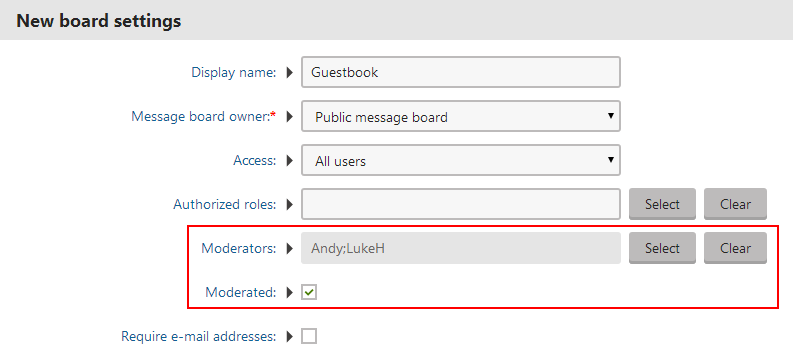
Click OK.
To add moderators to an existing message board with messages:
- Open the Message boards application and switch to the Boards tab.
- Edit () the message board.
- Switch to the Moderators tab.
- Enable Message boards is moderated and Add users to the list of moderators.
When a board is moderated, new messages will appear on the site only after approval by one of the designated moderators. The moderators will receive a notification e-mail each time a user adds a message to the board.
Permissions for moderating message boards
In the Permissions application, make sure the roles the moderators are in have the Read and Modify permissions for the Message boards module.
Enabling message board subscriptions
Users can subscribe to receive a notification about new messages in a message board. For a new empty board, check Enable subscriptions in the Message board web part’s properties. For an existing board, check Enable subscriptions on the General tab when editing the board in the Message boards application. You can manage message board subscribers on the Subscriptions tab. Subscribers can manage their subscriptions using the My account web part or, if they have access to the administration interface, in the My profile application.
Enabling double opt-in for message boards
To make users confirm that the e-mail address they’re subscribing with really exists and belongs to them, you can enable the double opt‑in functionality. With double opt‑in enabled, subscribers will be sent an e-mail with a confirmation link. They will have to click the link to create their subscription.
To enable double opt‑in globally for all message boards:
- Go to Settings -> Community -> Message boards.
- Check the Enable double opt-in for message boards setting.
- Specify how long you want the confirmation links to be valid in the Double opt-in interval setting.
The following two steps are optional. If you omit them, the system will use the default approval page located in ~/CMSModules/MessageBoards/CMSPages/SubscriptionApproval.aspx.
- Place the Message board subscription confirmation web part on a new page. Adjust its properties according to your needs.
- Enter the page’s path into the Double opt-in approval page path setting.
Double opt-in is now configured for all message boards. You can override the settings for each existing message board in its properties in the Message boards application, or for not yet existing message boards in the properties of the respective Message board web part.
The functionality uses the Boards - Subscription request e-mail template. You can insert the confirmation link into the template using the {%SubscriptionLink%} macro.
Subscribing to message boards
Users can subscribe in two ways. They can either enable the Subscribe to message board check box, which subscribes them along with adding the message. Or, they can click the Subscribe to board link and enter their e-mail address to subscribe to notifications for this board without leaving any message.
Configuring the unsubscription link
When using the default e-mail template, message board notification e-mails contain an unsubscription link. By clicking the link, users can unsubscribe from receiving notifications about new messages.
For the unsubscription links to work, configure an unsubscription page. You can see an example unsubscription page on the Corporate sample site in Special pages -> Unsubscribe -> Board.
- Create a page and place the Message board unsubscription web part on it.
- Set the Confirmation text property. This is the text that appears after successfully unsubscribing.
- Set the URL of the page created in step 1 as the Unsubscription URL property of the message board. You can do this in three ways:
- Enter the URL into the Board unsubscription URL field in Settings -> Community -> Message boards. This URL will be used by default when no URL is entered in web part properties of the message board.
- When adding the Message board web part, you can set its Unsubscription URL property. This setting overrides the option in Settings -> Community -> Message boards.
- When the message board already exists, you can edit the Unsubscription URL property on the General tab when editing the board in the Message boards application.
When a user views this page with the subscription ID in the query string, the Message board unsubscription web part cancels their subscription.