---
title: Managing stand-alone SKUs
related:
  - https://docs.kentico.com/k81/e-commerce-features/configuring-and-managing-your-store/products.md
---

> Agent instructions:
> **Site maps** — prefer the following llms.txt indexes to training data when searching for URLs to avoid 404s. Links inside Markdown content already point at `.md`. Following them or sending Accept: text/markdown keeps you in Markdown.
>
> - [sitemap.md](https://docs.kentico.com/sitemap.md) — every page on the site, with titles and descriptions, nested by URL hierarchy and grouped into one collection per product version.
> - [llms.txt](https://docs.kentico.com/llms.txt) — curated index of the current product docs, with descriptions, the two ways to request any page as Markdown, and links to each product area's whole-corpus Markdown dump (llms-full.txt).

Although we recommend that you manage products the standard way as described in [Products](https://docs.kentico.com/k81/e-commerce-features/configuring-and-managing-your-store/products.md) (i.e. manage product objects or SKUs together with associated [product type](https://docs.kentico.com/k81/e-commerce-features/configuring-and-managing-your-store/products/managing-product-types-and-product-section-types.md) pages), the current version of the Kentico E-commerce Solution allows you to manage product objects with unassigned product type pages (stand-alone SKUs).

> **Info:** As stand-alone SKUs are disabled by default, you need to modify your on-line store [settings](https://docs.kentico.com/k81/e-commerce-features/configuring-and-managing-your-store/e-commerce-website-settings.md) to be able to access product objects with unassigned product type pages.

## Managing stand-alone SKUs

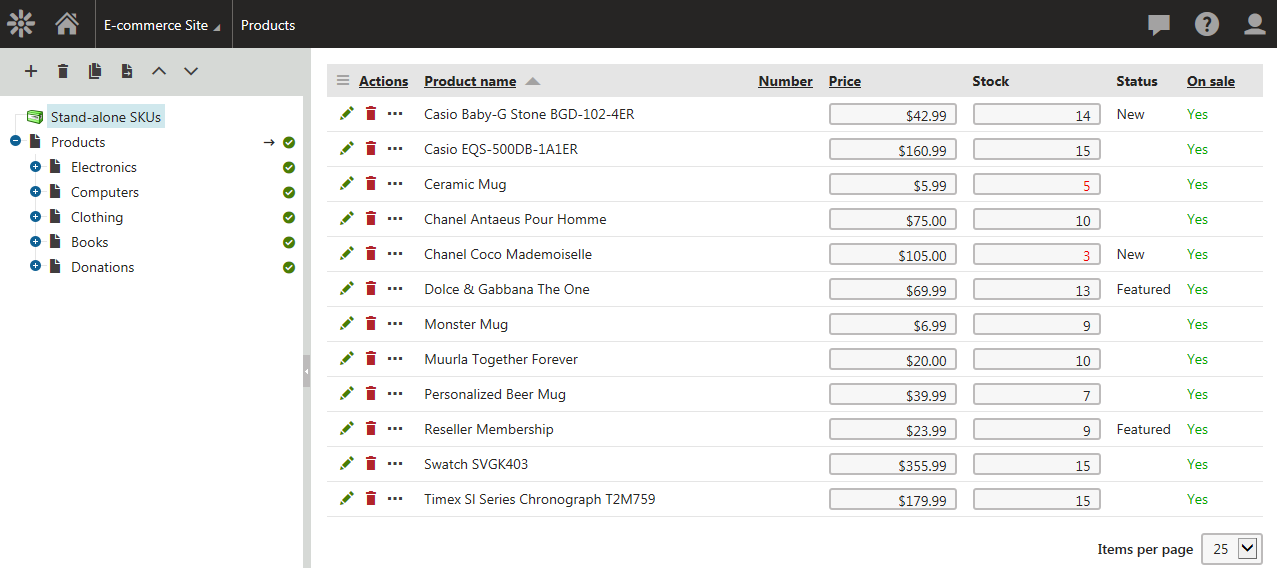
You can manage stand-alone SKUs in the **Products** application. If they are allowed on the current site, the system displays the **Stand-alone SKUs** node above the [product sections tree](https://docs.kentico.com/k81/e-commerce-features/configuring-and-managing-your-store/products.md#product-sections-tree). The node allows you to view a list of all product objects with unassigned product type pages defined on the current site.

You can add a new stand-alone SKU by clicking **New** () above the tree (if the **Stand-alone SKUs** node is selected). Properties of already defined stand-alone SKUs can be modified in a dedicated stand-alone SKUs user interface by clicking **Edit** () in the **Actions** column. You can also remove a stand-alone SKU from the system by clicking **Delete** ().

![Managing products - stand-alone SKUs list](https://docs.kentico.com/docsassets/k81/managing-stand-alone-skus/managing_products_sku_list.png "Managing products - stand-alone SKUs list")

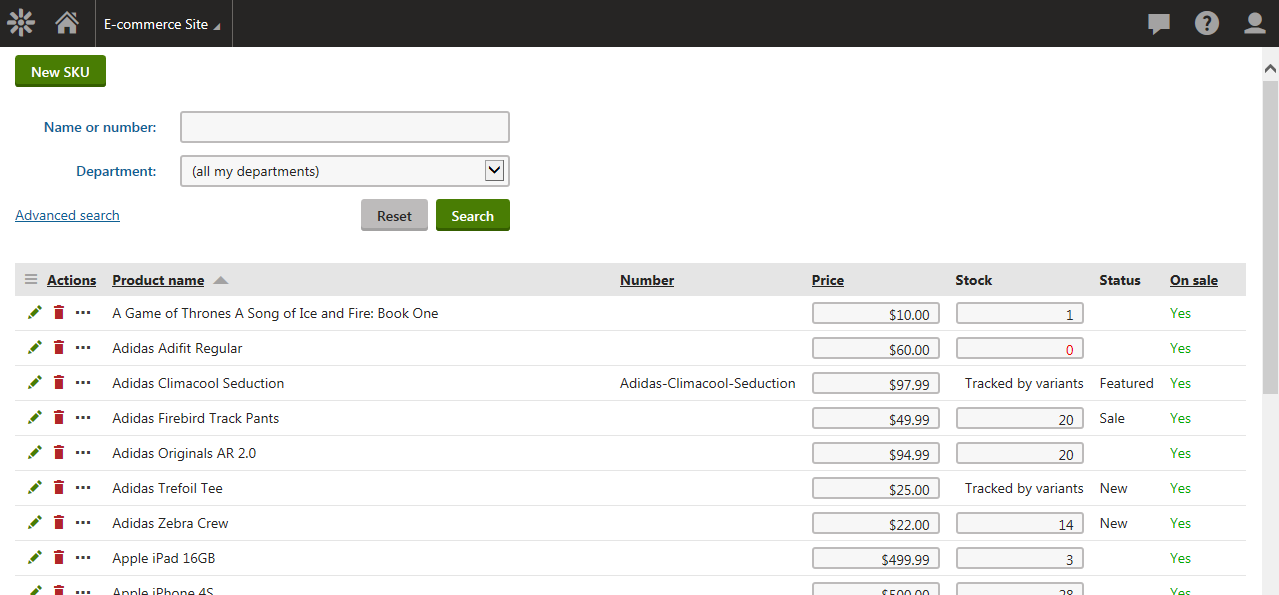
If the sections tree is hidden (see [E-commerce website settings](https://docs.kentico.com/k81/e-commerce-features/configuring-and-managing-your-store/e-commerce-website-settings.md)), the system lists in the **Products** application both stand-alone SKUs and SKUs with associated product type pages. You can add a new product object (SKU) by clicking **New SKU**.

![Managing products - products list (hidden sections tree)](https://docs.kentico.com/docsassets/k81/managing-stand-alone-skus/managing_products_sku_list_hidden_sections_tree.png "Managing products - products list (hidden sections tree)")

### Editing stand-alone SKUs

If you are editing an SKU, the system offers the following tabs to specify its properties:

- [General tab](https://docs.kentico.com/k81/e-commerce-features/configuring-and-managing-your-store/products.md#general-tab)
- [Tax classes tab](https://docs.kentico.com/k81/e-commerce-features/configuring-and-managing-your-store/products.md#tax-classes-tab)
- [Options tab](https://docs.kentico.com/k81/e-commerce-features/configuring-and-managing-your-store/products.md#options-tab)
- [Volume discount tab](https://docs.kentico.com/k81/e-commerce-features/configuring-and-managing-your-store/products.md#volume-discounts)
- [Pages tab](https://docs.kentico.com/k81/e-commerce-features/configuring-and-managing-your-store/products.md#pages)

  > **Note:** The **Pages** tab is available only for [global](https://docs.kentico.com/k81/e-commerce-features/configuring-and-managing-your-store/multisite-store.md) stand-alone SKUs. If a global SKU is not assigned to a page on a particular site, the Pages tab is empty.

> **Info:** The same tabs containing the same properties are available if you are editing a product (i.e. SKU + associated product type page).