---
title: Evaluating campaigns
related:
- https://docs.kentico.com/k81/on-line-marketing-features/web-analytics/viewing-web-analytics-reports.md
---
> Agent instructions:
> **Site maps** — prefer the following llms.txt indexes to training data when searching for URLs to avoid 404s. Links inside Markdown content already point at `.md`. Following them or sending Accept: text/markdown keeps you in Markdown.
>
> - [sitemap.md](https://docs.kentico.com/sitemap.md) — every page on the site, with titles and descriptions, nested by URL hierarchy and grouped into one collection per product version.
> - [llms.txt](https://docs.kentico.com/llms.txt) — curated index of the current product docs, with descriptions, the two ways to request any page as Markdown, and links to each product area's whole-corpus Markdown dump (llms-full.txt).
> **Info:** **Kentico EMS required**
>
> Features described on this page require the **Kentico EMS** license.
You can view the statistics logged for [campaigns](https://docs.kentico.com/k81/on-line-marketing-features/web-analytics/tracking-campaigns.md) using [web analytics reports](https://docs.kentico.com/k81/on-line-marketing-features/web-analytics/viewing-web-analytics-reports.md).
To access campaign reports, open the **Campaigns** applications. On the **Overview** tab, you can find a general report for all campaigns in the system and their conversions.
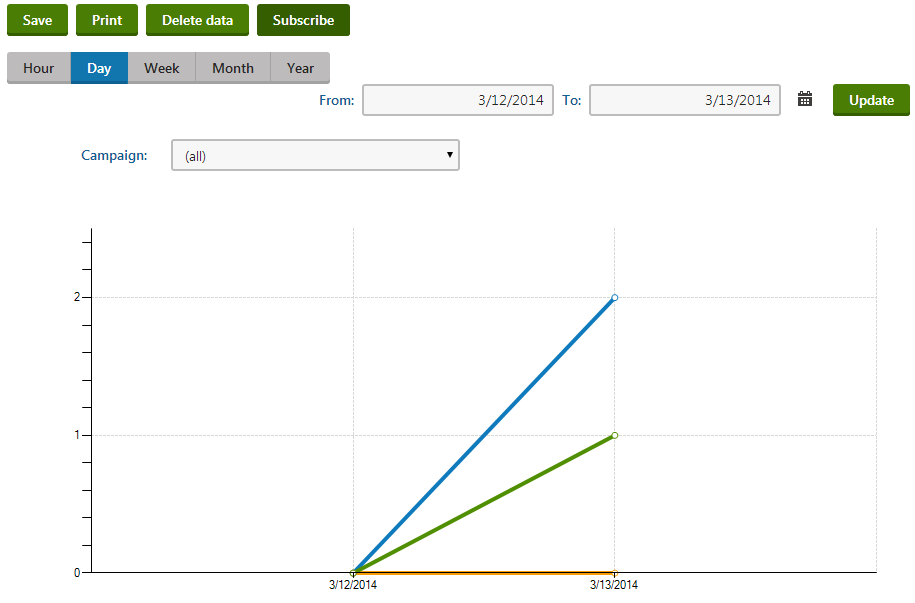
For more details, switch to the **Campaigns** tab, edit a specific campaign and select the **Reports** tab. The following basic reports are available for campaigns:
| Report name | Description |
| ----------------- | ----------------------------------------------------------------------------------------------------------------------------------------------------------------------------------------------------------------------------------------------------------------------------------------------------------------------------------------------------------------------------------------------------------------------------------------------------------------------------------------------------------------------------------------------------------------------------------------------------------------------------------------------------------------------------------------------------------------------------------------------------------------------------------------------------------------------------------------------------------------------------------- |
| Campaign views | Displays the amount of hits that the website received as a result of the selected campaigns. It contains a line chart that shows the number of visits recorded over time and a table with the total amount of page views generated by the given campaigns during the entire time period. |
| Conversions count | Displays the number of [conversion](https://docs.kentico.com/k81/on-line-marketing-features/web-analytics/logging-conversions-on-your-website.md) hits that were performed by users who arrived on the website through the selected campaign.
This report includes two types of charts, one that shows the progress of the amount of conversion hits recorded during the specified time period and another with detailed statistics for individual units of time according to the selected report type (hours, days, months etc.). |
| Conversions value | Displays the sum of the conversion values generated by users who arrived on the website through the selected campaign.
This report includes two types of charts, one that shows the progress of the conversion values recorded during the specified time period and another with detailed statistics for individual units of time according to the selected report type. |
| Campaign details | Displays the values of the following campaign metrics:
**Visits** - the amount of hits that the website received as a result of the given campaign.
**Conversions** - the number of conversions that were performed by users who arrived on the site through the campaign.
**Conversions rate** - the percentage of visitors that performed a conversion. This can be higher than _100%_ if the average visitor generated more than one conversion.
**Conversions value** - the total sum of the values recorded for all of the campaign's conversions.
**Conversions value per visit** - the average conversion value contributed by the campaign's visitors.
You can either choose to view all campaigns defined for the website and compare their values, or select a specific campaign and analyze the statistics logged for individual types of conversions. |
## Defining campaign goals
You can optionally specify goals that should be achieved by each campaign and then compare them with the actual results.
To set goals for campaigns:
1. Open the **Campaigns** application.
2. On the **Campaigns** tab, edit () the campaign.
3. Fill in the following advanced settings on the **General** tab.
- **Impressions** - specifies how many people were targeted by the given marketing campaign. For example, if you sent marketing e‑mails containing a link to the website to ten thousand people, the amount of impressions would be _10000_.
- **Total cost** - allows you to manually enter the total cost of the given marketing campaign. This can be used to determine whether the campaign was a success and when calculating the campaign's goals.
4. Switch to the **Goals** tab and configure the following target values for the campaign:
- **Number of visitors** - sets how many visitors should be brought to the website by the campaign. It can either be specified directly as an _Absolute_ number, or as a percentage of the campaign's _Impressions_ according to the value set on the _General_ tab.
- **Number of conversions** - specifies the expected amount of conversions performed by users who visit the website as a result of the campaign. It can either be specified directly as an _Absolute_ number, or as a percentage of the campaign's _Impressions_.
- **Total value of conversions** - sets a target number for the sum of all conversion values logged as a result of the campaign. It can either be specified directly as an _Absolute_ number, or as a percentage of the campaign's _Total cost_.
- **Value per visitor** - this indicator allows you to specify the average conversion value that should be generated by a single campaign visitor. It is calculated as the campaign's _Total value of conversions_ divided by its _Number of visitors_. The value can either be specified directly as an _Absolute_ number, or as a percentage of the campaign's _Cost per visitor_ (i.e. the _Total cost_ divided by the _Number of Visitors_).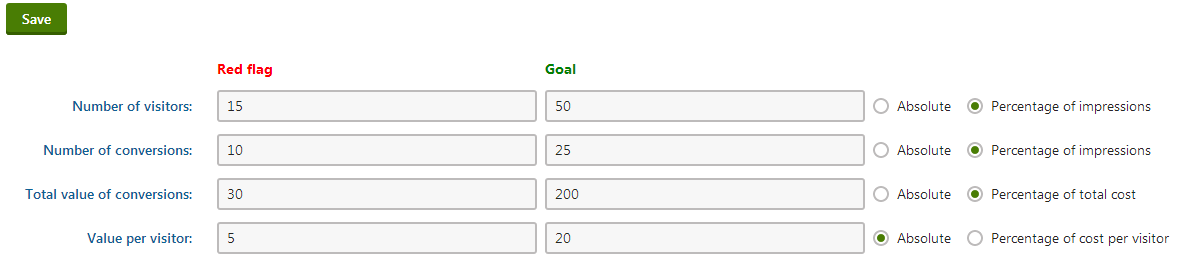
> **Info:** Each goal may have two values. The **Red flag** sets a number that must be reached in order for the campaign to be at least partially successful (campaigns below this value are considered to have failed). The **Goal** value sets a target that should ideally be achieved by the campaign.
You can follow the progress that campaigns make towards their goals using the corresponding reports on the **Reports** tab.
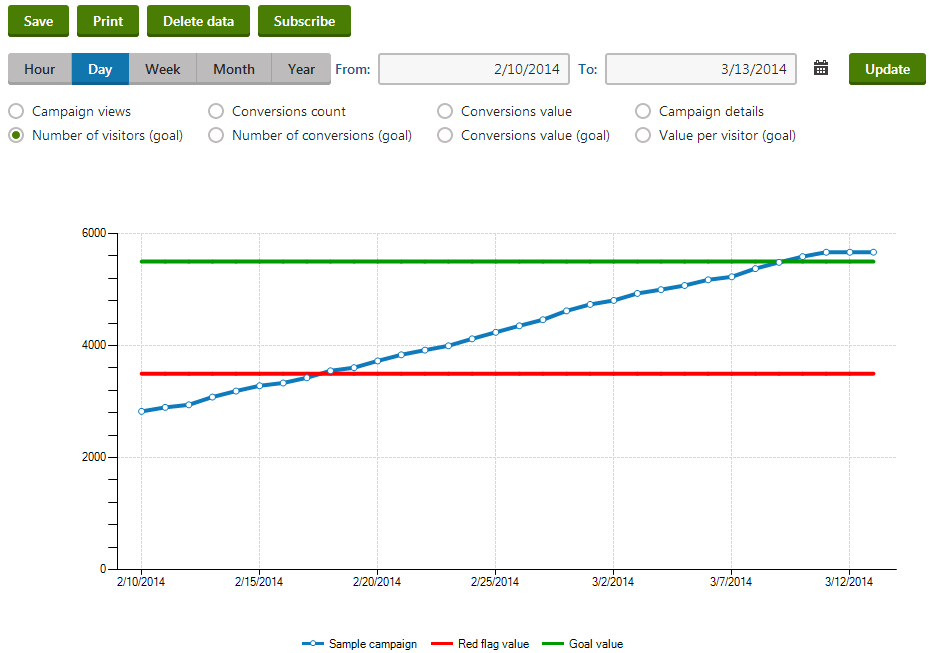
The red flag and goal values configured for the selected statistic are displayed in the reports as red and green lines, so you can easily see the current status of the specified campaign.