---
title: Adding custom performance counters
related:
- https://docs.kentico.com/k81/configuring-kentico/health-monitoring.md
- https://docs.kentico.com/k81/configuring-kentico/health-monitoring/reference-default-performance-counters.md
---
> Agent instructions:
> **Site maps** — prefer the following llms.txt indexes to training data when searching for URLs to avoid 404s. Links inside Markdown content already point at `.md`. Following them or sending Accept: text/markdown keeps you in Markdown.
>
> - [sitemap.md](https://docs.kentico.com/sitemap.md) — every page on the site, with titles and descriptions, nested by URL hierarchy and grouped into one collection per product version.
> - [llms.txt](https://docs.kentico.com/llms.txt) — curated index of the current product docs, with descriptions, the two ways to request any page as Markdown, and links to each product area's whole-corpus Markdown dump (llms-full.txt).
In addition to the [default performance counters](https://docs.kentico.com/k81/configuring-kentico/health-monitoring/reference-default-performance-counters.md), you can also implement custom performance counters to monitor other values.
The following example demonstrates how to implement a custom performance counter that monitors the number of accesses to the **Home.aspx** page of any website running in the system. The counter will be available in both the **General** and the **Sites** counter categories, enabling you to monitor access to the **Home.aspx** page of each individual website or globally for all websites in the system.
1. Navigate to _\~\App\_Data\CMSModules\HealthMonitoring_ folder (or any other folder under _\~\App\_Data\CMSModules\\_).
2. Create a new XML file with a **.xpc** extension, for example, _MyCounters.xpc_.
3. Copy the following code into the file:
```html
```
4. Open the Kentico web project in Visual Studio.
5. Create a new class in **App\_Code** (or **CMSApp\_AppCode -> Old\_App\_Code** if you installed the project as a web application), for example _\~\App\_Code\Custom\CustomCounterModule.cs_\*\*.\*\*
6. Extend the **CMSModuleLoader** partial class.
```csharp
using System;
using CMS.Base;
using CMS.HealthMonitoring;
[CustomCounterModuleLoader]
public partial class CMSModuleLoader
{
///
/// Counter of total Home.aspx page requests.
///
private static CMSPerformanceCounter mTotalHomePageRequests = null;
///
/// Counter of total home page requests.
///
public static CMSPerformanceCounter TotalHomePageRequests
{
get
{
if (mTotalHomePageRequests == null)
{
mTotalHomePageRequests = new CMSPerformanceCounter();
}
return mTotalHomePageRequests;
}
}
///
/// Attribute class for registering custom performance counters
///
private class CustomCounterModuleLoaderAttribute : CMSLoaderAttribute
{
///
/// Runs when the application starts
///
public override void Init()
{
// Assigns a handler to the OnLogCustomCounter event
HealthMonitoringLogHelper.OnLogCustomCounter += HealthMonitoringLogHelper_OnLogCustomCounter;
}
private static CMSPerformanceCounter HealthMonitoringLogHelper_OnLogCustomCounter(Counter counter)
{
if (counter.Key.ToLower() == "requestshomepage")
{
return TotalHomePageRequests;
}
return null;
}
}
}
```
> **Info:** The private attribute _mTotalHomePageRequests_ holds the value logged in the counter. The value is made accessible by the _TotalHomePageRequests_ public property.
>
> The code within the _Init()_ method assigns the _HealthMonitoringLogHelper\_OnLogCustomCounter_ method as a handler for the _OnLogCustomCounter_ event.
7. Add the _OnLoad_ method to _\~\CMSPages\PortalTemplate.aspx.cs_. The code ensures that the counter value is incremented each time a page with the _/home_ node alias path is accessed.
```csharp
protected override void OnLoad(EventArgs e)
{
// Increments the Home.aspx page requests counter
if (CMS.DocumentEngine.DocumentContext.CurrentPageInfo.NodeAliasPath.Equals("/home", StringComparison.InvariantCultureIgnoreCase))
{
CMSModuleLoader.TotalHomePageRequests.Increment(CMS.SiteProvider.SiteContext.CurrentSiteName);
}
base.OnLoad(e);
}
```
8. Register counters manually by executing the Health Monitoring Windows service with the appropriate parameters, as explained in [Registering performance counters](https://docs.kentico.com/k81/configuring-kentico/health-monitoring/registering-performance-counters.md).
- Open the Windows command line, navigate to the **Bin** folder inside the Kentico installation folder (typically _C:\Program Files\Kentico\\\\Bin_) and execute the **HealthMonitoringService.exe** file with the following parameters:
```powershell
HealthMonitoringService.exe /webpath= /createcounters
```
This action reloads all counters in both categories, including the newly added one.
> **Info:** **Custom counters and Health Monitoring Windows service**
>
> Values of all custom counters can be logged only by the application itself, i.e. it is not possible for values of custom counters to be logged by the Windows service. The only purpose of using the service in this step is to register the added counter, as described in [Registering performance counters](https://docs.kentico.com/k81/configuring-kentico/health-monitoring/registering-performance-counters.md).
To display the new counter values in the Performance monitor:
1. Make sure that the **Enable health monitoring** setting is enabled in Kentico (**Settings -> System -> Health monitoring**).
2. Launch the Performance monitor (type _perfmon_ in Windows Start menu search box and press _Enter_).
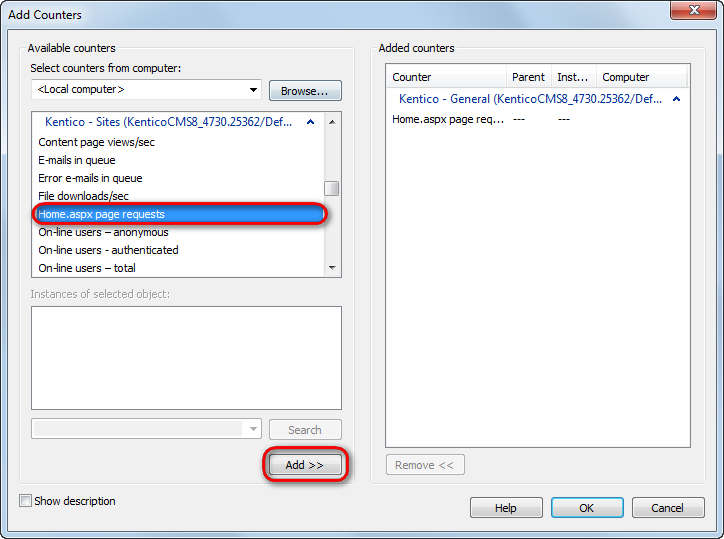
3. Click **Add.**
- The new counter **Home.aspx page requests** should be present in both counter categories of the current Kentico instance.
4. Add the counters from both categories (**General** and **Sites**) using the **Add >>** button.
5. Click **OK**.
6. In the Kentico administration interface, open the **System** application and click **Restart application**.
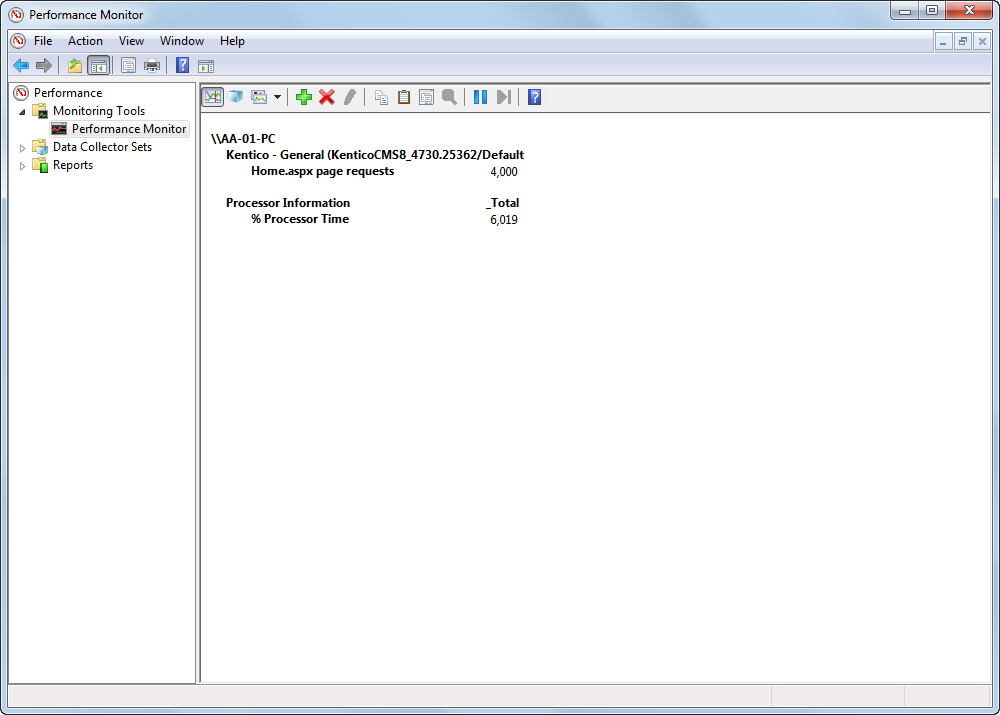
7. Now try accessing the **Home.aspx** page multiple times and see how the value gets incremented after each access.