
Generate and refine email content with AIRA
The sample scenario in this material was prepared using our sandbox environment, Kbank. If you’d like to follow along, you can request the demo website here, choosing the Xperience by Kentico - Business Tutorial Kbank demo site option.
AIRA helps you move from project context to a polished email copy faster, directly in supported email editing fields in Xperience by Kentico. Use it when you need a first subject line draft, a clearer body message, or a quicker way to polish copy before final review.
Think of AIRA as a writing assistant, ready to boost your usual email workflow. It can help you get past the blank field and make your copy sharper, but the final email still needs your judgment, review process, and final human checks before sending.
What this guide helps you do
Use AIRA to draft and improve your email copy directly in email editing fields:
- Generate a subject line and body draft from context.
- Use a custom prompt when you need more control over the output.
- Refine existing copy for clarity, brevity, tone, and conversion focus.
- Run a final QA check before sending your email.
Before you start
- Confirm that Content generation and refinements are enabled in AIRA configuration.
- Confirm that the subject/body text fields are configured for AIRA generation where applicable.
- Confirm that relevant context fields are populated.
- Optional: Confirm that tone guidance is configured in AIRA settings.
Start by adding context to improve AIRA content generation and refinement results. For example, include information in any of the context email fields, such as the project or campaign objective, target audience segment, offer details, deadline, or call to action.
If the context fields are left blank, generation from the current item into your target field will not work. In that case, you can still use a custom prompt in the AIRA chat window.
Sample scenario: a promotional email
Imagine you are sending a marketing webinar promotion email. You want to prepare your messaging efficiently, while staying true to your brand’s tone of voice. The brief you prepared for the email promotion reads:
- Audience: Existing newsletter subscribers interested in campaign optimization.
- Goal: Registration completions.
- CTA: “Reserve your seat”.
Email content generation and refinement workflow
With the scenario in place, let’s walk through the full workflow. You’ll generate email copy, refine portions of existing content, and review the final message before sending it out.
Prepare project context before generating email copy
AIRA works best when it has enough useful context to understand what the email is meant to do. Before you generate the subject line or the email body copy, add the information you would normally include in a short campaign brief:
- Who the message is for.
- What the offer is.
- Why it matters now.
- What action should the reader take.
For the webinar scenario, useful context could look like this:
- Audience: Existing subscribers interested in campaign optimization.
- Offer: A practical webinar about improving campaign performance.
- Value: Learn how to reduce manual work and make campaign execution more focused.
- CTA: Reserve your seat.
- Tone: Clear, helpful, confident, and easy to scan.
Context is often the first and easiest thing to revisit if your generated results feel too generic.
Generate subject and body drafts in empty fields
When a supported field is empty, use the Generate content action marked with the AIRA button to create a first draft. AIRA can help you fill fields such as the email subject line, preview text, or body copy, depending on how your project is configured.
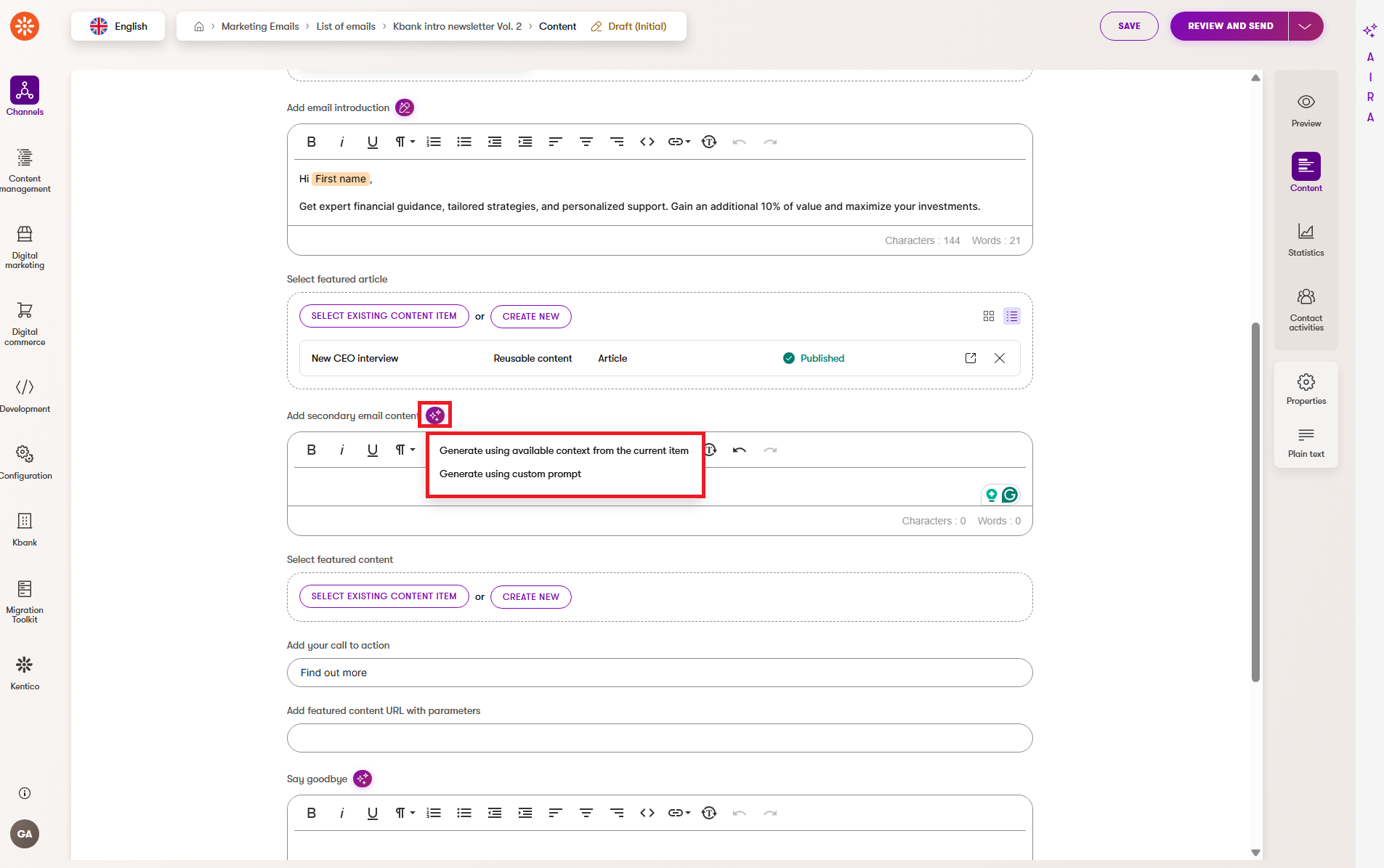
You usually have two useful ways to generate content – either by using context from the current item, or the custom prompt option.
Generate using available context from the current item
Use this option when the email already contains relevant content fields that AIRA can use for context.
- Select the empty field where you want to generate content.
- Select the AIRA button to open Generate content.
- Select the option that uses available context from the current item.
- Review the generated draft in the field.
This is the quickest option when the email or related content item already contains the core project context. AIRA uses the field purpose, configured field instructions, available context fields, and tone guidance where available.
For more details about this option, see generating a first draft from an empty field in the website content guide.
Generate using a custom prompt
Use a custom prompt when you want to give your instructions to AIRA more directly, or when the available context is not detailed enough to guide the AI writing assistant.
- Select the empty field where you want to generate content using a custom prompt.
- Select the AIRA button to open Generate content.
- Select the custom prompt option.
- Describe what you want AIRA to create.
- Review the generated text and copy it into the target field if needed.
Custom prompts are helpful when you need a specific structure, a strict length, several alternatives, or a particular angle.
For more details, see using custom prompts for more precise editorial changes.
Review the first email draft before refining
After you generate the first draft, include a quick editorial check before you spend time polishing the copy.
Ask yourself:
- Does the subject line match the real offer?
- Does the email body copy speak to the right audience?
- Is the main value clear in the opening?
- Is there one obvious CTA?
- Is anything important missing or inaccurate?
If the direction is useful, move to refinement. If the core message is not the direction you are looking for, improve the context or regenerate the draft.
Regenerate when the message direction is wrong
When a field already contains text, you can use the Refine text action, marked with the AIRA button, and select one of the refinement options.
Regenerate content is most useful when the current draft is not a good starting point. This is useful when the copy has the wrong focus, misses the offer, uses the wrong tone, or would take too much manual editing to fix.
Regeneration completely replaces the existing text in the field, so use it carefully. You can, however, still return the email draft to its state before you introduced AI-powered updates if you click out of the draft without saving the changes.
Good reasons to regenerate include:
- The subject line does not match your email goal.
- The body copy focuses on the wrong benefit.
- The message sounds too generic.
- The CTA does not fit the campaign.
- The structure is not suitable for an email.
A simple rule helps here: regenerate when the core idea is wrong, refine when the idea is right but the wording needs work.
For a deeper explanation, see when to regenerate a draft.
Refine the subject line
When the field already contains text, you can use the AIRA button to open Refine text and choose from available refinement options.
Use refinements when the copy is close, but not quite ready. In the case of a subject line, you can refine for:
- Clarity over cleverness.
- Strong value signal.
- Reasonable length for inbox visibility.
- Natural wording.
- Alignment with the body copy.
For example, if the subject line is too long, use Make it shorter. If it sounds stiff or unclear, use an option such as Improve writing, Improve clarity, or Improve spelling and grammar, depending on the refinements available in your project.
As with generation, you can also use a custom prompt for the refinement step. An example of such a prompt would be: Create 5 clearer subject line alternatives. Keep the webinar offer, focus on campaign performance, and keep each option under [X] characters.
Refine the email body copy
Use AIRA refinements when the main message is right, but the email needs polishing.
Common refinement options can help you:
- Make the text shorter.
- Improve writing and readability.
- Improve spelling and grammar.
- Simplify language.
- Make the wording feel more natural.
- Strengthen the CTA without changing the main message.
For email copy, a practical refinement flow could look like this:
- Use Make it shorter if the message feels too long for an email.
- Use Improve writing or a similar refinement if the copy sounds rough or unclear.
- Use Improve spelling and grammar before final review.
- Use a custom prompt if you need a more specific change, such as stronger CTA wording or a friendlier tone.
- Make final manual edits to protect accuracy, brand voice, and compliance wording.
For more details about whole-field refinements, see refining existing copy in the whole field.
Refine selected text in rich text email fields
If partial text editor refinements are enabled for the email content fields, or for Email Builder rich text field widgets, you can refine selected pieces of email content, instead of rewriting the whole field.
This is useful when most of the email is already good, but one section needs extra work. For example, you might refine only the opening paragraph, or the benefit section, or a call to action in a rich text widget.
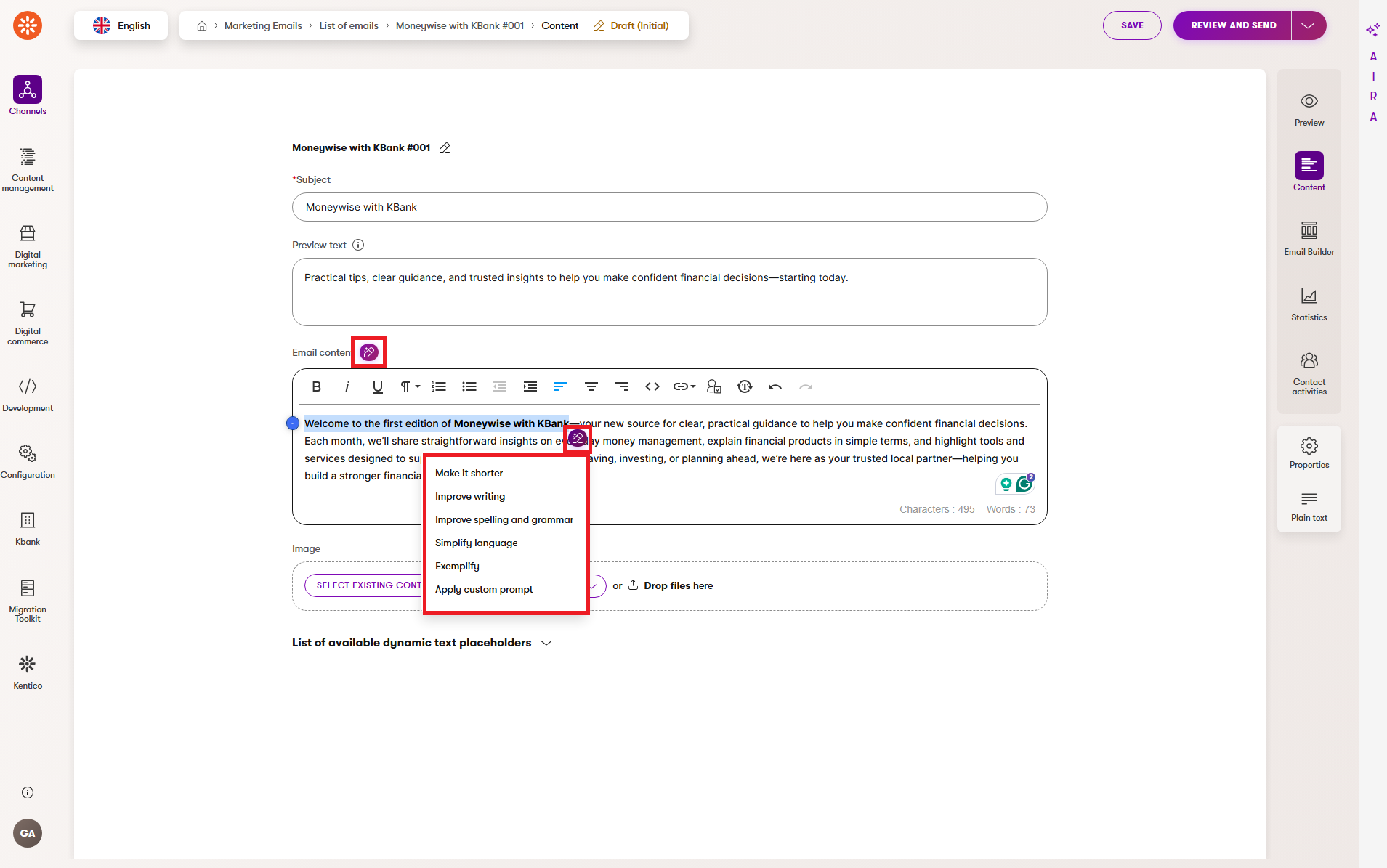
Use partial refinements when you want to:
- Shorten one paragraph.
- Make one sentence clearer.
- Improve the CTA section.
- Fix wording without changing the rest of the email.
- Keep the approved parts of the message untouched.
For more details, see refining only part of the text in rich text fields.
Copy-ready prompts for email content generation and refinement
Use the prompts below to kick‑start your project. Replace the bracketed placeholders with your own content, then use the provided prompts as-is, or customize them as needed. Adjusting and refining prompts over time will help you get the most value from them.
Subject options
Create 10 subject line options for [audience] promoting [offer]. Prioritize clarity and value. Avoid clickbait. Keep each under [X] characters.
Email body draft
Write a concise marketing email for [audience] promoting [offer]. Include: short opening, 2 benefit bullets in sentence form, and one clear CTA.
Tone adjustment
Refine this email to sound more [professional/friendly/direct] while keeping the same core message and CTA.
Brevity pass
Shorten this email by about 25% while keeping all critical information and the same CTA.
CTA optimization
Rewrite this closing section to make the action more specific and urgent without sounding pushy.
Refinement example: from rough draft to improved email copy
Returning to our sample scenario, let’s see how a rough draft of a campaign email can be improved and polished using AIRA refinements.
Before using AIRA-powered refinements
Subject:
“Exciting Opportunity to Learn About Next-Level Marketing Improvements”
Body opening:
“We are pleased to announce an informative webinar session that could help your team potentially improve many aspects of campaign execution and performance.”
CTA:
“Click here”
After using AIRA-powered refinements
Subject:
“Webinar: Improve campaign performance in 30 days”
Body opening:
“Join our webinar to learn practical ways to improve campaign performance with less manual work.”
CTA:
“Reserve your seat”
Why the refined email copy works better
- Stronger value in fewer words.
- Easier to scan.
- Clearer call-to-action.
- Better alignment to the conversion goal.
Known generation and refinement limitations
To improve your results, give AIRA clear project context before generation, use refinements when the main idea is right, and keep the final approval process in the hands of your team. Last but not least, look out for the following limitations that are easy to navigate around when you’re aware of them:
- Output quality is context-dependent.
- Suggested length may still need manual trimming.
- Regeneration and refinements can overwrite existing field content.
- Brand, legal, and factual checks remain human responsibilities.
This is especially important for email copy that includes dates, claims, legal language, pricing, or audience-specific promises.
If your project supports preview context for generation, relevance can improve. Keep the same QA and approval process regardless.
Quick checklist before you hit the “Send” button
Use this list of final human checks before you send an email that was generated or refined with AIRA.
- The subject line is clear and specific.
- The first sentence of the message states the core value quickly.
- The email body is concise and scannable.
- One primary CTA is used and is clearly prominent.
- All links, dates, offers, and claims are accurate and verified.
- The email content is approved for tone, compliance, and relevancy to your audience.
- The final version of the draft is saved before sending.
Treat the generated email text as a draft. Always run final editorial and approval checks before sending.
Wrap-up on email content generation
AIRA can make email drafting feel less like starting from a blank page and more like shaping a useful first version. Prepare the context, generate the first email draft, refine the parts that need polishing, and then give the final message a careful human review.
Used this way, AIRA helps you create clearer email content faster while keeping accuracy, brand fit, and final decisions with your team.
Next steps with AIRA
Eager to get more out of AIRA’s AI-powered capabilities?
- Explore a set of specialized AI agents with AIRA Agentic Marketing Suite.
- Or browse our AIRA-related documentation to uncover and leverage its full potential.